79
If an application is running, the “System Running” panel will display in green. In order to run diagnostics,
you must stop the application from running. Click “Stop Application” and then “Perform Operation”. This
will stop the application from running. You should click the “Disable Power” button to be sure motor
power is off. If you need to load a new project (for example CAL_PP) you will need to click on “Unload”
and then “Perform Operation” before you can load the new project into RAM.
You may now perform the procedures below.
Loading a Project (Program) or Updating PAC Files
If CAL_PP or a different program needs to be loaded into the controller from an external computer, this
may be done using the Web Interface.
1. In the Web Based Operator Interface, select “Utilities/Backup and Restore
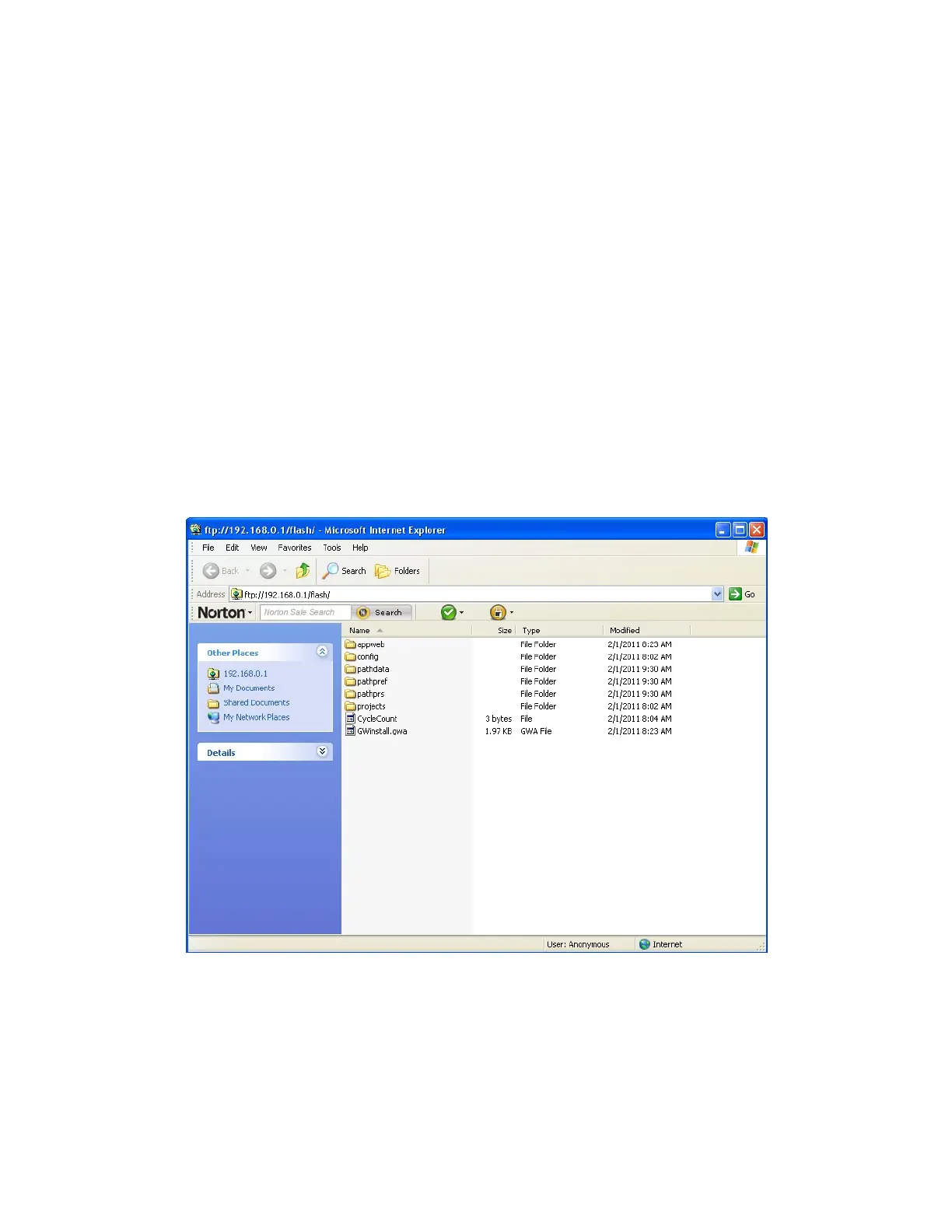
2. Click on Start File Manager. It may be necessary to hold down the Control Key to allow the pop-
up. An ftp directory pop-up will come up. In the “Page” menu in Windows Internet Explorer select
“Open ftp site in Windows Explorer”. Another window will open showing several folders, including
“Config” and “Projects”.
3. To load a Project, Open the “Projects” folder and paste the Project folder into this area. There
may be several other projects (programs) loaded into this folder, which is stored in flash ram in
the controller. A project folder is a software folder than may have several files inside it. You must
load the entire folder, not just the files inside.
4. To load or update PAC files, open the “Config” folder and paste a backup copy of the PAC files
into the “Config” folder. These files will all have a .pac extension. The robot must be re-booted
after new PAC files are installed for them to take effect.



 To Next Page