Optimizing Print Quality
57
Optimizing Print Quality
LP+, IGP/PGL, and IGP/VGL Emulations
You can optimize print quality for darker and sharper barcodes and
characters. Doing so, however, will decrease the printer speed.
To optimize print quality, you can change the values of the following
configuration parameters:
• Bar Code Quality (Printer Control menu): Select “Dark” or
“Recommended.” Recommended prints the darkest images, but at the
slowest speed. Dark prints at a faster speed than Recommended, but the
characters are not as dark. (See
page 219 for a written description of Bar
Code Quality.)
• Print Quality (IGP/PGL emulation): Select “Best” or “High.” Best prints
the darkest images, but at the slowest speed. High prints at a faster
speed than Best, but the characters are not as dark. (See
page 177 for
the IGP/PGL Configuration Menu, and see page 186 for a written
description of Print Quality.)
• Print Quality (IGP/VGL emulation): Select “High.” (See page 190 for the
IGP/VGL Configuration Menu, and see page 197 for a written description
of Print Quality.)
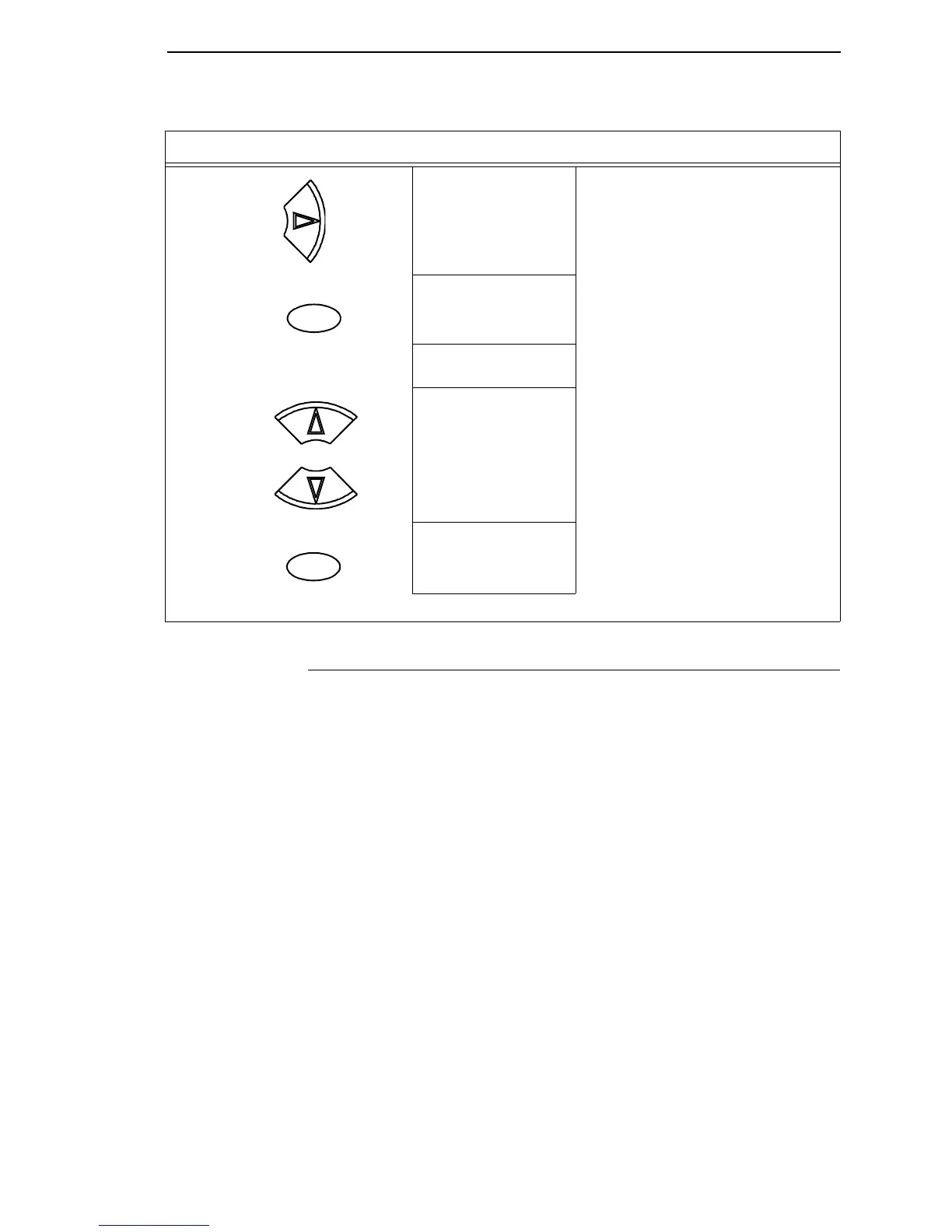
22. Save Config.
TEST
TEST now appears as one of configuration
choices.
23. Saving Configuration
Save Config.
TEST*
Your configuration is saved as TEST.
24. ENTER SWITCH
LOCKED
Locks the ENTER key.
25. ONLINE
Ribbon Life = 100%
Now you have the saved configuration for later use if needed.
Step Press LCD Notes
ENTER
+
ON LINE/CLEAR











 To Next Page