28
CONNECTIONS
COMPONENT
VIDEO
S
V
R
L
DVD PLAYER
OUT
Line Level Audio/
Composite Video
From DVD Player
To M80
M80
DVD Player
Line Level Audio/
Composite Video OUT
Stereo Audio/Video
Patch Cable
M80
Analog Audio 1 IN
M80
Composite Video 1 IN
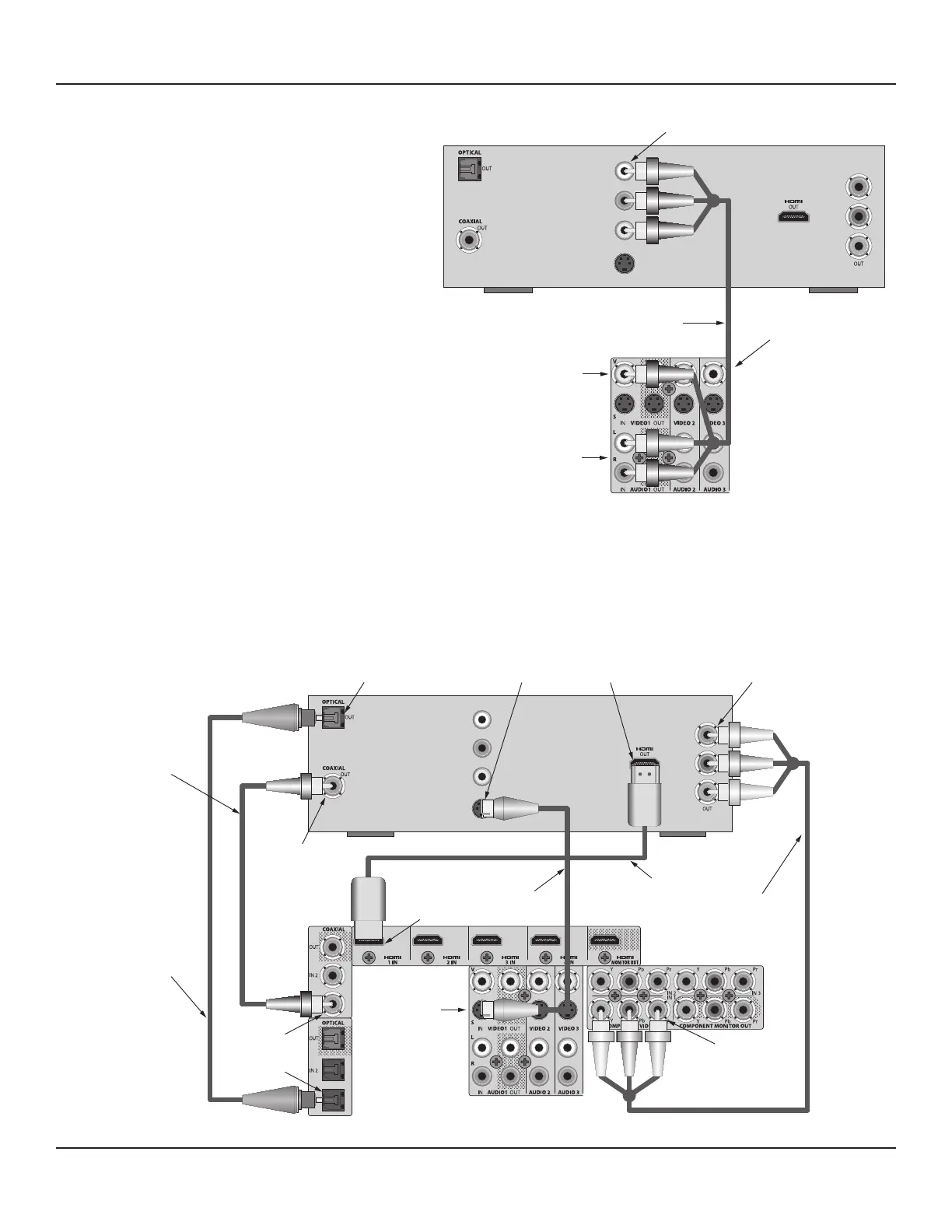
Diagram 11 Audio/Video 1, 2 & 3 In Connections (Default)
Audio/Video 1, 2 & 3 In Connections (Default)
Connect a Blu-ray Disc Player, DVD Player, Satellite
Receiver, Cable Box, Video Game or other audio/video
playback device to the Audio/Video 1, 2 or 3 Inputs on
the M80 Rear Panel as shown in Diagram 11.
These connections allow playback of the A/V sources
connected to these inputs. The analog line level audio
signals received at these inputs will be output at the
Audio 1 OUT, Audio 5 OUT, Zone 2 OUT and Zone 2 PRE-
OUT L & R analog line level audio jacks. The composite
video signal will be output through the HDMI Monitor
OUT as well as the Video 1 OUT and Zone 2 Composite
Video jacks. See Section: Audio/Video 1, 2 & 3 In Con-
nections (Option) for information on optional connec-
tions.
These connections match the Source Setup input de-
fault settings for this source, so no additional congura-
tion is required with these connections.
1. Using a stereo A/V patch cable with gold ends, con-
nect the L&R line level audio OUT of the source to
the L & R Audio 1 IN on the M80. Connect the com-
posite video OUT of the DVD Player to the Video 1
Composite IN on the M80.
2. Repeat Step 1 to connect additional A/V devices
to the Audio/Video 2 & 3 Inputs using the Analog
Audio 2 &3 and Composite Video 2 & 3 Inputs.
COMPONENT
VIDEO
S
V
R
L
DVD PLAYER
OUT
Component Video
Cable
HDMI Cable
S-Video Cable
M80
Digital Optical Audio
Cable
Digital Coaxial Audio
Cable
DVD Player
S-Video OUT
DVD Player
Optical Audio OUT
DVD Player
Coaxial Audio OUT
DVD Player
HDMI OUT
DVD Player
Component Video OUT
M80
Component Video IN 1
M80
S-Video 1 IN
M80
Optical Audio IN 1
M80
Coaxial Audio IN 1
M80
HDMI 1 IN
Diagram 12 Audio/Video 1, 2 & 3 In Connections (Option)
Note: Source composite video will output from the HDMI Monitor OUT
with the ‘Resolution to Display’ setting in Source Setup set to any reso-
lution other than 480i. Source composite video inputs can be output on
the Composite, S and Component Monitor OUTs, but the Resolution to
Display setting will need to be changed to lower resolution settings in
the Source Setup. The ‘Auto’ setting should always be tried rst.


 To Next Page