81
OPERATING THE M80
Listening Mode Setup
Listening Mode
Dolby Setup
DTS Setup
Diagram 114 Listening Mode - DTS Setup
< >
DTS Setup
NEO:6 Music
CenterGain
Dolby Pro Logic II Music
Center Width
Dimension
Panorama
Main
PLII Music
0.2
None
3
0
O
Diagram 115 DTS NEO:6 Music Center Gain
< >
Dolby Setup
Dolby Digital
Dyn Range Ctrl
Dolby Pro Logic II Music
Center Width
Dimension
Panorama
Main
PLII Music
100%
None
3
0
O
Diagram 113 Dolby PLII Panorama
Panorama - This setting creates a deeper or shallower
surround soundeld. The Dolby default is O. Setting
Panorama to On, creates a more open, ambient mix,
while the O setting is a more dry mix. Diagram 113
DTS Setup
This setting allows adjustment of the Center Gain level in DTS
NEO:6 Music mode.
DTS NEO:6 Music Center Gain - This setting will adjust
the presence of vocals in a NEO:6 Music mix. NEO:6 Music
is often applied to un-encoded content so there is no
encoded reference to center and surround channel levels.
Dierent two channel (stereo) mixes will create varying
results when processed with NEO:6 Music. The DTS default
is 0.2. Setting a higher number will increase the center
channel level and typically bring vocals up in the mix. As
a result, the surround mix will appear to move toward the
front and sound a little more dry. Setting a lower number
will decrease the center channel level and typically reduce
the ‘focus’ of the vocals. As a result, the surround mix will
appear to move toward the rear and sound more open
and ambient. Diagram 115
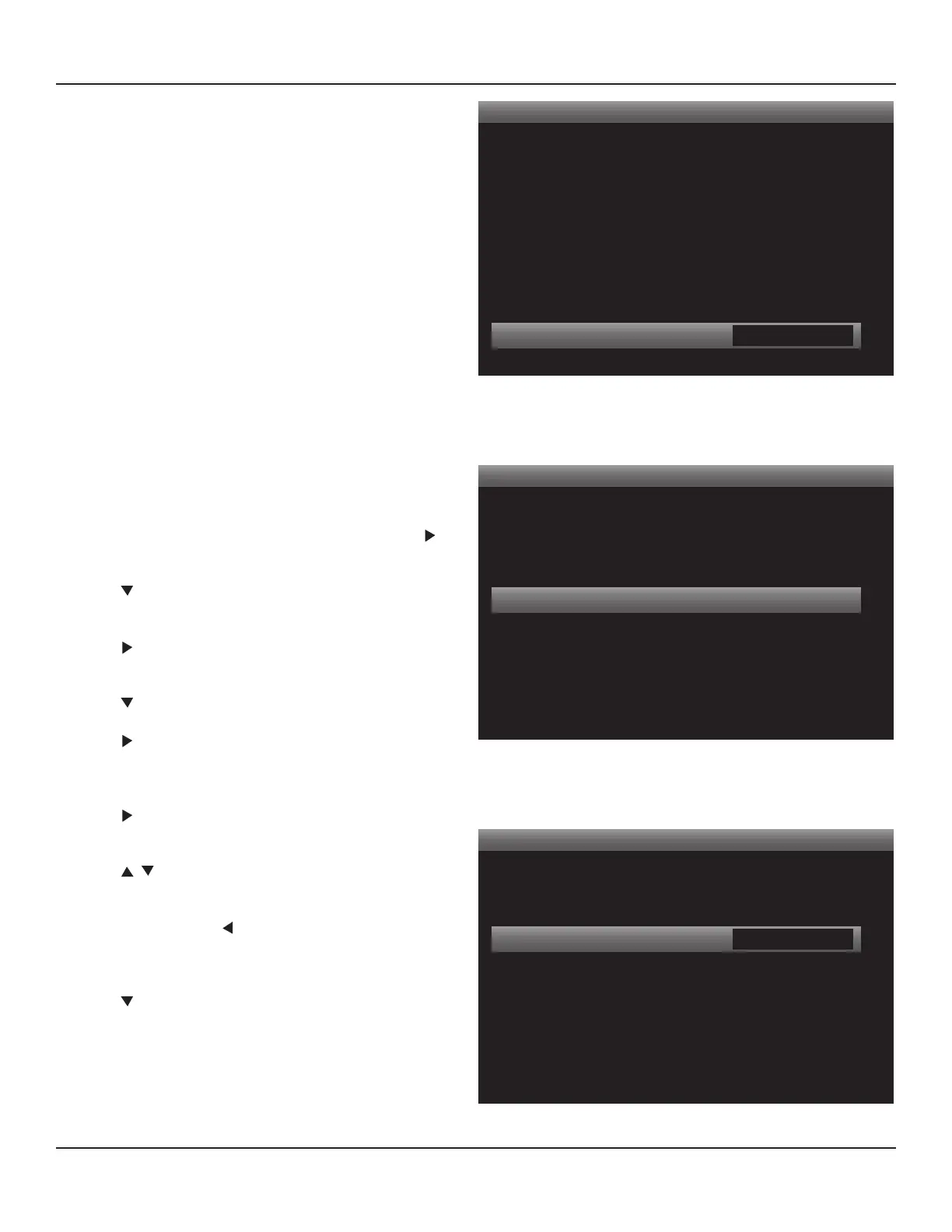
To adjust Dolby and DTS Setups:
1. With the OSD open, and Setup Menu selected, press .
Source Setup will highlight in the Setup List.
2. Press four times so Listening Mode Setup is highlighted
in the Setup List. Diagram 101
3. Press . The Listening Mode Setup Menu will appear.
Listening Mode will be highlighted. Diagram 102
4. Press . Dolby Setup will be highlighted. Diagram 109
5. Press . The Dolby Setup Menu will appear. Dynamic
Range Control will be highlighted.
Dolby Digital Dynamic Range
6. Press . The Dynamic Range Control Window will be-
come active. Diagram 110
7. Press to select a Dynamic Range setting in 25% com-
pression increments.
8. When nished, press so the Dynamic Range Control
Window is no longer active.
Dolby Pro Logic II/IIx Music
9. Press so the Center Width line is highlighted. Diagram
111 Repeat Steps 6-8 above for Center Width, Dimension
and Panorama. Press Menu to exit the OSD when nished.
DTS NEO:6 Music
10. Follow Steps 4-8 above selecting DTS Setup in Step 4
(Diagram 114), and adjusting Center Gain in Steps 5-8
(Diagram 115). Press Menu to exit the OSD when nished.


 To Next Page