80
OPERATING THE M80
9. Press so the Surround line is highlighted. Diagram 105
10. Repeat Steps 1-9 for all sources until all modes for all
sources are set to the preferred Listening Modes. Press
Menu to exit the OSD when nished.
Note: If a Listening Mode is selected using the Surround
button on the M80 Front Panel or Remote while a source
is selected, that mode will become the preference for that
type of audio signal, for that source, and will appear on
the line indicating the type of audio input signal being
processed, for that source. The selection will remain in af-
fect for any other like input (digital or analog) and encod-
ing (Dolby/DTS), for that source, until changed. To retain
preference selections, do not change Listening Modes us-
ing the Surround buttons. Tuner and iPod Listening Modes
can only be selected by pressing the Surround button
while the Tuner or iPod is the selected source.
Dolby Setup
These settings allow ne tuning of Dolby Digital Dynamic
Range and the Dolby Pro Logic II/IIx surround mix. They are set
to Dolby reference at the factory and typically do not need to
be adjusted, but can be changed to user preference or listen-
ing conditions.
Dolby Digital
Dynamic Range Control - This setting will constrain the
overall dynamic range (the dierence between the loud-
est and quietest levels in an audio mix) for Dolby Digital
(all versions) and Dolby Stereo. There are a lot of variables
in a surround audio mix. Sometimes lowering the volume,
(late night listening), will cause some of the subtle nu-
ances of the surround mix to drop to levels that adversely
aect the surround eect. Adjusting the dynamic range
helps maintain the relation of these variables and pre-
serves the integrity of the surround mix - even at lower
volume. Adjusting dynamic range can also be helpful for
protecting speakers from particularly high transient levels
from content with explosive or other loud sound eects.
Diagram 110
Dolby Pro Logic II/IIx Music
These settings provide adjustment of three key elements
in the Pro Logic Music Mode.
Center Width - This setting adjusts the balance of
the main vocals in the Center and Front speakers.
The Dolby default is 3. Setting a higher number will
spread the vocals to the Front left/right speakers. Set-
ting a lower number will ‘focus’ the vocals to a narrow
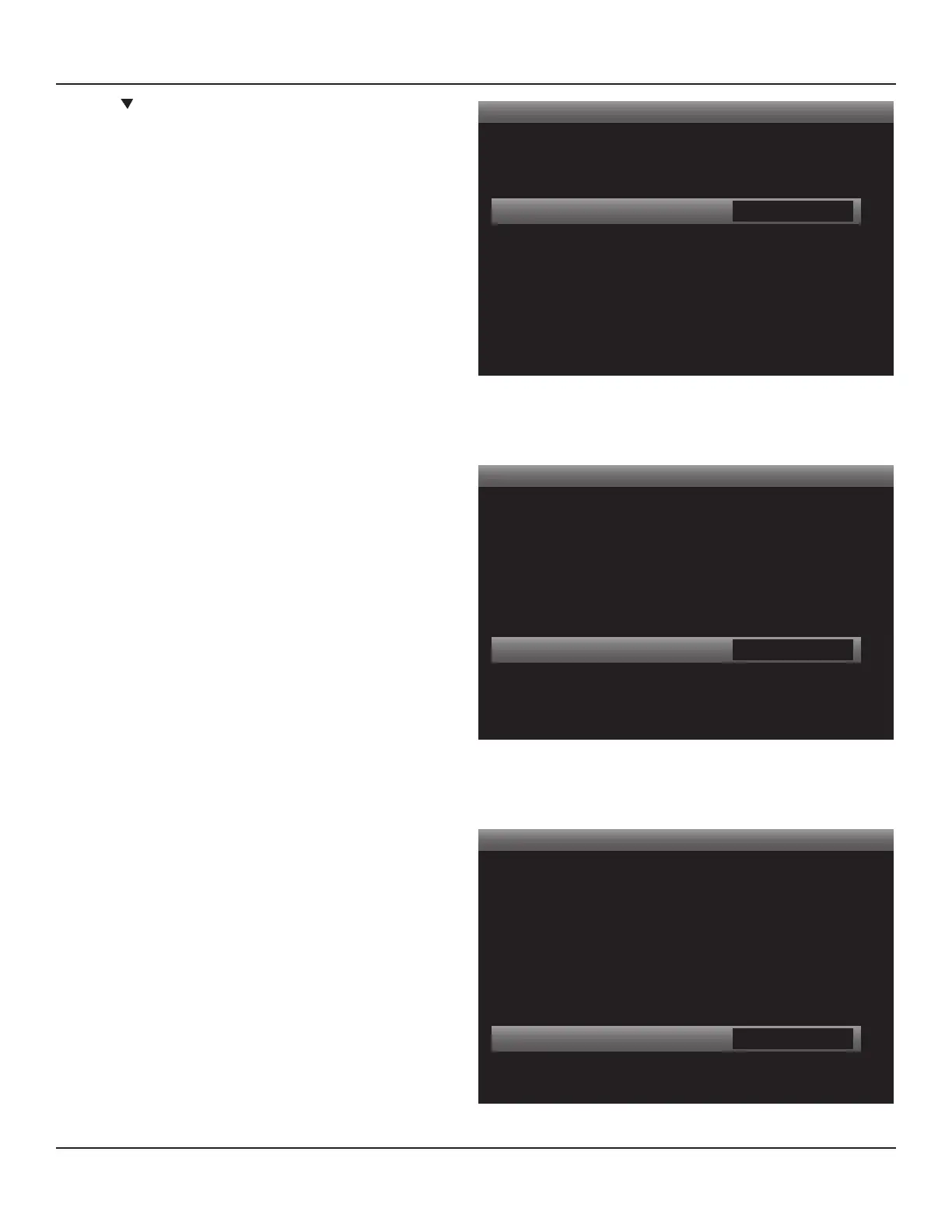
pan in the center. Diagram 111
Dimension - This setting adjusts the front to rear
balance of the surround eect. The Dolby default is
0. Setting a higher number will move the balance to-
ward the front speakers. Setting a lower number will
move the balance toward the rear. Diagram 112
< >
Dolby Setup
Dolby Digital
Dyn Range Ctrl
Dolby Pro Logic II Music
Center Width
Dimension
Panorama
Main
PLII Music
100%
None
3
0
O
Diagram 111 Dolby PLII Center Width
< >
Dolby Setup
Dolby Digital
Dyn Range Ctrl
Dolby Pro Logic II Music
Center Width
Dimension
Panorama
Main
PLII Music
100%
None
3
0
O
Diagram 112 Dolby PLII Dimension
< >
Dolby Setup
Dolby Digital
Dyn Range Ctrl
Dolby Pro Logic II Music
Center Width
Dimension
Panorama
Main
PLII Music
100%
None
3
0
O
Diagram 110 Dolby Digital Dynamic Range Control


 To Next Page