72
OPERATING THE M80
iPod
With an iPod connected to the M80 via a Procient Audio iPod
Dock (option, available separately), the iPod can be controlled
from and played through the M80. Typical iPod Menus and
metadata will be displayed in the Front Panel Display and in
an iPod OSD on the Main Room Video Display. iPod Menus are
navigated as is typical for iPod by using the M80 Front Panel
and Remote Cursor and OK buttons instead of the iPod Click
Wheel and Center button. Play, Pause and Track are controlled
with the iPod transport buttons on the M80 Remote.
Note 1: See section: Source Setup/iPod/iPod Dock for ad-
ditional information.
Note 2: iPod metadata is not displayed in Zone 2.
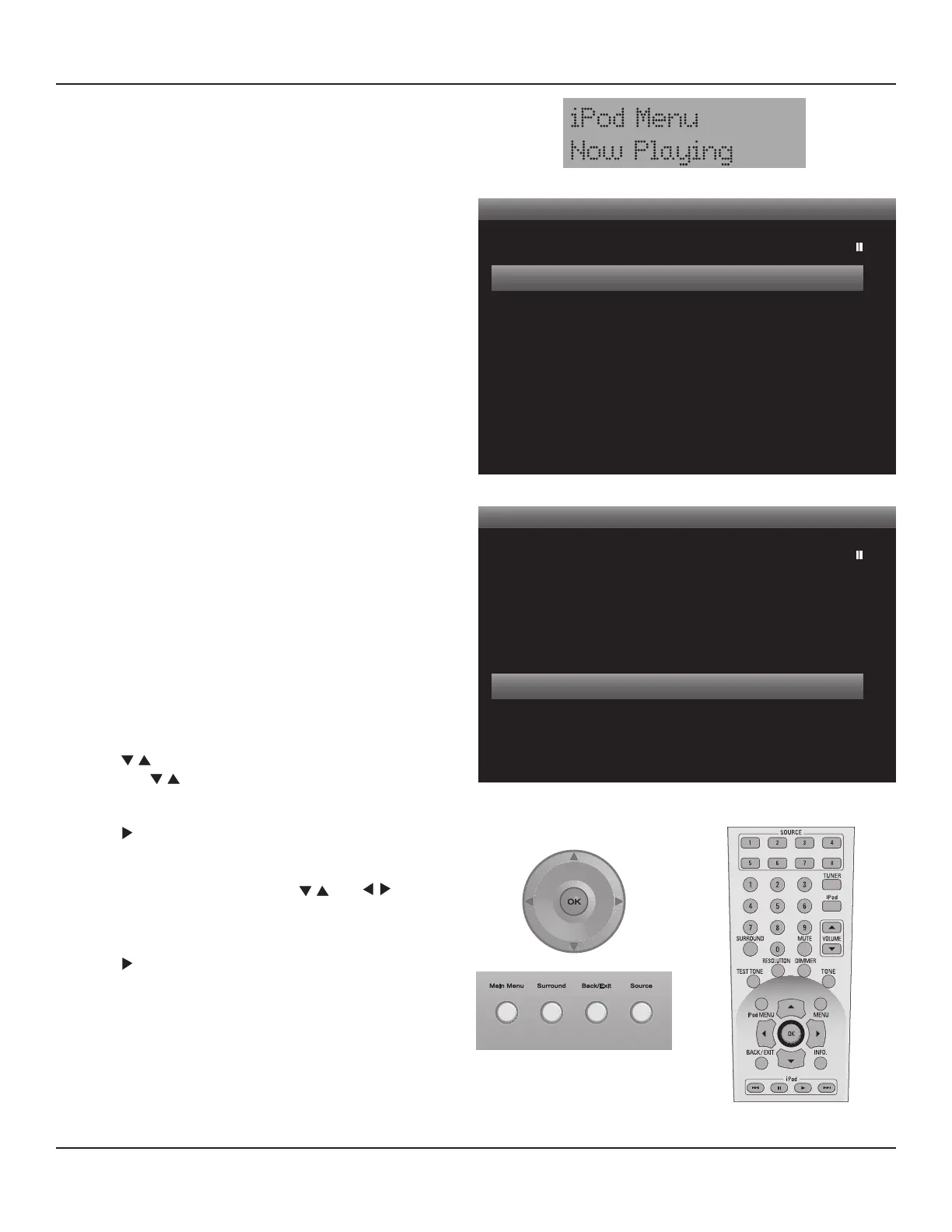
Select iPod
1. Press the Source 4 or iPod button on the M80 Remote
or repeatedly press the Source button on the M80 Front
Panel. The M80 iPod Main Menu (Playlists) will appear in
the OSD. Now Playing will be highlighted by default and
will appear in the Front Panel Display. Diagram 95
Note: If there is a connection problem with the iPod/iPod
Dock or if there is no iPod in the iPod Dock when iPod is
selected, the ‘iPod Disconnected’ message will appear in
the Front Panel Display and ‘iPod NOT DOCKED’ will ap-
pear in the OSD as shown in Diagram 96.
iPod Menu Navigation
1. With the Main Room Video Display ON and if not already
on-screen, press the iPod Menu button on the M80 Re-
mote to activate the iPod OSD Menu.
Note: iPod Menu and metadata are not displayed on the
Zone 2 Video Display.
2. Press buttons to highlight a menu item. Repeatedly
press the buttons to scroll to items not currently
displayed on-screen.
3. Press to select the item. The selected item will advance
to the next menu level as is typical for iPod navigation.
4. Continue to alternately press the and buttons
to navigate the menus to select music, Audiobooks, Pod-
casts, etc.
5. Press to play a selected Song, Album, Audiobook or
Podcast. The Now Playing screen will appear. Diagram 97
Note: An iPod Menu Timeout can be set in Source Setup/
iPod Setup that will determine how long the iPod Menu
will remain on-screen after navigating to the iPod Menu
from the Now Playing Screen, while the iPod is in Play,
before returning to the Now Playing Screen.
Playlists
Now Playing
Playlist
Artists
Albums
Genres
Songs
Composers
Item 0001 of 0011
OSD - iPod Main Menu - Page 1
Diagram 95 iPod Controls
M80 RemoteM80 Front Panel
M80 Front Panel Display - iPod Menu Item
Playlists
Genres
Songs
Composers
Audiobooks
Podcasts
Shue O
Repeat O
Item 0009 of 0011
OSD - iPod Main Menu - Page 2


 To Next Page