54
SPEAKER SETUP
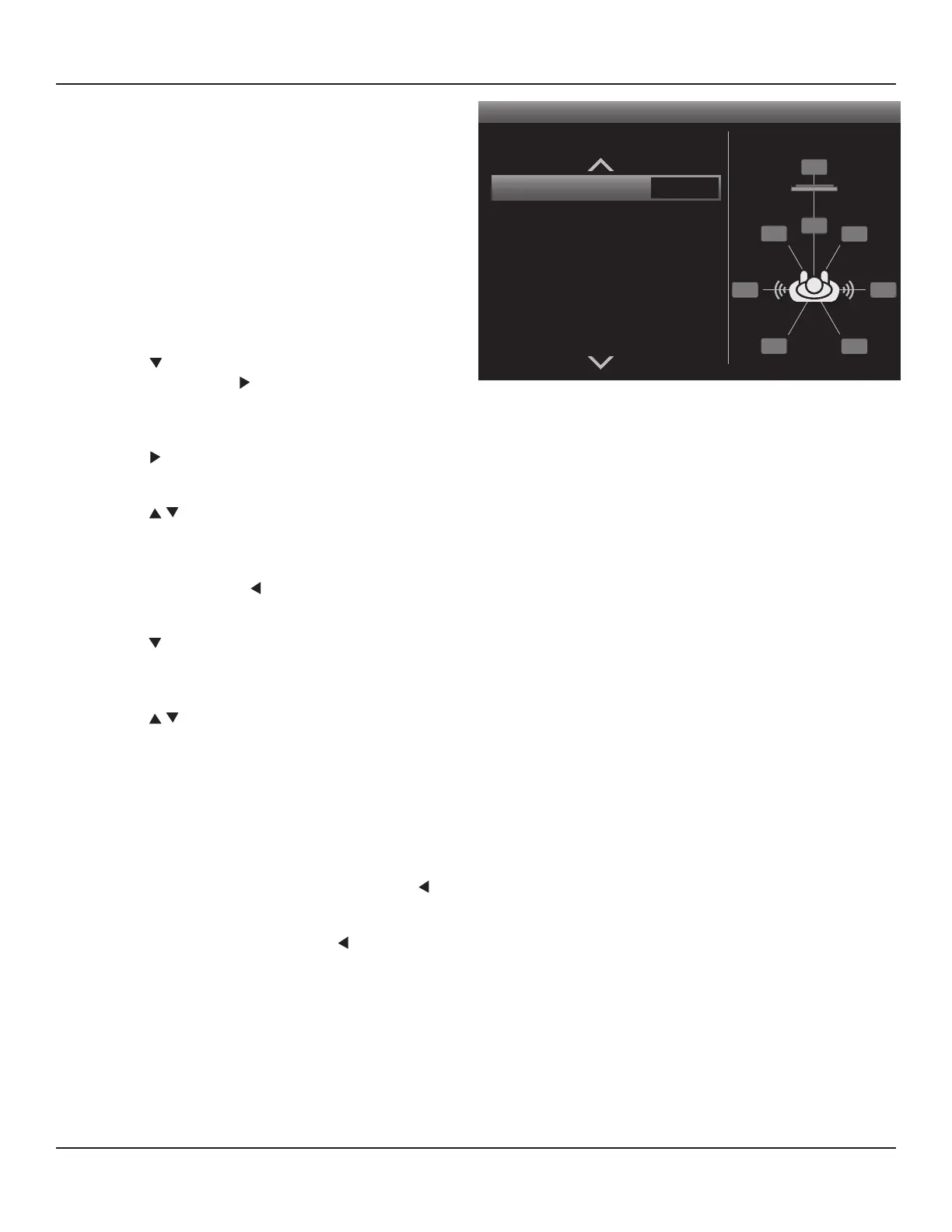
Speaker Distance
< >
Unit of Measure
Front Left
Center
Front Right
Surround Right
Back Right
Back Left
Feet
10 Feet
10 Feet
10 Feet
6 Feet
8 Feet
8 Feet
BSL
SL SR
BSR
FL
FR
SW
C
Diagram 53 Speaker Distance (Delay)
Speaker Distance
These settings determine the length of delay, if any, that
gets put on the output of each speaker, including the sub-
woofer. This delay is used to assure that the audio output
from each speaker arrives at the same time in the Ideal
Listening Zone as shown in Diagrams 5 & 6. The Speaker
Distance setting can help compensate for less than ideal
speaker placement if it is not possible to position all
speakers at equal distances from the Ideal Listening Zone.
Range: 0-30 feet (0-9 meters).
The values shown in Diagram 53 are for example only.
1. With the Speaker Setup Menu Open, Diagram 44,
press to move the highlight bar to the Speaker
Distance line. Press . The Speaker Distance screen
will appear. Unit of Measure will be highlighted by
default. Diagram 53
2. Press . The Unit of Measure Window will become
active.
3. Press to select feet or meters. Once values are
entered, the M80 will automatically convert feet to
meters and meters to feet if the setting is changed.
4. When nished, press so the Unit of Measure Win-
dow is no longer active and to save the setting.
5. Press to move the highlight bar to the Front Left
line. Using a tape measure, measure the distance from
the Front left speaker to the Ideal Listening Zone.
6. Press to select the measured distance. For
distances that are not exact in feet and are under six
inches, (eg: 6 feet, 4 inches) round down to 6 feet. For
distances that are not exact in feet and are over six
inches, (eg: 6 feet, 8 inches) round up to 7 feet.
7. Repeat Steps 2-6 for all connected speakers including
the Subwoofer.
8. When all speakers have been congured, press to
return to the Speaker Setup Menu.
9. If continuing in Setup Menu, press to return to the
Setup Menu and proceed to the next section.
10. To exit the OSD press Menu.


 To Next Page