64
OPERATING THE M80
OPERATING THE M80
Before operating the M80, be sure all instructions from the previous sections have been followed regarding installation and
connections.
Install M80 Remote Batteries
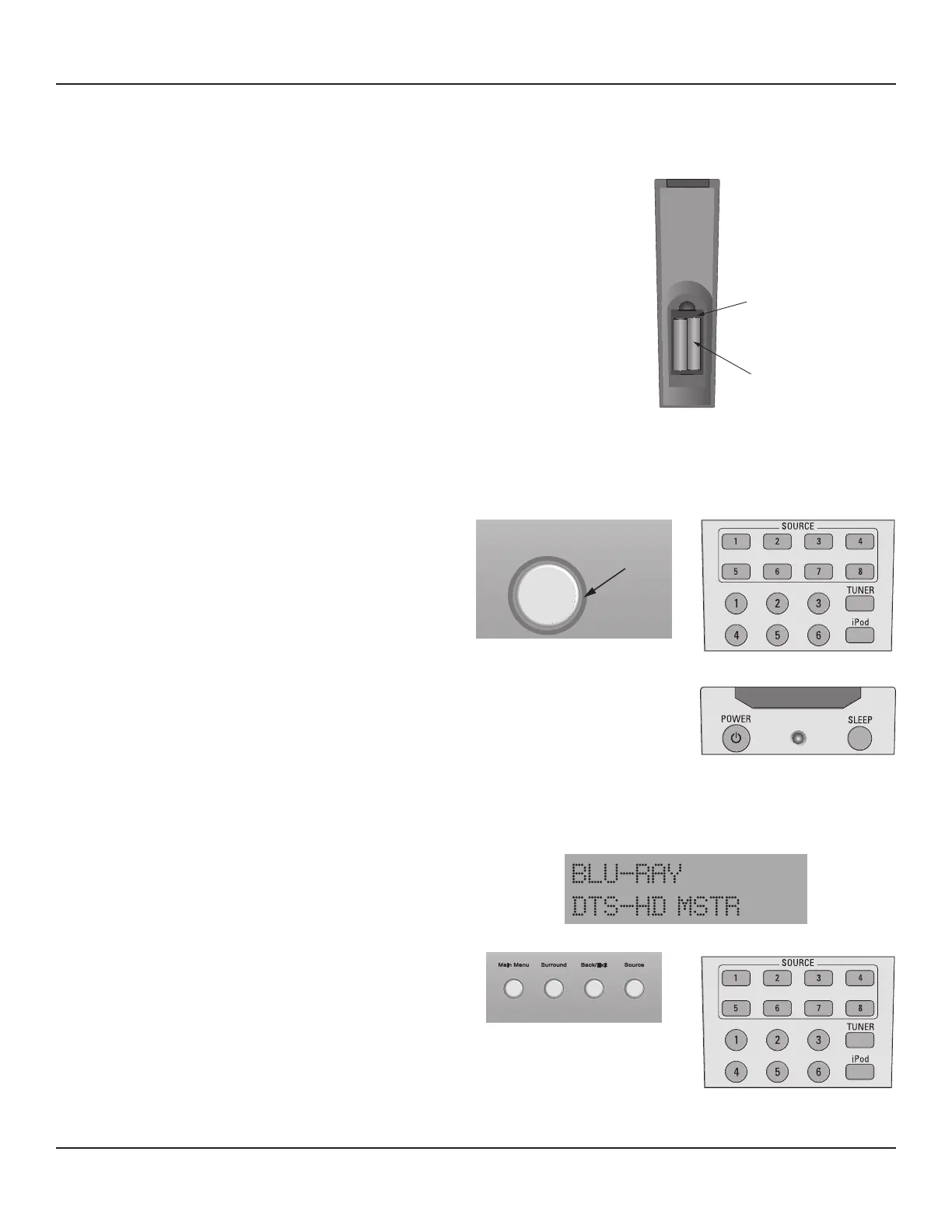
The M80 Remote Control comes with two AAA batteries. Install
them into the Battery Compartment as show in Diagram 77.
1. Remove the Battery Compartment Cover.
2. Batteries are most easily installed by rst inserting the
negative end (-) onto the spring terminals and the press-
ing the positive end (+) down into the Battery Compart-
ment.
3. Replace the Battery Compartment Cover.
2 - AAA Batteries
M80 Remote Rear
Battery
Compartment
Diagram 77 Installing M80 Remote Control Batteries
Turning ON the M80
With the M80 properly installed and connected, and with
the Main Power Cord plugged in to an unswitched 110V AC
Outlet, the ON/Standby button Backlight will illuminate red to
indicate Standby.
ON
Press the ON/Standby button on the M80 Front Panel as
shown in Diagram 78. The M80 will turn ON to the last source
selected. Using the M80 Remote, press one of the Source 1-8,
Tuner or iPod buttons as shown in Diagram 78 for the desired
source. The M80 will turn ON to that source.
The ON/Standby Backlight will turn blue and the Front Panel
Display will turn ON. The M80 will go through a start-up se-
quence of 5 seconds. The M80 will not respond to commands
during the start-up. After an audible click, the M80 is ready for
operation.
OFF
Press the ON/Standby button on the M80 Front Panel or Power
button on the M80 Remote as shown in Diagram 78. The ON/
Standby Backlight will turn red and the Front Panel Display will
turn OFF.
M80 ON/Standby
Button
Backlight
Diagram 78 M80 ON/Standby
M80 Front Panel M80 Remote
Selecting a Source
With the M80 power ON, repeatedly press the Source but-
ton on the M80 Front Panel to scroll through the sources or,
press one of the Source 1-8, Tuner or iPod buttons on the M80
Remote to select that source. The selected source and current
Listening Mode will appear in the Front Panel Display as shown
in Diagram 79.
Diagram 79 Selecting a Source
M80 Front Panel M80 Remote


 To Next Page