58
VIDEO SETUP
6. If not selected, press to select None.
7. When nished, press so the 2 Channel Window is no
longer active and to save the setting.
8. Press so the Surround line is highlighted.
9. Repeat Steps 5-8 as needed until all options are set to
None.
10. To conrm that all Listening Modes for all sources are set
to None, press Menu to exit the OSD. Change sources with
the OSD OFF and then repeat Steps 1-10. The settings in
the Listening Mode screen will indicate the settings for the
last source selected with the OSD OFF. The Tuner and iPod
Listening Modes can only be selected or changed when
the Tuner or iPod is the current source by pressing the Sur-
round button.
Note: If a Listening Mode is selected using the Surround
button on the M80 Front Panel or Remote while a source
is selected, that mode will become the preference for that
type of audio signal, for that source, and will appear on
the line indicating the type of audio input signal being
processed, for that source. The selection will remain in
aect for any other like audio signal, for that source, until
changed manually in the OSD or by pressing the Surround
button. See: Operating the M80/Listening Modes/Set-
ting Listening Mode Preferences.
10. If continuing in Setup Menu, press to return to the
Setup Menu and proceed to the next section.
11. To exit the OSD press Menu.
Video Setup
These settings will congure the Monitor Outputs from the
M80 to the Main Room Video Display. Video Format sets the
M80 Resolution to Display and Picture Setup sets the bright-
ness, contrast, color and lters.
Video Format
The Resolution to Display factory default is set to Auto.
If using an HDMI connection from the M80 to the Video
Display, the M80 should automatically establish a connec-
tion to the Video Display at the highest HDMI resolution
possible for the display. If using component, S or compos-
ite video, (no HDMI) the M80 will establish a 480i connec-
tion to the Video Display. This will allow use of the OSD to
manually set the appropriate Resolution to Display based
upon the connection to (component, S, composite) and
capability of (1080i, 720p, 480p, 480i) the Video Display.
All analog video input signals (component, S, composite)
can be up-converted or down-converted to any compat-
ible resolution (1080p, 1080i, 720p, 480p, 480i) for a spe
Press < to Return Press > to Advance
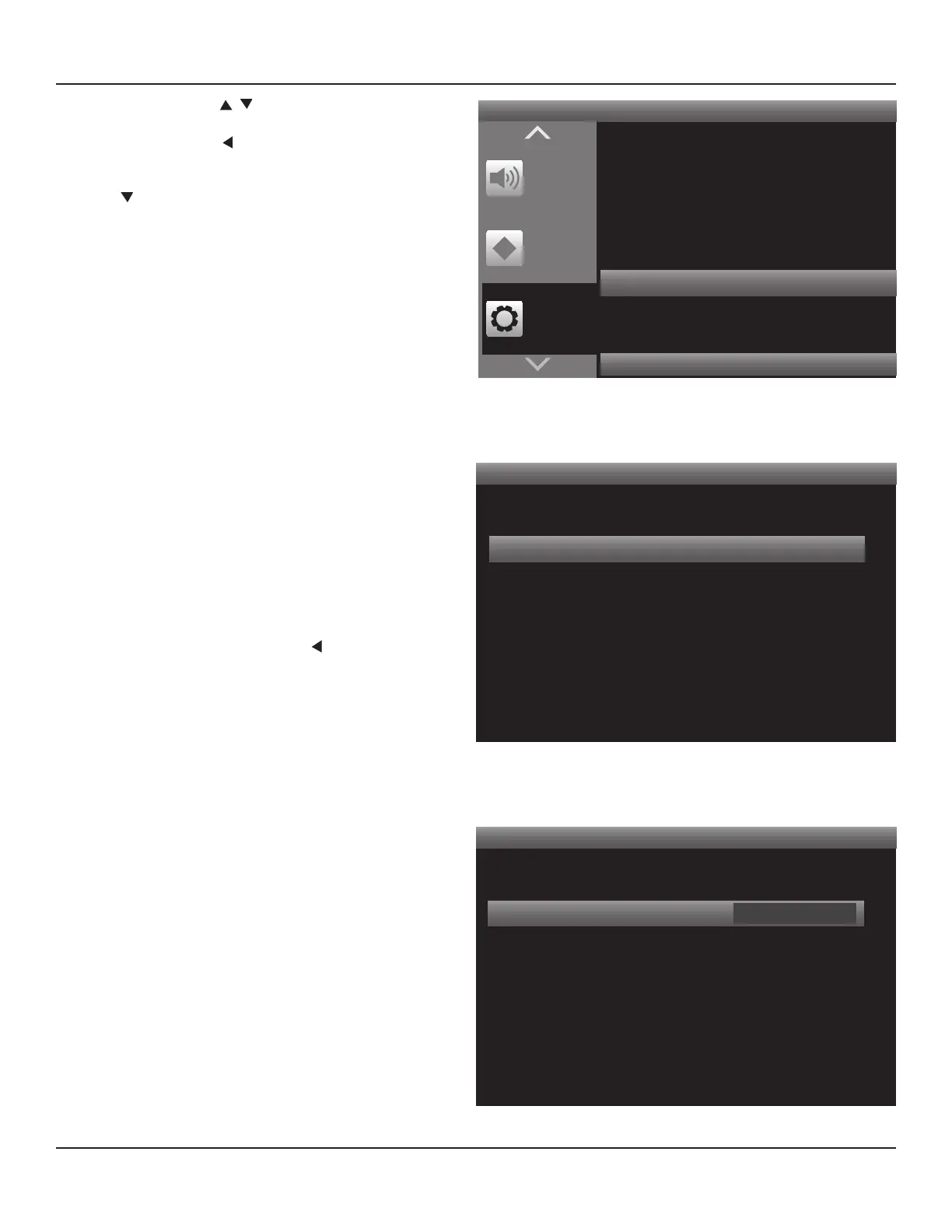
Setup
Menu
Zone 2
Controls
Tone
Controls
Source Setup
Speaker Setup
Amplier Setup
Trigger Setup
Listening Mode Setup
Video Setup
Diagram 62 Setup Menu - Video Setup
Video Setup
Video Format
Picture Setup
Diagram 63 Video Setup Menu
Video Format
Resolution to Display Auto
Diagram 64 Resolution to Display


 To Next Page