44
SOURCE SETUP
Source Setup (Normal View)
Source
Name
Analog Audio
Gain
Digital Audio
Video
Trigger Out
1
Source 1
Audio 1
0 dB
O
Video 1
Yes
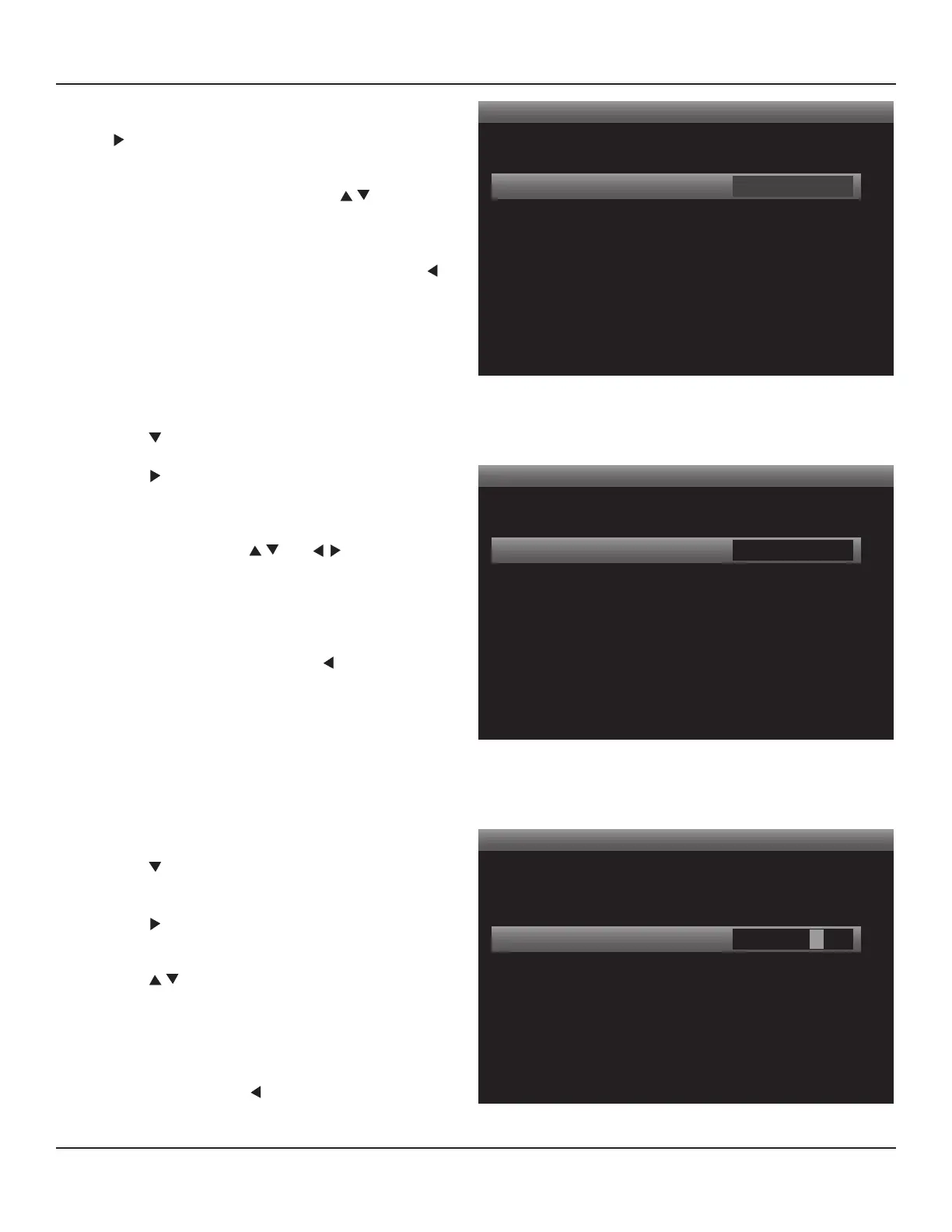
Diagram 32 Source Setup
Source Setup (Normal View)
< >
Source
Name
Analog Audio
Gain
Digital Audio
Video
Trigger Out
1
Source 1
Audio 1
0 dB
O
Video 1
Yes
Diagram 33 Source Select Window
Source Setup (Normal View)
< >
Source
Name
Analog Audio
Gain
Digital Audio
Video
Trigger Out
1
Source 1
Audio 1
0 dB
O
Video 1
Yes
B L U - R A Y
Diagram 34 Naming a Source
Source
1. In the Source Setup, with Source highlighted, press
. The Source Select Window will become active.
Diagram 33
2. In the Source Select Window, press to select the
source to be congured. (Source 1 will be used for
example.)
3. With the source to be congured selected, press
so the Source Select Window is no longer active as
shown in Diagram 32.
Name
Each Source can be given a name up to eight characters in
length. Available characters include upper and lower case
alphabet, 0-9, a blank space and standard punctuation
marks. Diagram 34
1. Press to move the highlight bar to the Name line.
2. Press . The Source Name Window will become
active. The cursor will move to the space for the rst
character.
3. Alternately press the and buttons to enter
the characters for the source name. (Blu-ray used for
example.) Diagram 34
Note: The M80 will automatically ‘center’ the name in
the Setup List when nished.
4. When nished, repeatedly press until the Source
Name Window is no longer active. This will save the
Source Name.
Analog Audio
This selection will assign the analog audio input on the
M80 Rear Panel for the selected Source. (For example Au-
dio 1 will be assigned to Source 1.) Diagram 35
Note: If the default connection conguration was used, no
changes should be necessary, but conrming the congu-
ration is recommended.
1. Press to move the highlight bar to the Analog Au-
dio line.
2. Press . The Analog Audio Window will become ac-
tive.
3. Press to select the appropriate input. (Audio 1
used for example.)
4. Press OK to save. If ‘O’ is selected, (no assigned ana-
log audio input) the Gain line will turn OFF.
5. When nished, press so the Analog Audio Window
is no longer active.


 To Next Page