77
Listening Mode Setup
Listening Mode
Dolby Setup
DTS Setup
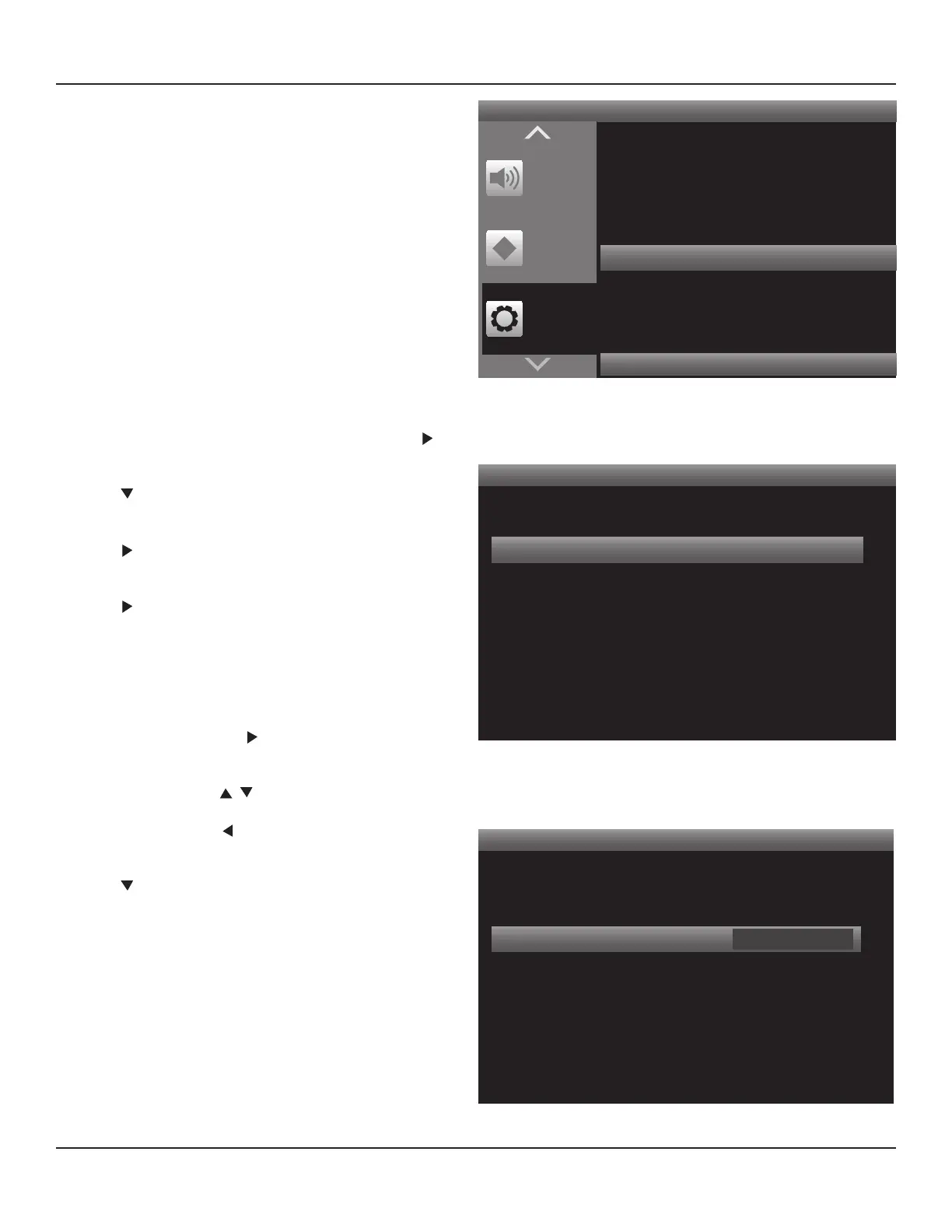
Diagram 102 Listening Mode Setup
Listening Mode
< >
Dolby Digital
2 Channel
Surround
DTS
Other
Digital
Analog
Main
None
None
None
None
None
Diagram 103 Listening Mode Selection
Press < to Return Press > to Advance
Setup
Menu
Zone 2
Controls
Tone
Controls
Source Setup
Speaker Setup
Amplier Setup
Trigger Setup
Listening Mode Setup
Video Setup
Diagram 101 Setup Menu - Listening Mode Setup
OPERATING THE M80
Automatic Listening Mode Selection
The M80 is setup at the factory to automatically analyze the
incoming audio signal and apply the appropriate process
(Listening Mode) to encoded content. The selected mode will
be indicated on the Front Panel Display. Non-encoded content
will play as input when the M80 is set for automatic mode
selection. A CD Player, with a coaxial or optical connection, will
typically default to Stereo; analog sources will typically default
to Analog Bypass. It may be desirable to set preferences or
manually select a Listening Mode when this occurs. See sec-
tions: Manually Selecting Listening Modes and Setting
Listening Mode Preferences for additional information.
1. With the OSD OFF select a source other than Tuner or
iPod. Listening Modes are congured by source except
Tuner and iPod, which have manual selection only.
Note: The Listening Mode screen will show the settings
for the last source selected with the OSD OFF.
2. Open the OSD and with Setup Menu selected, press .
Source Setup will highlight in the Setup List.
3. Press four times so Listening Mode Setup is highlighted
in the Setup List. Diagram 101
4. Press . The Listening Mode Setup Menu will appear.
Listening Mode will be highlighted. Diagram 102
5. Press . The Listening Mode Screen will appear. 2 Chan-
nel will be highlighted. Diagram 103
6. If all modes are set to None press Menu to exit the OSD.
Note: ‘None’ indicates that no preferences or manual
Listening Mode selections have been made.
7. To makes changes, press . The 2 Channel Window will
become active. Diagram 104
8. If not selected, press to select None.
9. When nished, press so the 2 Channel Window is no
longer active.
10. Press so the Surround line is highlighted.
11. Repeat Steps 1-10 for all sources until all modes for all
sources are set to None. Press Menu to exit the OSD when
nished.
Note: If a Listening Mode is selected using the Surround
button on the M80 Front Panel or Remote while a source
is selected, that mode will become the preference for that
type of audio signal, for that source, and will appear on
the line indicating the type of audio input signal being
processed, for that source. The selection will remain in
aect for any other like audio signal, for that source, until
changed. To retain automatic mode selection, do not
change Listening Modes using the Surround buttons.


 To Next Page