User Manual
51
Task 2: Draw the Schedule
Steps:
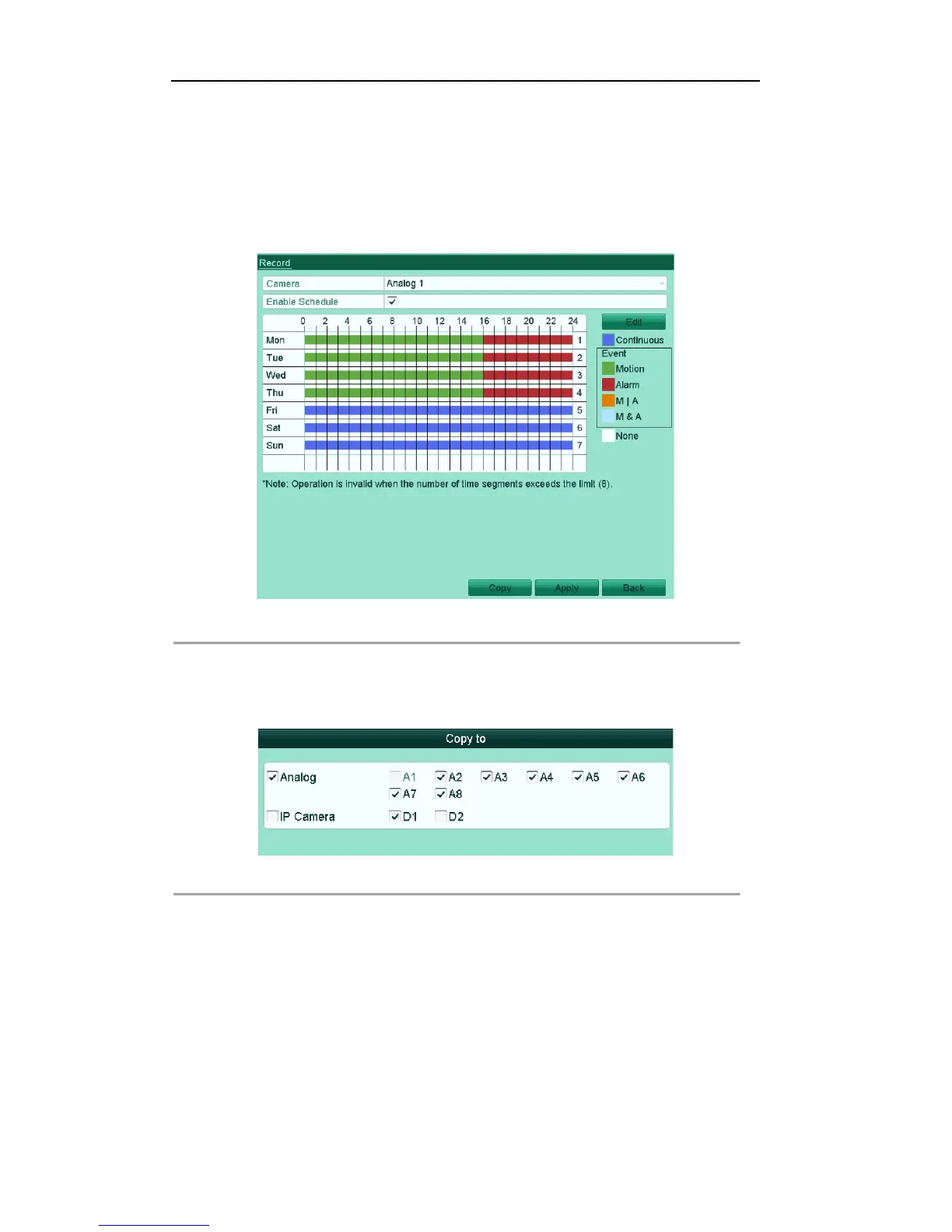
1) Click the icon on the right to select a record type. Different recording types are available for
different models.
2) Use the mouse to drag and draw time periods.
Note: Up to 8 periods can be configured for each day.
Figure'5.11'Draw'the'Schedule' '
3) You can repeat the above steps to set schedule for other channels. If the settings can also be used
to other channels, click Copy to enter the Copy Camera interface and then choose the channel to
which you want to copy.
Figure'5.12'Copy'Schedule'to'Other'Channels' '
4) Click Apply in the Record Schedule interface to save the settings.


 To Next Page