Configuration System Configuration
CubiScan 110-T 22
1. From the home screen, tap CONFIGURE.
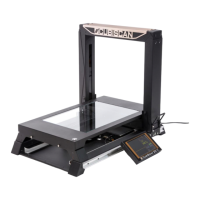
2. The configuration menu is displayed at the bottom of the screen. Select
the
Operation option if it is not already selected.
Display
Dim-Weight
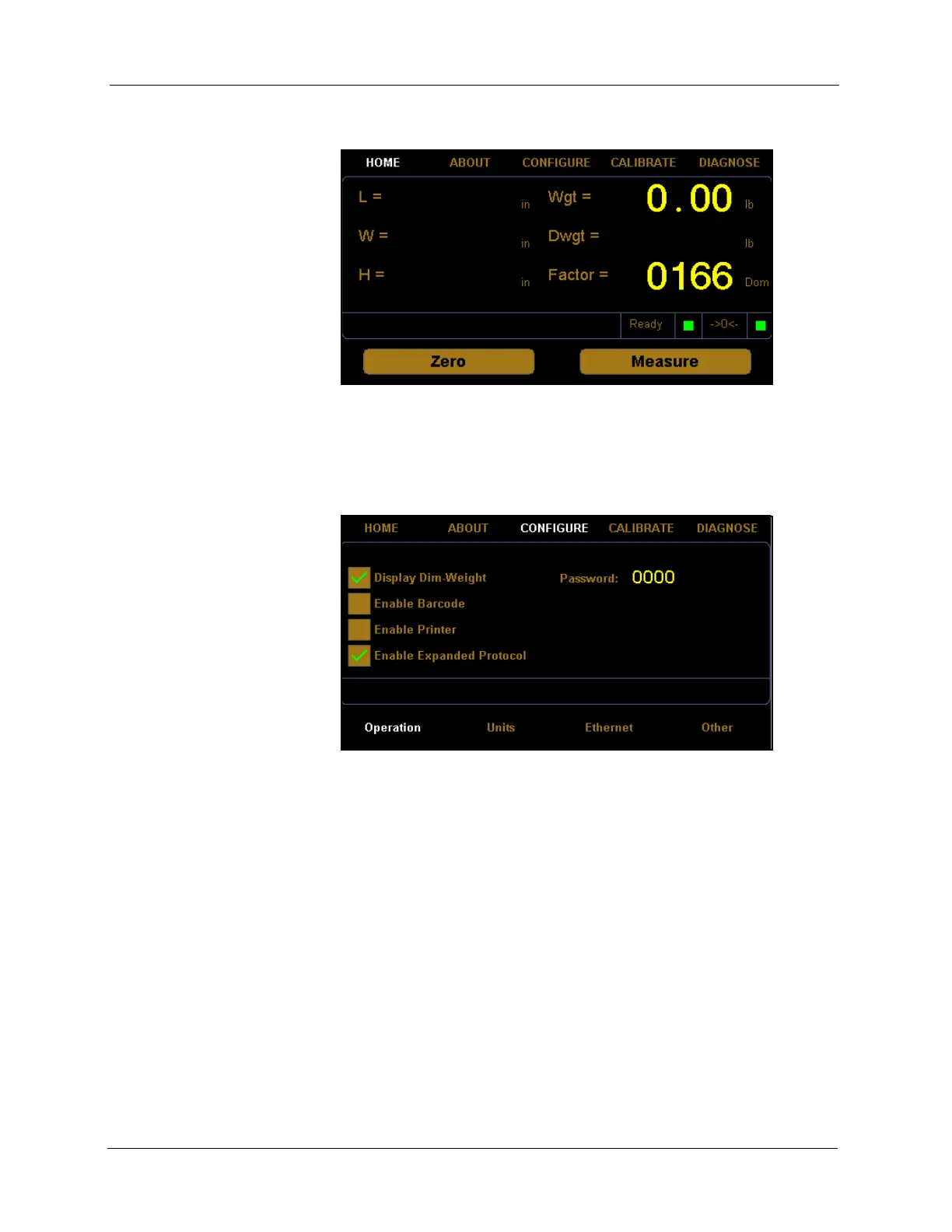
Check this box if you want the dim weight and factor to be displayed on the
home screen.
Enable Barcode Check this box if you want to enable a barcode scanner to work with the
CubiScan 110-T. If this box is enabled a new barcode field will appear on
the home screen. The
Enable Expanded Protocol box must also be checked
for the barcode option to work.
Enable Printer Check this box if you want to enable a printer to work with the CubiScan
110-T. When this box is enabled a label will be printed each time a
measurement is taken.
Enable Expanded
Protocol
Enabling the expanded protocol allows more information to be sent in a
data packet. When this option is disabled, the CubiScan 110-T is backwards
Figure 13
Home Screen
Figure 14
Configure Operation


 To Next Page