
EasyManua.ls Logo

QuickLabel Systems QL800 - User Manual

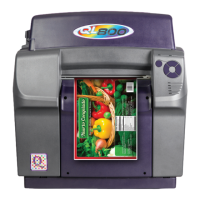
QuickLabel Systems QL800
122 pages
Print Icon
To Next Page IconTo Next Page
Loading...
Fast print speed,
up to 305 mm/s
Excellent print
quality up to 1600 dpi
High-yield, vivid inks
Complete with color
labeling software
USER
GUIDE
The Labels You Want When You Need Them.
®
QuickLabel.com

Table of Contents

Questions and Answers

  • A
    Amber DuranAug 27, 2025
    What to do if QuickLabel Systems QL800 says no media at pinch?
    • N
      Natalie DoyleAug 28, 2025
      If your QuickLabel Systems Printer displays 'No Media at Pinch', load media into the printer. Then, press and release the power key to resume the job, or press and hold the pause/resume key to cancel the job.
  • P
    Patrick GrahamAug 28, 2025
    What to do if QuickLabel Systems QL800 Printer says maintenance cartridge is missing?
    • C
      Chase RodriguezAug 28, 2025
      If your QuickLabel Systems Printer displays 'Maintenance Cartridge Missing', install the maintenance cartridge. If a maintenance cartridge is already installed, try repositioning it. Then, press and release the power key to clear the error.
  • C
    Chad GreeneAug 28, 2025
    What to do if QuickLabel Systems QL800 Printer says transport not installed?
    • D
      Deanna DorseyAug 28, 2025
      If your QuickLabel Systems Printer displays 'Transport not Installed', install the transport unit. If it's already installed, try repositioning it. Then, press and release the power key to clear the error.
  • A
    Amber BrooksAug 29, 2025
    How to clear 'Continuous Media Selected' error on QuickLabel Systems QL800?
    • A
      Allison Mack PhDAug 29, 2025
      If your QuickLabel Systems Printer displays the error 'Continuous Media Selected', press and release the power key to clear the error.
  • M
    Maria MartinezAug 29, 2025
    How to fix cartridge error on QuickLabel Systems QL800 Printer?
    • J
      Janice ScottAug 29, 2025
      If your QuickLabel Systems Printer displays a 'Cartridge Error', clean the ink cartridge electrical contacts and reinstall the ink cartridge.
  • A
    Amber MurrayAug 30, 2025
    What to do if QuickLabel Systems QL800 Printer can't calibrate media?
    • A
      Aaron ParksAug 30, 2025
      If your QuickLabel Systems Printer displays 'Can't Calibrate Media', press and release the power key to clear the error. Also, confirm that the media meets the printer's specifications.
  • S
    Stephanie AnthonyAug 30, 2025
    What to do if QuickLabel Systems Printer is not ready to print?
    • W
      william48Aug 30, 2025
      If your QuickLabel Systems Printer is not ready to print, complete the current task and then press and release the power key to clear the error.
  • T
    Timothy FisherAug 31, 2025
    What to do if QuickLabel Systems QL800 says TOF mark not found?
    • G
      George SmithAug 31, 2025
      If your QuickLabel Systems Printer displays 'TOF Mark not Found', press and release the power key to clear the error. Confirm that the media meets specifications.
  • J
    Juan FieldsAug 25, 2025
    How to fix paper path error on QuickLabel Systems QL800?
    • D
      Dr. Kenneth CowanAug 25, 2025
      To resolve a paper path error on your QuickLabel Systems Printer, check for any jams and clear them. Then, press and release the power key to continue the job, or press and hold the pause/resume key to cancel it.
  • T
    trujillodarrenSep 1, 2025
    How to clear print engine error on QuickLabel Systems QL800?
    • K
      kara24Sep 1, 2025
      If your QuickLabel Systems Printer displays a 'Print Engine Error', clear the error using the Maintenance Utility or Status Monitor.

Summary

Product Information and Compliance

QL-800 Limited Warranty

Details the manufacturer's warranty for printer components, excluding wear parts and consumables.

Ink and Printhead Warranties

Covers specific warranty terms for QL-800 ink cartridges and printheads.

Obtaining Service and Support

Provides contact information and procedures for obtaining warranted service and technical support.

Printer Driver Installation and Configuration

Installing the Printer Driver (USB)

Instructions for installing the QL-800 printer driver via a USB connection.

Installing the Printer Driver (Network)

Guide for installing the QL-800 printer driver over a network connection.

Printer Driver Settings Configuration

Covers configuring general options, label sizes, media, services, and driver settings.

Initial Printer Setup and Media Handling

Using the After Shipping Wizard

Guides users through preparing the printer after shipping, including roller and cartridge installation.

Installing Ink Cartridges

Step-by-step guide for installing the CMYK ink cartridges into the QL-800 printer.

Installing the Printhead

Detailed procedure for safely installing the printhead cartridge into the QL-800 printer.

Loading Media

Instructions on how to load label media rolls onto the QL-800 printer.

Designing and Printing Labels

Designing Labels

Covers factors to consider before designing labels for the QL-800 printer.

Setting up Labels in Third-Party Design Applications

Guidelines for designing labels using external applications like Adobe Photoshop/Illustrator.

QL-800 Maintenance Utility

Troubleshooting

Error Messages

A guide to common error messages, their problems, and solutions.

Media Handling Problems

Covers troubleshooting for media jams and related issues.

Rewinder

Safety Warnings and Precautions

Specifications

QuickLabel Systems QL800 Specifications

General IconGeneral
BrandQuickLabel Systems
ModelQL800
CategoryPrinter
LanguageEnglish