
EasyManua.ls Logo

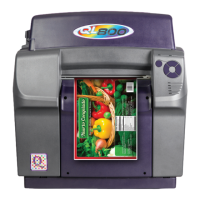
QuickLabel Systems QL800 - User Manual

QuickLabel Systems QL800
122 pages
Print Icon
To Next Page IconTo Next Page
Loading...
Fast print speed,
up to 305 mm/s
Excellent print
quality up to 1600 dpi
High-yield, vivid inks
Complete with color
labeling software
USER
GUIDE
The Labels You Want When You Need Them.
®
QuickLabel.com

Table of Contents

Questions and Answers

  • J
    Jon MurraySep 1, 2025
    What to do for TOF Calibration error on QuickLabel Systems QL800?
    • G
      Gregory GomezSep 1, 2025
      If your QuickLabel Systems Printer displays 'TOF Calibration', press and hold the pause/resume key to cancel the job. Press and release the power key to clear the error.
  • M
    Margaret HansenSep 2, 2025
    Why does my QuickLabel Systems Printer say 'Maintenance Busy'?
    • C
      Carol HolmesSep 2, 2025
      If your QuickLabel Systems Printer displays 'Maintenance Busy', wait until the printer has finished the maintenance operation.
  • G
    Gregory WebbSep 2, 2025
    How to resolve a maintenance jam on QuickLabel Systems Printer?
    • M
      Marie EstradaSep 2, 2025
      If your QuickLabel Systems Printer displays 'Maintenance Jam', open the top cover and check for obstructions. Remove the transport unit and inspect it.
  • P
    Peter CampbellSep 3, 2025
    Why does my QuickLabel Systems QL800 say incorrect printhead?
    • J
      jonesshawnSep 3, 2025
      If your QuickLabel Systems Printer displays 'Incorrect Printhead', install a genuine QuickLabel printhead.
  • C
    Cheryl BrewerSep 3, 2025
    What to do if my QuickLabel Systems QL800 Printer displays 'Unusable Printhead'?
    • B
      Brian AndersonSep 3, 2025
      To resolve the 'Unusable Printhead' error on your QuickLabel Systems Printer: * Remove the printhead using the printhead replacement function in the Parts Replacement tab of the QL-800 Maintenance Utility. * Clean the electrical contacts on the printhead with a clean, lint-free cloth and isopropyl alcohol. * Finish using the printhead replacement function but reinstall the same printhead. Also, check the printhead latch and electrical harness connections and replace the printhead if necessary.
  • P
    Philip LoveSep 4, 2025
    Why does QuickLabel Systems Printer say unlicensed printhead?
    • N
      Nicholas WelchSep 4, 2025
      If your QuickLabel Systems Printer displays 'Unlicensed Printhead', install a genuine QuickLabel printhead.
  • T
    Timothy HernandezSep 4, 2025
    What causes Shared Memory Read Timeout on QuickLabel Systems QL800 Printer?
    • B
      Brittney RiggsSep 4, 2025
      If your QuickLabel Systems Printer displays 'Shared Memory Read Timeout' because of an internal communications failure, press and release the power key to clear the error. Press and hold the power key on the operation panel for three seconds to turn the printer off, wait three seconds, and then press and hold the power key for one second to turn the printer back on. If the issue persists, contact Technical Support.
  • S
    Sharon MartinSep 4, 2025
    What does Shared Memory Write Timeout mean on QuickLabel Systems Printer?
    • M
      Marc CaseSep 5, 2025
      If your QuickLabel Systems Printer displays 'Shared Memory Write Timeout' because of an internal communications failure, press and release the power key to clear the error. Press and hold the power key on the operation panel for three seconds to turn the printer off, wait three seconds, and then press and hold the power key for one second to turn the printer back on. If the issue persists, contact Technical Support.
  • L
    Leslie MurphySep 5, 2025
    What does Shared Memory Response Timeout mean on QuickLabel Systems QL800?
    • J
      jill80Sep 5, 2025
      If your QuickLabel Systems Printer displays 'Shared Memory Response Timeout' because of an internal communications failure, press and release the power key to clear the error. Press and hold the power key on the operation panel for three seconds to turn the printer off, wait three seconds, and then press and hold the power key for one second to turn the printer back on. If the issue persists, contact Technical Support.
  • J
    Justin ParksSep 5, 2025
    How to fix system initialization timeout on QuickLabel Systems QL800 Printer?
    • M
      Melanie NolanSep 5, 2025
      If your QuickLabel Systems Printer displays 'System Initialization Timeout', press and hold the power key on the operation panel for three seconds to turn the printer off. Wait three seconds. Then press and hold the power key for one second to turn the printer on again. If the issue persists, contact Technical Support.

Summary

Product Information and Compliance

QL-800 Limited Warranty

Details the manufacturer's warranty for printer components, excluding wear parts and consumables.

Ink and Printhead Warranties

Covers specific warranty terms for QL-800 ink cartridges and printheads.

Obtaining Service and Support

Provides contact information and procedures for obtaining warranted service and technical support.

Printer Driver Installation and Configuration

Installing the Printer Driver (USB)

Instructions for installing the QL-800 printer driver via a USB connection.

Installing the Printer Driver (Network)

Guide for installing the QL-800 printer driver over a network connection.

Printer Driver Settings Configuration

Covers configuring general options, label sizes, media, services, and driver settings.

Initial Printer Setup and Media Handling

Using the After Shipping Wizard

Guides users through preparing the printer after shipping, including roller and cartridge installation.

Installing Ink Cartridges

Step-by-step guide for installing the CMYK ink cartridges into the QL-800 printer.

Installing the Printhead

Detailed procedure for safely installing the printhead cartridge into the QL-800 printer.

Loading Media

Instructions on how to load label media rolls onto the QL-800 printer.

Designing and Printing Labels

Designing Labels

Covers factors to consider before designing labels for the QL-800 printer.

Setting up Labels in Third-Party Design Applications

Guidelines for designing labels using external applications like Adobe Photoshop/Illustrator.

QL-800 Maintenance Utility

Troubleshooting

Error Messages

A guide to common error messages, their problems, and solutions.

Media Handling Problems

Covers troubleshooting for media jams and related issues.

Rewinder

Safety Warnings and Precautions

Specifications

QuickLabel Systems QL800 Specifications

General IconGeneral
BrandQuickLabel Systems
ModelQL800
CategoryPrinter
LanguageEnglish