From the “MY Renault” application:
– log in to your account;
– add your vehicle to your “virtual
garage” by filling in the necessary
fields;
– press the “Connect my Renault”
button;
– press the yellow button to receive the
code in your Renault;
– enter the code displayed on your
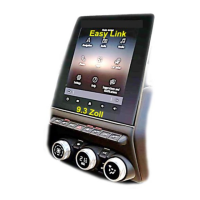
multimedia system screen into the
“MY Renault” application.
Note: when you wish to link the “MY
Renault” application to your vehicle,
you must be in your vehicle, parked
in an area with network coverage and
your vehicle's multimedia system must
be switched on.
Note: when you do not link the “MY
Renault” application to your vehicle,
you still have access to your service
contracts.
MY RENAULT (3/4)
Downloading, installing and
activating the “My Roads”
application onto your multimedia
system
To do this, from your vehicle:
– download and install the “My Roads”
application available from R-Link
Store on your vehicle's multimedia
system (for more information, refer
to the section on “Downloading and
installing applications”);
– press the “My Roads” application to
activate the application.
The “My Roads” application is installed
and activated on your multimedia
system.
Linking your “MY Renault”
account to your vehicle
To get the information described below
concerning your vehicle using the “MY
Renault” application, you must link the
application with your vehicle. To do this,
the “My Roads” application must be
installed on your multimedia system.
If your multimedia system does not
have the “My Roads” application, you
need to download it, install it then ac-
tivate it via your multimedia system
and the R-Link Store. For more infor-
mation, please refer to the information
on “Downloading and installing the “My
Roads” application onto your multime-
dia system” in this section.
Note: the “My Roads” application is
normally already installed on your mul-
timedia system. If this is not the case,
please refer to the information on
“Downloading and installing the “My
Roads” application onto your multime-
dia system” in this section.


 To Next Page