– “Section of the navigation”: to indi-
cate a preferred distance over which
the saved route should be avoided.
The screen displays the distance, the
avoided section of the route and the
detour on the map. You can also see
the estimated route length and dura-
tion change compared to the original
route on the top of the screen.
– “Specific road”: to avoid a road on
your route. For example, you can
skip a road where you expect heavy
traffic, but the Traffic system has not
warned you about it.
– “Restore original route”: to cancel
detours you set previously.
In all cases you are presented with a
map screen, where you can see the
avoided section, the detour and the es-
timated change in length and duration
and the duration in relation to your ini-
tially calculated route.
To confirm your settings, press “Accept”.
ROUTE (3/4)
Overview
Short.
Go
“Overview”
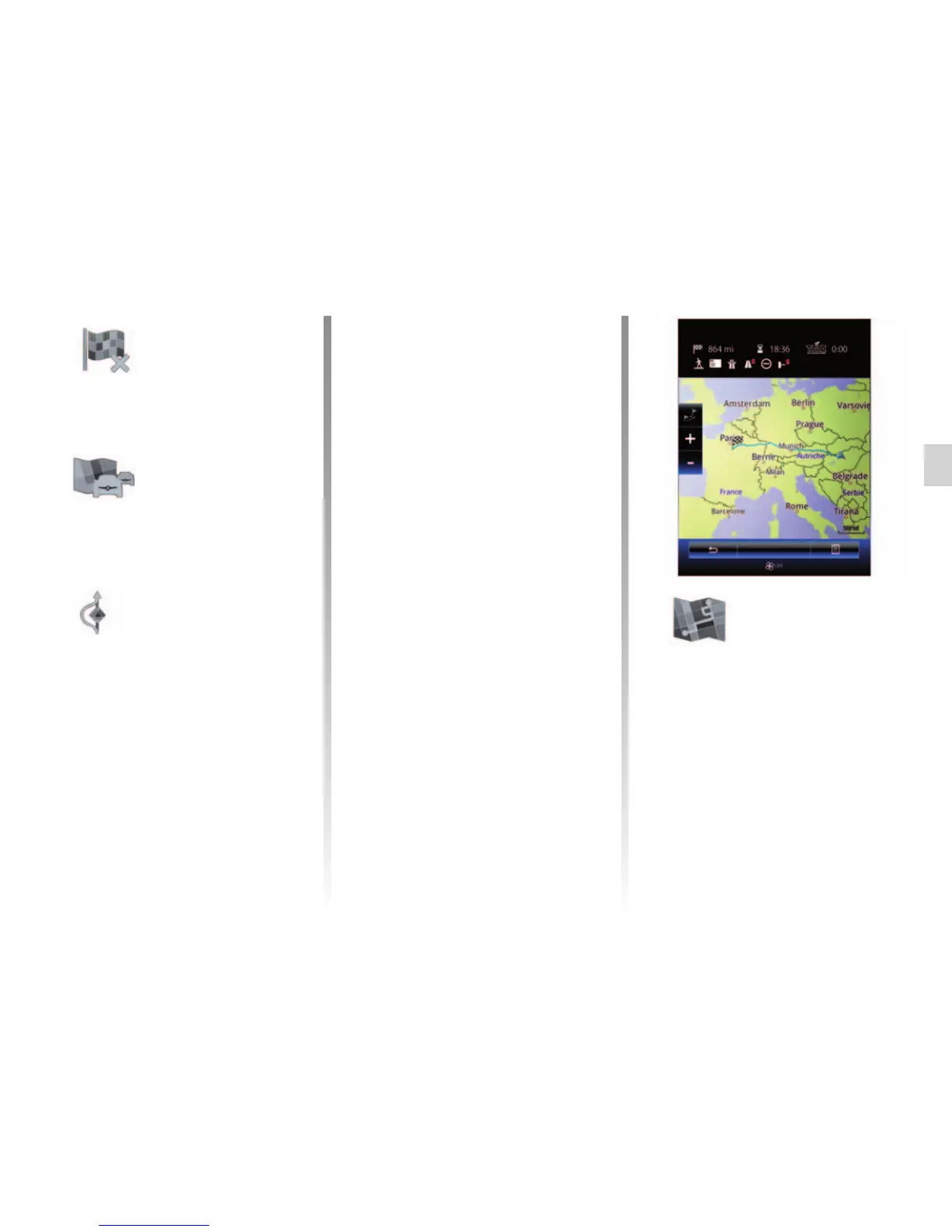
The route overview can be displayed
by pressing “Overview” from the
“Itinerary” menu or after selecting a
destination and calculating the route.
The top part of the screen shows the
total route length and the total time
that it takes to get to the destination.
You can also see possible delays
caused by traffic events.
“Stop guidance”
Select this function to stop the cur-
rent navigation.
“Traffic on route”
This function displays the traffic map
during the route.
“Avoidances”
To avoid certain sections of the route
(e.g. in the event of a traffic jam not
flagged up by the system), select
“Avoidances” from the “Itinerary”
menu.
You can choose to avoid the follow-
ing elements:
– “Specific sections”: to avoid a cer-
tain type of road on the route. For
example, you can skip a section of
motorway or a ferry.



 To Next Page