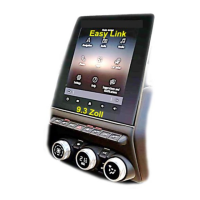
controls ..................................................................(current page)
soft button .............................................(up to the end of the DU)
buttons ...................................................................(current page)
MENU ...................................................(up to the end of the DU)
– swipe from left to right to move
from one page to another within the
menus.
Gesture interaction
– Tap: touch a part of the screen with
your finger and then take the finger
off from the screen.
– Double tap: touch a part of the screen
and then touch the same part again
all within 1 second.
– Long tap: touch a part of the screen
for 1 second or longer.
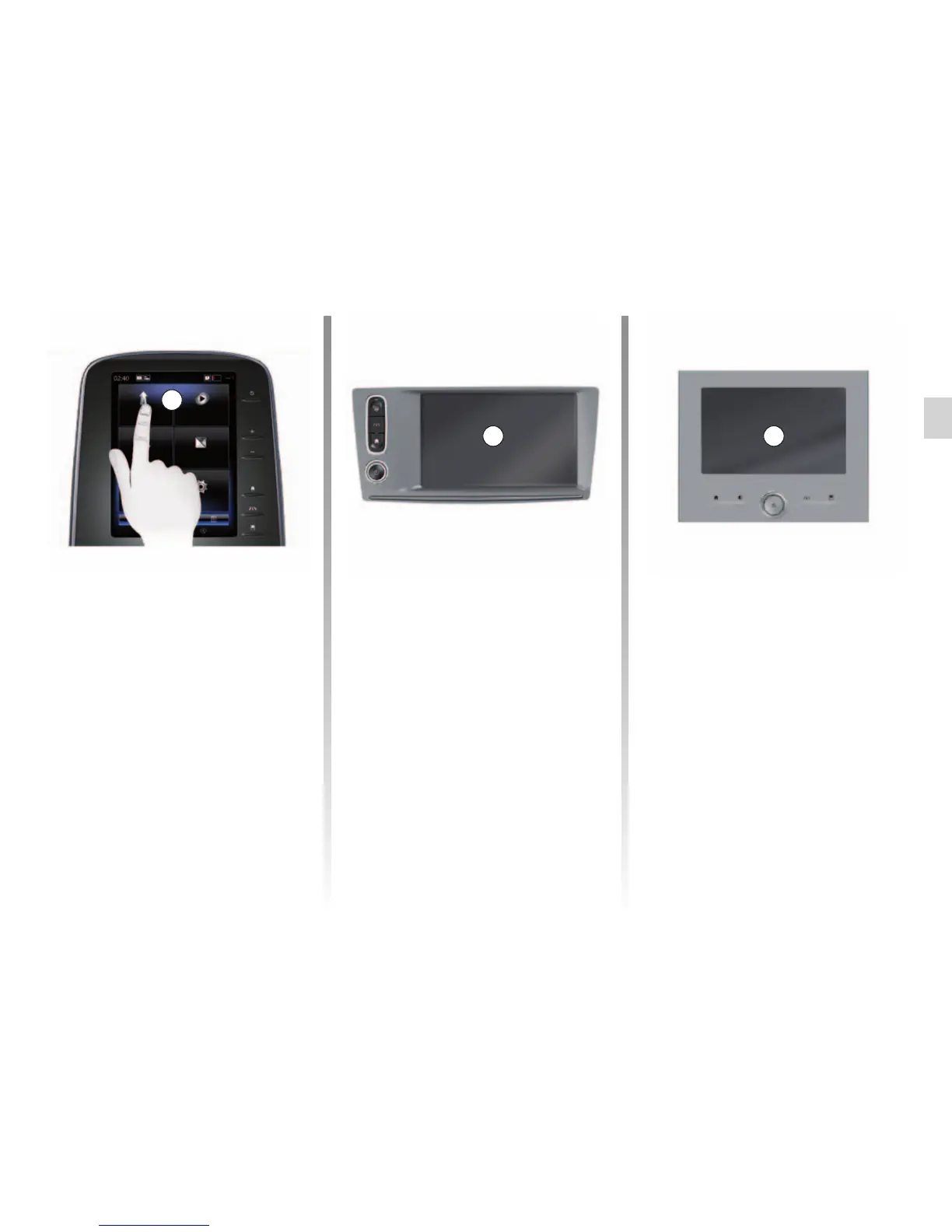
Multimedia screen 1
Navigating a menu
The multimedia screen 1 can be used
to access the system functions:
– Touch the multimedia screen 1 to
select a menu;
– swipe downwards with your finger
to access further menu functions. A
vertical scroll bar is displayed at the
right of the screen to inform you of
your position on the page;
OPERATING PRINCIPLES (1/5)
1
1
– Panning: touch the screen with a
finger and swipe across the screen.
– Fast sweep (“swipe”): slide your
finger quickly from one point to an-
other.
– Drag and drop: touch a part of the
screen for one second or longer
while moving an object.
– Pinch in/out: bring your two fingers
close or slide them apart on the
screen.
1
Menu



 To Next Page