29
eRev. 1.08/15/2023
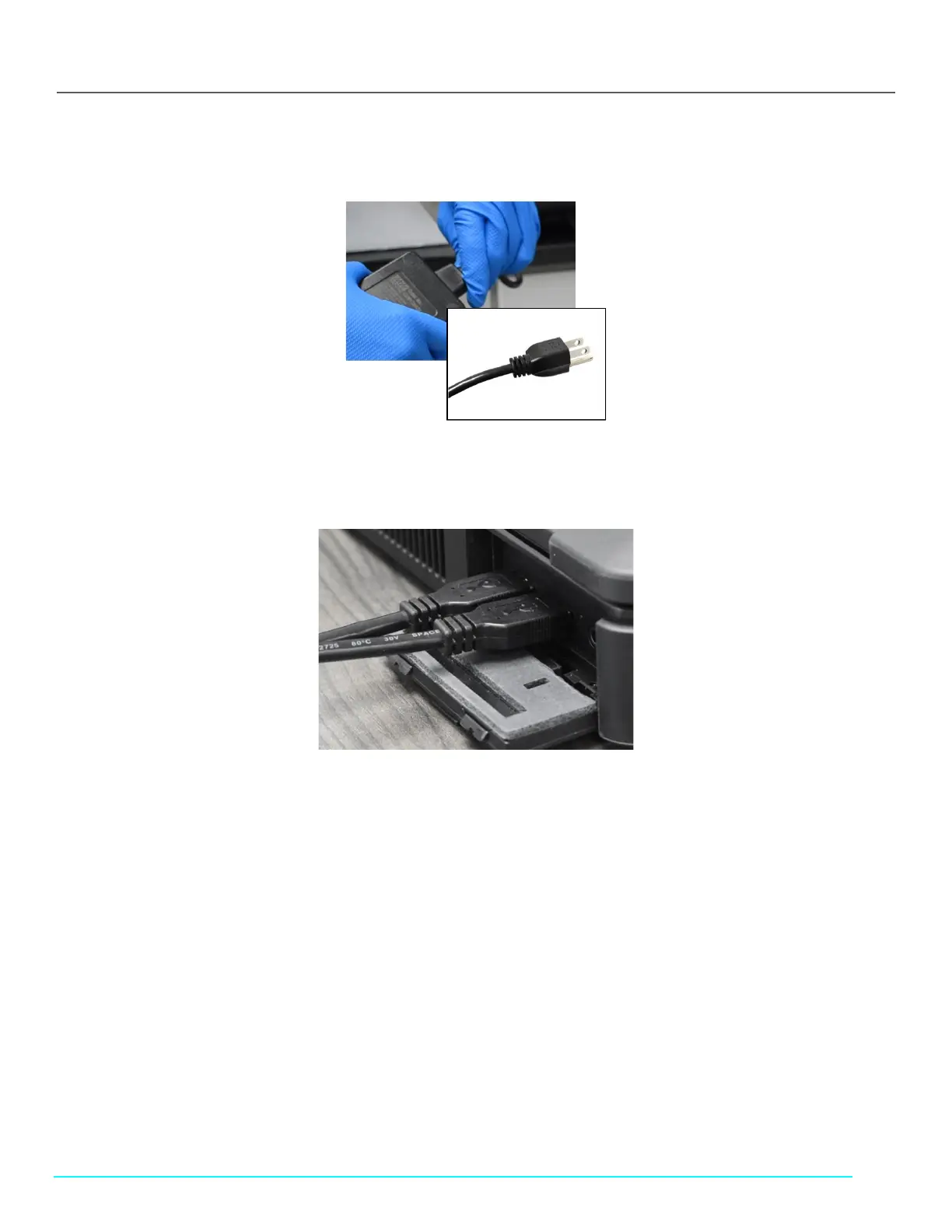
7. Connect the power brick to the other half of its cable, then plug into an approved outlet.
Figure 34. Beams Power Brick and Cable
8. Connect the Beams Controller USB Cable (first EC0207) to a USB port on the computer. Then connect the FlowVPX USB
cable (second EC0207) to a different USB port on the computer (Figure 35).
Figure 35. USB Computer Connections
9. Run the ViPER software on the computer by double-clicking the appropriate program icon for the connected light source,
titled ViPER (Beams) or ViPER (Cary 60), located on the desktop. Type the username and password credentials in the
indicated fields (provided upon installation).



 To Next Page