41
eRev. 1.08/15/2023
12. How to Run a Quick Check (Beams)
Note: The ViPER software must be first installed and connected to successfully run a Quick Check.
1. Run the ViPER software on the computer by double-clicking the appropriate program icon for the connected light source,
titled ViPER (Beams) or ViPER (Cary 60), located on the desktop.
2. Type the username and password credentials in the indicated fields.
3. Click Validate VPT to launch application.
4. The XSA unit must be loaded to begin the Quick Check.
• If the XSA unit is not loaded, click Load Flow Cell and follow the on-screen prompts.
• Always ensure that no sample is flowing through the cell before unloading the Flow Cell. Otherwise, this may cause
damage to the system and to the surrounding environment.
• When Loading the XSA unit, be sure to use an empty vessel as the sample.
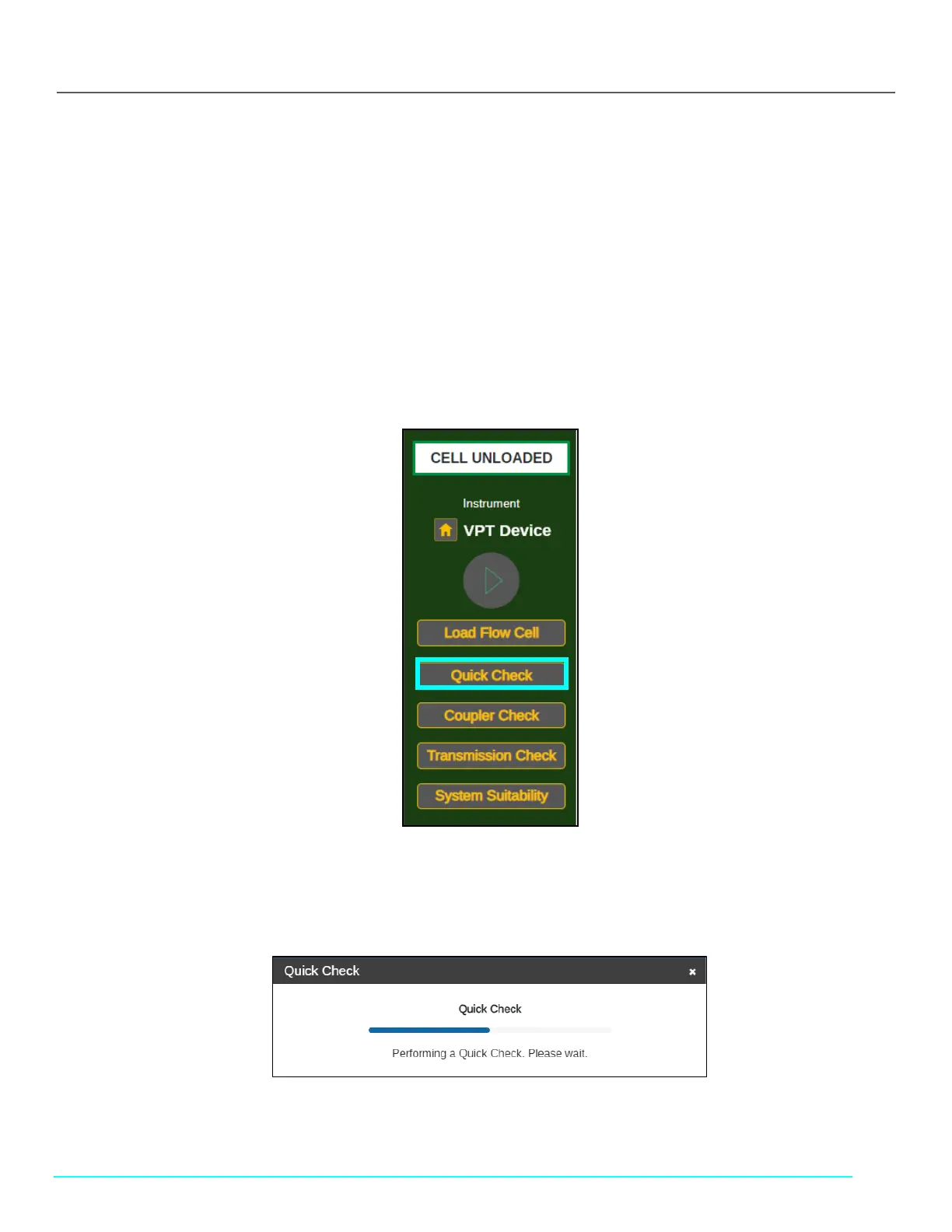
5. Once the Flow Cell is loaded, click Quick Check under Instrument Control.
Figure 51. Quick Check Button in Instrument Control Menu
6. Ensure a clean Flow Cell is loaded and the Beams Source is securely connected to the Fibrette Optical Component. Then
click Continue in the Quick Check dialog box.
7. Please wait while the system runs the Quick Check test and reports the results.
Figure 52. Quick Check Loading Window
8. Confirm the Quick Check ran successfully and that the reported value is higher than 40% transmission.



 To Next Page