30
eRev. 1.08/15/2023
10. Loading and Unloading the Flow Cell
Note: The ViPER software must first be installed and connected to successfully load and unload the Flow Cell.
10.1 Open ViPER Software
1. Run the ViPER software on the computer by double-clicking the appropriate program icon for the connected light source,
titled ViPER (Beams) or ViPER (Cary 60), located on the desktop.
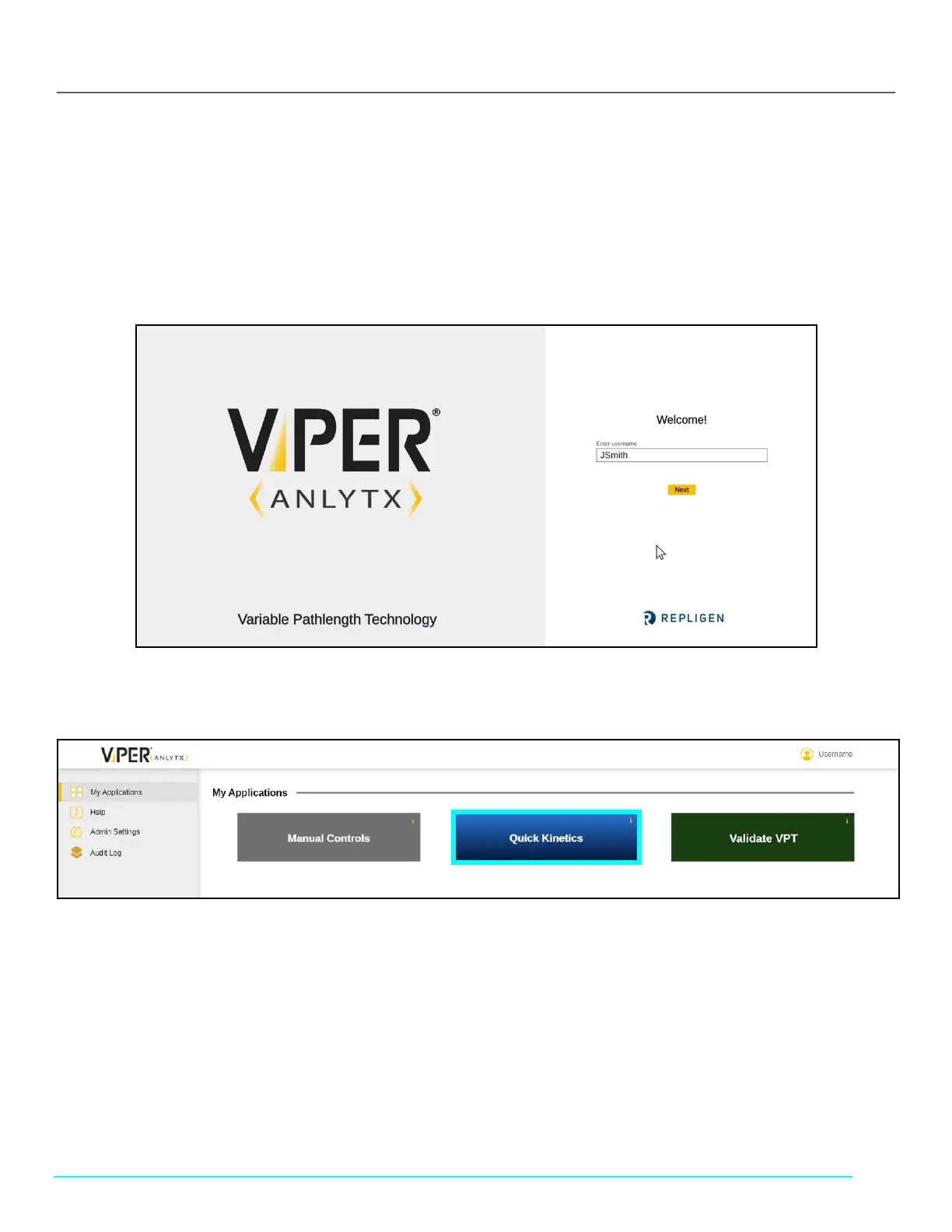
2. Type the username and password credentials in the indicated fields.
Figure 36. ViPER Login Page
3. Click Quick Kinetics to launch application.
Figure 37. My Applications: Quick Kinetics App
4. Input a sample name into the provided field at the top of the screen.
5. Select the Flow Cell from the dropdown Method Input Menu.



 To Next Page