32
eRev. 1.08/15/2023
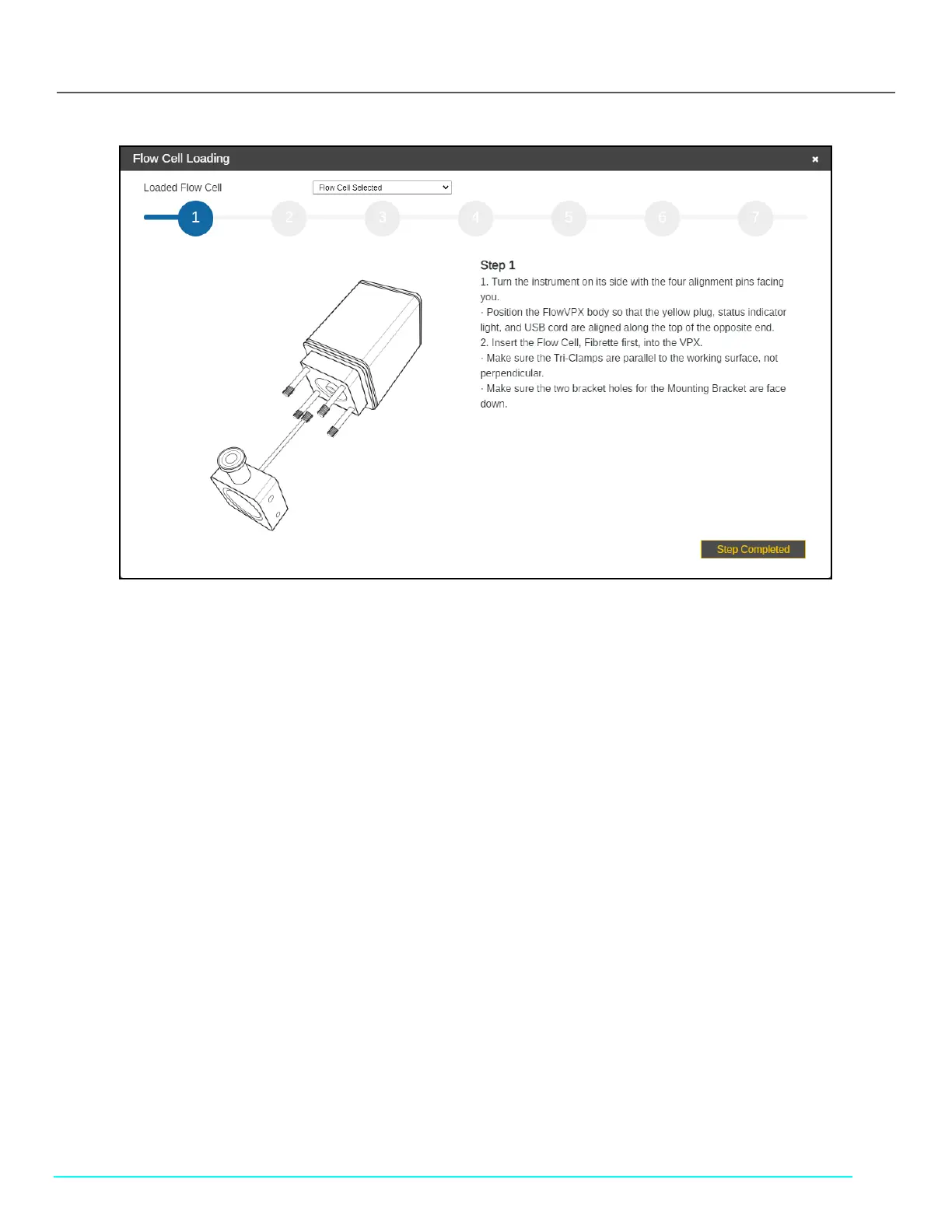
Figure 40. Flow Cell Loading Instructions
1. With the FlowVPX Head on the Standard Mount, tilt the instrument back so the four alignment posts are facing you.
Note: If the FlowVPX Head is not being used with the Standard Mount, instead lay the instrument on its side, with the
FlowVPX logo facing up.
2. Place a new Flow Cell gasket on top of the Flow Cell. Then insert the Flow Cell, Fibrette Optical Component first, into the
FlowVPX Head.
• Ensure the gasket fits flat on top of the Flow Cell, leaving the Smart Pins uncovered.
• Ensure the Flow Cell Smart Pins are aligned with the Flow Smart Input on the FlowVPX Head.
When using certain Flow Cells, the Alignment Posts will need to be replaced. ViPER software will prompt the user if this
replacement is required. Otherwise, skip this step.
To replace the Alignment Posts:
a. Remove existing Alignment Posts.
• Access the included 5 mm box wrench.
• Grip the wrench flats on the Alignment Post.
• Turn Alignment Post counterclockwise.
b. Insert the included Extended Alignment Posts.
• Ensure that the threaded Post end closest to the wrench flats is inserted.
• Apply a bead of Loctite to the threads being installed into the Head.
• Tighten each Post in a clockwise direction.
3. Place a new Flow Detector gasket on top of the Flow Detector so that the guide holes align.
4. Insert the Flow Cell Detector, glass side first.
5. Secure the Flow Cell and Detector to the FlowVPX Head with the four acorn nuts.
• Tighten to 40 in-lbs with the provided torque wrench.
• Tighten the four acorn nuts in a diagonal pattern to equally distribute the torque.
6. Click Start Detection.
7. Wait for ViPER to detect the Flow Cell.
8. The software will prompt you to either select a previous Flow Cell or input a new serial number.



 To Next Page