8004708 Cellometer™ Ascend User Manual Rev A 19
Chapter 5. Operation
This chapter describes launching the Matrix software, presents basic screen elements, and provides details on how
to view the installed software version.
As the Ascend is a touch-screen device, tap gently on screen elements (e.g., tabs, icons, dropdowns, or buttons)
using a finger or stylus to make software graphical user interface (GUI) selections. As an alternative, a USB mouse
and keyboard may be connected.
WARNING: Never place a foreign object inside the Sample Slot (which is designed to accept
only one slide at a time). Should anything get stuck or spill inside the sample slot, power OFF
the instrument and contact Support for service (see page 49).
LAUNCHING THE SOFTWARE
To power on instrument, turn Power Switch (located on lower left side of back panel when facing the instrument)
to ON position and press the Power Button (located on front panel). Light bar on front of instrument will be lit.
On the tablet touchscreen desktop, use your finger or a stylus pen to double-tap the Matrix icon to
launch the software.
MATRIX SCREEN ELEMENTS
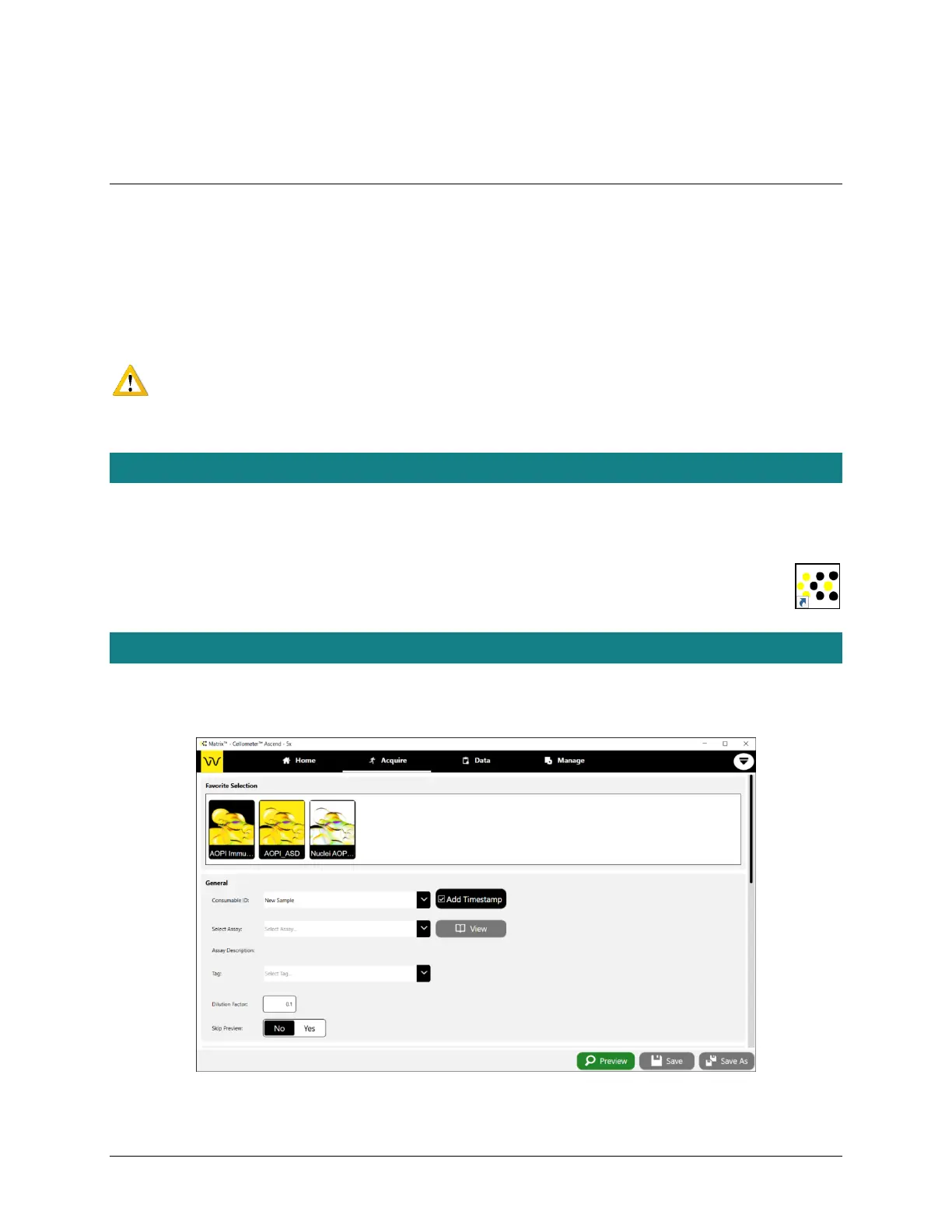
Upon launch of the software, you are presented with the first screen (Setup) in the data acquisition workflow. This
workflow is available at any time by tapping the Acquire workflow tab. Basic screen elements are described below.



 To Next Page