Chapter 8. Matrix Counting and Analysis Workflow
8004708 Cellometer™ Ascend User Manual Rev A 40
Exporting and Printing Scan Results (Manual Settings)
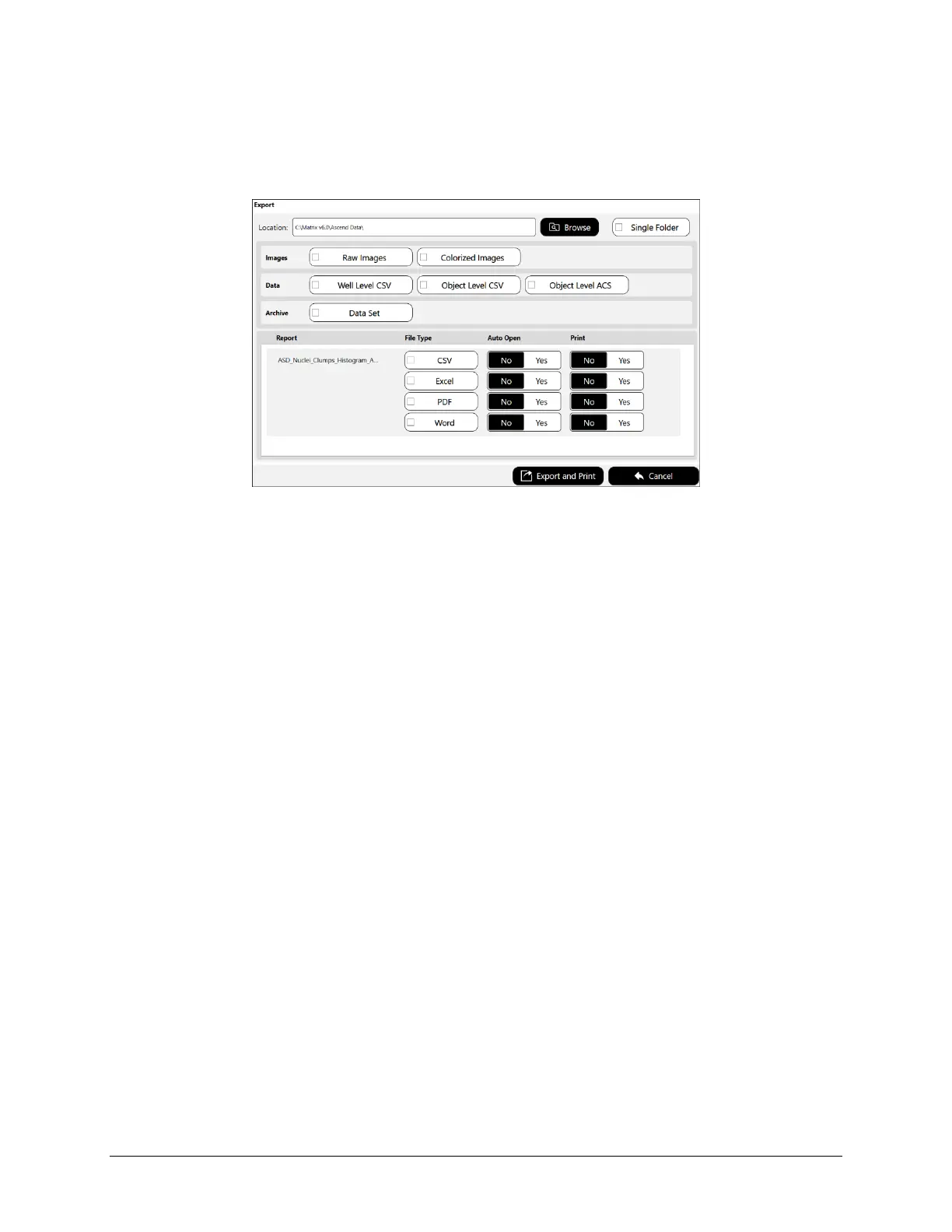
To manually select additional export options (images/data) for scan result files as well as generated output files for
reports, tap the Export button located at the bottom of the Results screen. The Export dialog is displayed.
Confirm the export Location and if necessary update this path by tapping the Browse button, navigating to a folder
on your Operating Computer or network, and tapping OK.
Select scan result Images (e.g., Raw Images or Colorized Images), Data (e.g., Well Level CSV, Object Level CSV and
Object Level ACS) and Archive (e.g., Data Set) file options to be exported to the specified location. Data Sets are
stored as .SCANRESULT files.
In addition, for reports associated with the scan result you can select generated output file types (e.g., CSV, Excel,
PDF and Word) to be exported and indicate if files are to be opened automatically and/or printed upon export.
Note: If the Object Level ACS option is selected, the screen expands to display if an ACS template has been
assigned to the assay and offers an Auto Open option after the report is generated. If no ACS template is displayed,
users can still export object level ACS data assuming they have the export privilege. To change the ACS template
assigned to an assay, users will need to edit the assay.
For report templates associated with the scan result you can select generated output file types (e.g., CSV, Excel,
PDF and Word) to be exported and indicate if files are to be opened automatically and/or printed upon export.
Note: Any changes to export options are applied only when manually exporting scan results (i.e., by tapping the
Export and Print button) and will not be saved with the assay or scan result.



 To Next Page