Chapter 8. Matrix Counting and Analysis Workflow
8004708 Cellometer™ Ascend User Manual Rev A 41
PERFORMING A RECOUNT
If you find it necessary to fine-tune assay parameters after reviewing your data results, tap the Recount button
located at the bottom of the Results screen. The Recount screen is displayed.
Once you have made any necessary changes (per the options described below), tap the Recount button located at
the bottom of the screen. After a recount is performed, the Navigation Bar returns to the Results screen.
Refining Assay Details/Selecting New Assay
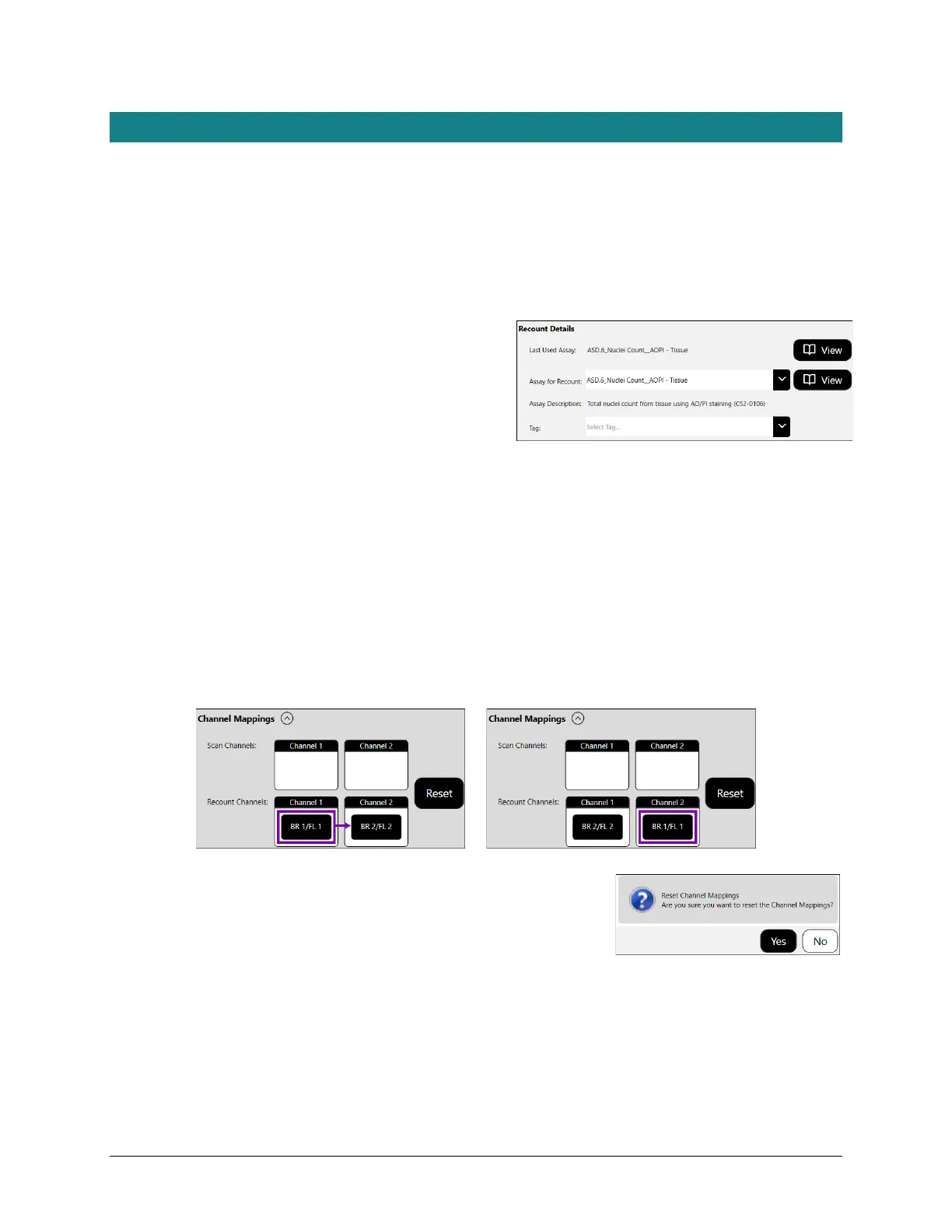
In the Recount Details area you can view parameter settings
for the Last Used assay, select a new assay from the
dropdown or view the current assay to edit parameter
settings to be used for the recount.
Managing Channel Mappings
Expand the Channel Mappings area to identify Scan Channels and Recount Channels for the Imaging Mode associated
with the current assay. Performing a recount uses channel mappings as defined by default (i.e., Recount Channels will
remain in same positions used for the original Scan Channels).
Note: Each channel will have separate brightfield and fluorescent images as depicted in the mapping indicators
(i.e., BR1/FL1 and BR2/FL2).
To manage channel mappings for use in a recount, tap on a mapping indicator and drag it to a new channel. The
mapping indicator in that channel will swap positions with the one you are dragging automatically.
To return channel mappings to the positions they were in when you first
expanded the Channel Mappings area, tap the Reset button followed by Yes
to confirm the action.
If a new assay selected for recount has fewer channels or you edit the assay previously used to reduce the number
of channels, mappings displayed are updated to reflect available channels. To manage channel mappings for use in
the recount, tap on mapping indicators and drag them to an available position in the Recount Channels area.



 To Next Page