Chapter 8. Matrix Counting and Analysis Workflow
8004708 Cellometer™ Ascend User Manual Rev A 32
ENTERING PARAMETER SETTINGS
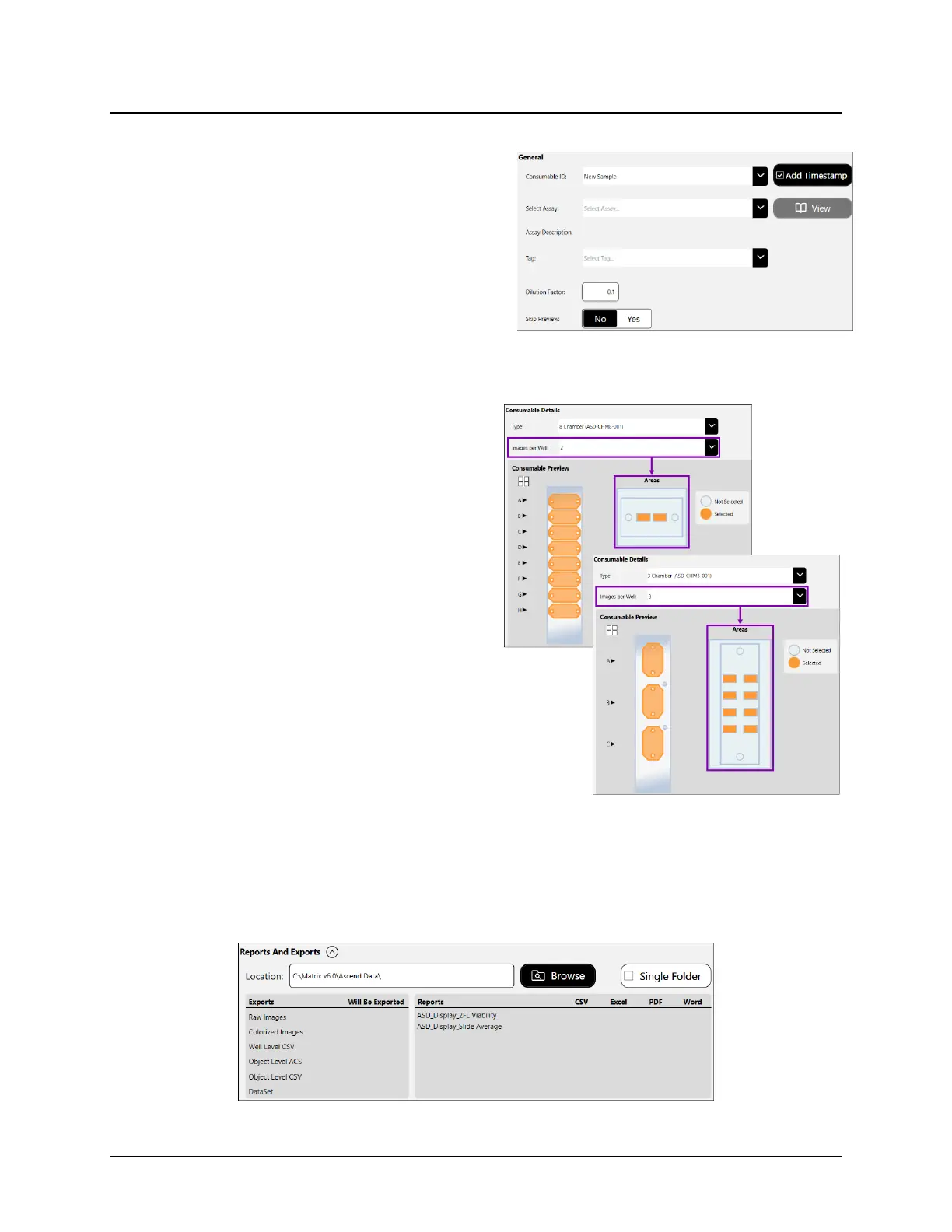
1. In the General area, enter a Consumable ID. If a
consumable ID is not entered, a date/time stamp will
be appended to the “New Sample” default (e.g.,
New Sample 2024/03/25-10:58:09).
2. Use the Select Assay dropdown to choose an assay and
confirm the assay description displayed.
To view and/or edit assay details, tap the View button.
Tap Back (if no changes were made) or Save (to save any
changes) to return to the Setup screen.
Note: If an assay is locked for editing (i.e., the Category
field shows Locked as enabled instead of Unlocked),
users must first tap Save As to save it as a new assay
before they can edit its parameters.
3. If desired, add a Tag (e.g., to create a time course
series for use in custom reporting). In addition, you
can change the value in the Dilution Factor field to
indicate the final dilution factor for the sample.
4. In the Skip Preview field, select No to enable the
Preview button or Yes to skip previewing the sample
and proceed directly to performing the count.
5. In the Consumable Details area, choose consumable
Type (e.g., 3 Chamber or 8 Chamber).
6. Select number of Images Per Well. For 3 Chamber slides,
available values are 2, 4, and 8.
In the Consumable Preview area, the visualization of a
chamber containing the selected number of Images Per
Well (i.e., representing cross-sections of the counting
chamber area) to be taken during the scan is depicted.
SETTING AUTO EXPORT LOCATION
Expand the Reports and Exports area to identify a Location for automatically saving scan results. Tap the Browse
button and navigate to a folder on your Operating Computer or network to define the default export path. This
default path will remain the same within the software until it is manually changed.



 To Next Page