Chapter 8. Matrix Counting and Analysis Workflow
8004708 Cellometer™ Ascend User Manual Rev A 33
In addition, Exports (see descriptions provided below) and output files for Reports (e.g., CSV, Excel, PDF, and Word)
defined for the current assay are displayed.
Sample Exports include:
Raw Images Represents Black and White high-resolution PNG images for each channel in the assay.
Colorized Images Represents colorized, high-resolution PNG images of all acquired channels. A single
colorized image represents individual channel images superimposed one on top of another.
Well Level CSV Represents well-level data including well name, calculation run, channel, count, mean size,
etc. for each selected well in Comma Separated Values (CSV) format.
Object Level ACS Represents object-level data for each well including type, classification, size, circularity,
area, perimeter, etc. in Image Cytometry Experiment (ICE) format.
Exported data may be associated with an ACS template and automatically opened for
viewing in De Novo Software FCS Express (if specified in auto export options for the assay).
Object Level CSV Represents object-level data for each well including type, classification, size, circularity,
area, perimeter, etc. in Comma Separated Values (CSV) format.
Data Set Represents a database file containing all images, results, assays, cell types and report
templates associated with the scan result. A data set is required to reload data for analysis
or if you need help from Support to optimize assay and/or cell type parameters.
To manage Exports and Reports defined for the selected assay, tap the View button and expand the Reports and
Exports option. Select Exports by tapping on file type buttons and manage Reports as necessary. Changes to the
assay can either be saved to the current assay (i.e., any changes made will also be applied to other scan results that
use the assay) or saved as a copy with a new name. Edited assays can be used for data acquisition. See the
Cellometer Matrix Software User Manual for details on editing an assay to manage exporting and reporting options.
Loading Samples
If you have already prepared and loaded a consumable counting slide with samples using instructions from
Preparing Counting Chamber Slides starting on page 29, skip to Previewing Samples, below.
1. Power on the instrument.
2. Remove the protective film from both sides of the slide.
3. Slowly pipette 20 µL of cell/bead sample directly into one or more inlet ports of slide chambers.
Note: If testing for cell viability, you must stain the sample before loading it into the
counting chamber. See Trypan Blue Staining Solution Guidelines on page 25 or
AO/PI Staining Solution Guidelines on page 27.
4. Pick up the slide loaded with cells/beads (being careful to not touch the clear optical
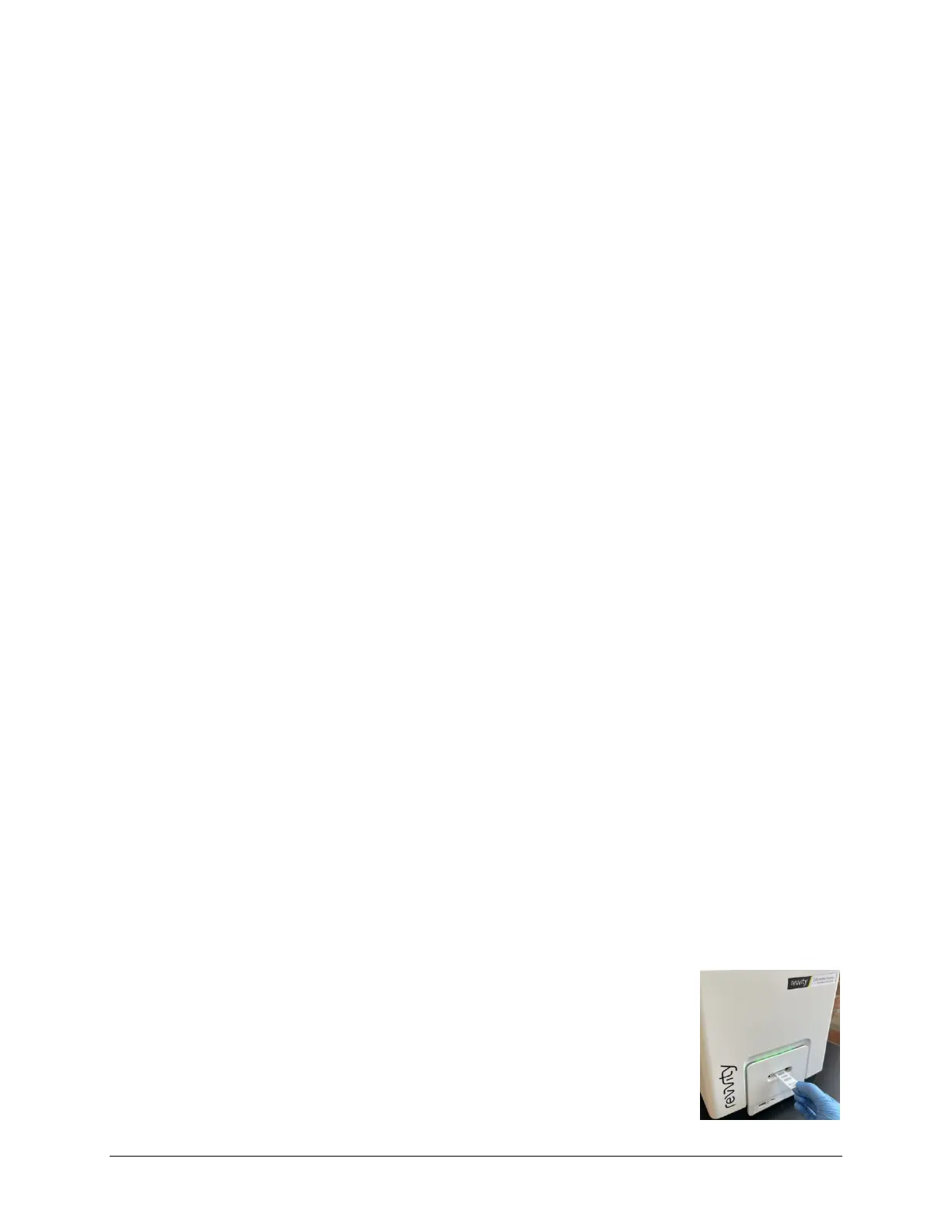
windows) and insert into the Sample Slot until it is met with resistance. The slide
automatically retracts into the instrument.



 To Next Page