Chapter 11. Contacting Support
8004708 Cellometer™ Ascend User Manual Rev A 50
GENERATING DIAGNOSTIC REPORTS
To generate a diagnostic report that can be emailed to Support when experiencing a technical issue:
1. Tap the Home tab and then the About Matrix™ button.
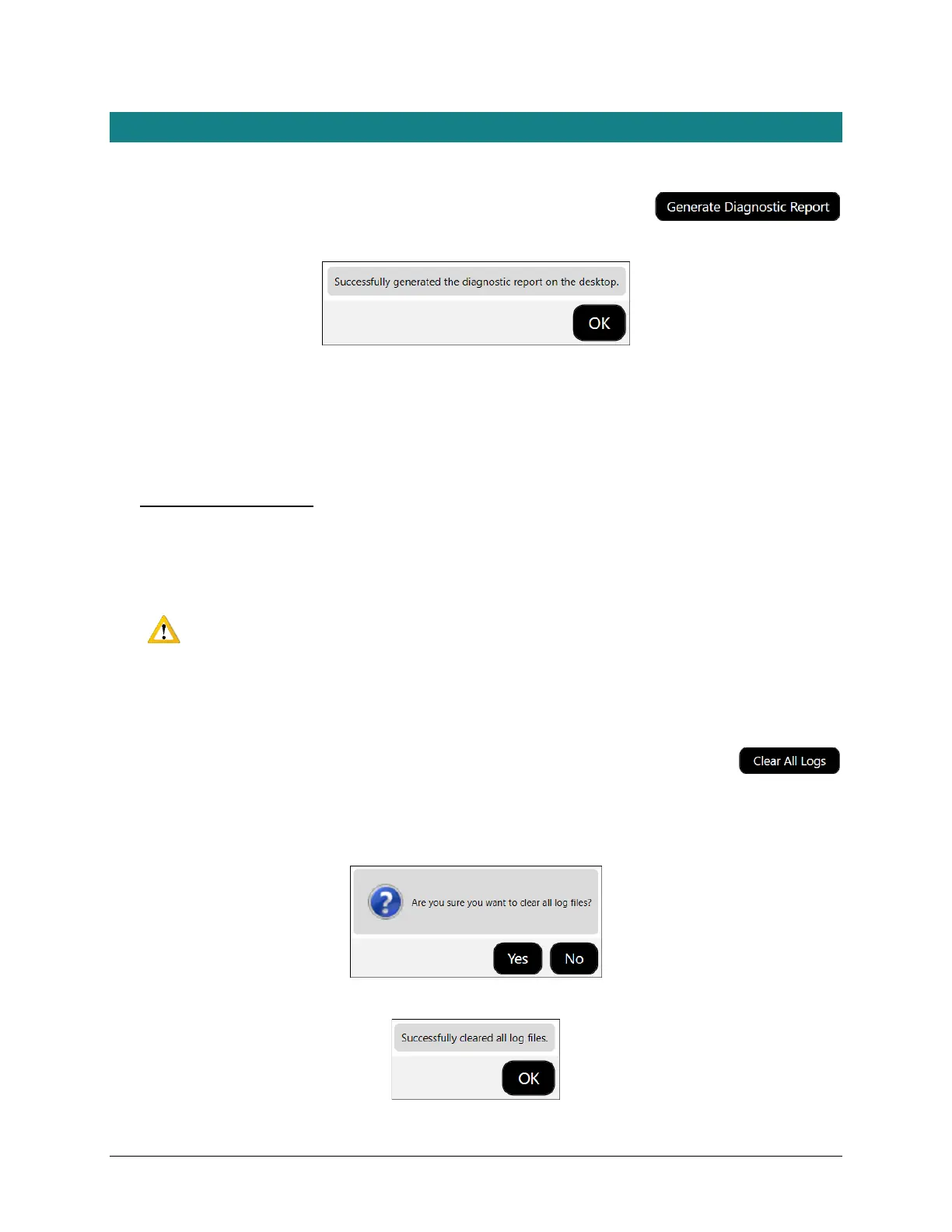
2. Tap the Generate Diagnostic Report button followed by OK in response to the confirmation prompt.
3. From the desktop, tap the generated Diagnostic_YYYYMMDD.zip folder (where YYYYMMDD represents the
date on which file was generated) to display files in the folder.
Files in the zipped folder include logs (located in C:\logs\Matrix\vXXX where XXX represents installed version)
and configuration files (located in C:\ProgramData\Revvity\Matrix\vXXX\Configurations).
4. Attach the zipped folder to an email, include the Support Ticket ID (if assigned) in the Subject line and send to:
CellC-support@revvity.com
It may be helpful to clear all logs before reproducing the sequence of steps leading up to an issue and/or to reduce
the size of the diagnostic report to be sent to Support. Logs are generated automatically by your system daily. Keep
in mind that clearing all logs will remove files accumulated to date for the version.
WARNING: Logs may be required to maintain a historical archive. As using the Clear All Logs
button will permanently remove accumulated logs for the installed Matrix software version, it
is recommended that you contact IT before clearing logs from your system.
To clear all logs:
1. Tap the Clear All Logs button.
Note: It is not recommended to clear all logs unless you are confident they are not being archived as a
requirement by your organization.
2. When prompted, tap Yes to confirm you want to clear all logs.
3. Tap OK to acknowledge that all logs have been cleared.



 To Next Page