Chapter 8. Matrix Counting and Analysis Workflow
8004708 Cellometer™ Ascend User Manual Rev A 42
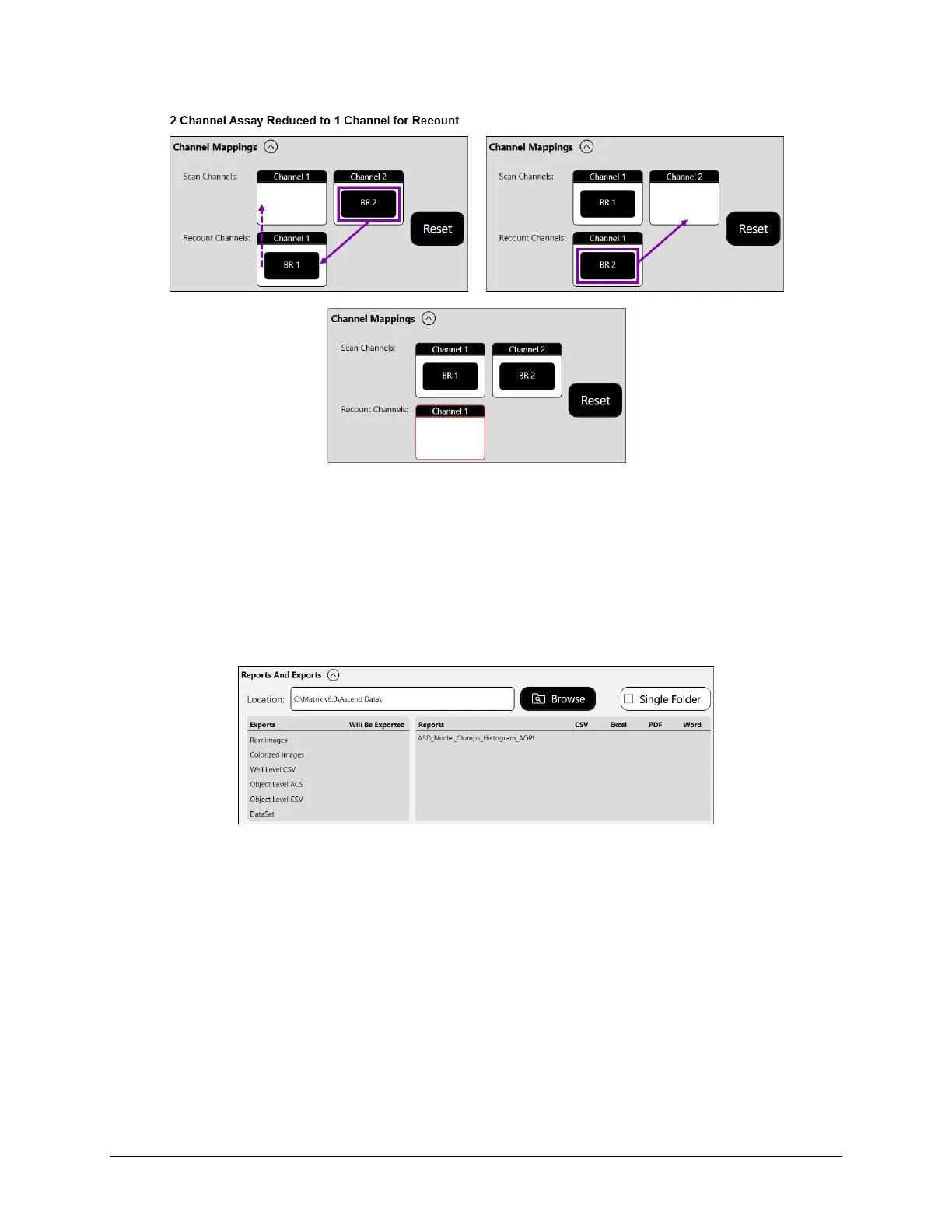
If you drag indicators from Recount Channels to their home Scan Channels locations, a red outline is used to
highlight empty Recount Channels locations. All Recount Channels must contain an indicator prior to recount.
Modifying Auto Export Options
Expand the Reports and Exports area to identify a Location for automatic exports of images/data and generated
output files for reports. Tap the Browse button and navigate to a folder on your Operating Computer or network
to define the default export path. This path will remain as the default in the software until it is manually changed.
In addition, Exports (e.g., Raw Images, Colorized Images, Well Level CSV, Object Level ACS, Object Level CSV and
Dataset) and output file types for Reports (e.g., CSV, Excel, PDF and Word) defined for the assay will be indicated
with a blue checkmark.
Note: To modify Report and Export settings displayed, tap the View button for the selected assay in Setup Details
area and expand the Reports and Exports section to update Exports and Reports file types selected.
Tapping the Recount Button
Once you have completed entering recount details for the samples, tap the Recount button located at the bottom
of the Recount screen. The Matrix software performs a recount of the scan using the modified parameters and
displays the new scan result.



 To Next Page