Chapter 8. Matrix Counting and Analysis Workflow
8004708 Cellometer™ Ascend User Manual Rev A 34
Preview Mode
If Preview mode is enabled (i.e., Skip Preview field in Setup screen is set to No), the instrument engages its camera
for viewing samples and displays the Preview screen. Users can view live images of samples in selected wells,
preview available channels for Imaging Mode associated with the assay, adjust instrument focus and confirm
fluorescent exposure for each channel.
Note: If the Skip Preview field in Setup screen is set to Yes, the software skips previewing samples and goes
directly to Count mode. See Count Mode on page 36 for details.
PREVIEWING LIVE IMAGES
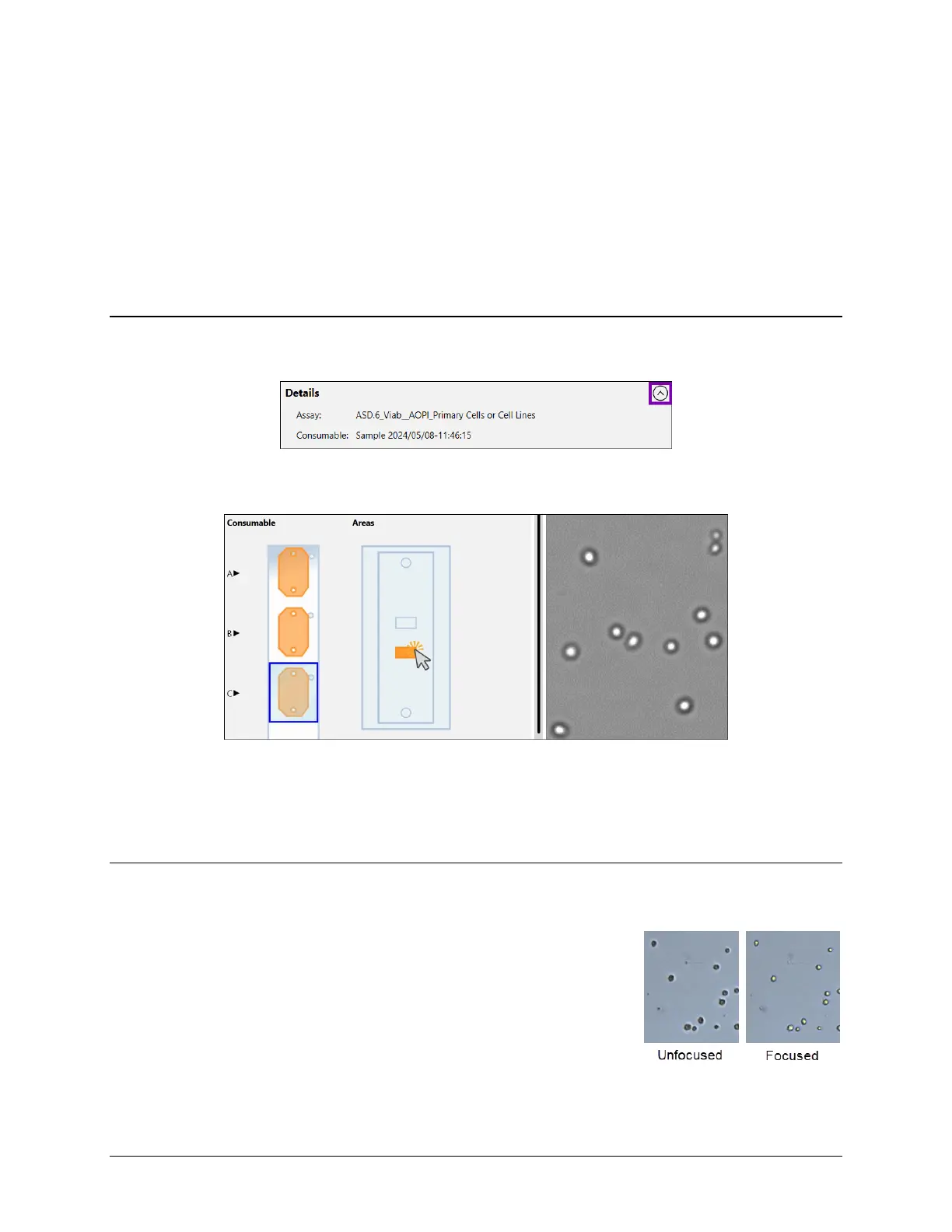
Expand the Details area at the top of the Prevew screen to view assay and consumable ID.
In the Areas visualization of a slide counting chamber, tap on different areas (i.e., representing cross-sections of
the counting chamber or “well”). As you move from area to area, the live image changes per your selection.
To zoom in/out of an image, move the mouse to hover cursor over the viewing pane and turn the scroll wheel or, if
using the touchscreen, apply universal gestures (e.g., touch the center of the image with two fingers and then
slowly spread them apart to zoom in and reverse this action to zoom out.) To move a zoomed image around, tap
and drag the image to a new location as needed.
ADJUSTING FOCUS
To adjust focus of the live image being previewed, tap the Auto Focus button. Pinch to zoom the image, if needed.
Obtaining good focus is key to ensuring accurate cell counts. Once good focus
has been achieved, the instrument should perform most counting operations
with only minor adjustments.



 To Next Page