Chapter 5. Operation
8004708 Cellometer™ Ascend User Manual Rev A 22
Simplified Workflow
Simplified workflow features have been integrated into the Matrix software graphical user interface (GUI) to
streamline user input in the most common data acquisition and analysis workflows.
USER FAVORITES
A key feature introduced in the v6.0 release is the creation of user favorites. A Favorite is a collection of count
parameters such as an assay, consumable name/type, and reports/exports settings that can be saved for quick re-
use. Users can assign images to be associated with favorites for quick reference, specify a prefix to be used for a
series of consumables within an experiment, and enable the option of skipping the Preview screen (in favor of
proceeding directly to the Count screen).
Favorites enable users to select previously saved counting parameter settings and instantly run samples without
having to choose an application, thus bypassing the setup process and possibly the Preview screen (if Skip Preview
feature is enabled). Scans that are performed frequently can be run with minimal software interaction.
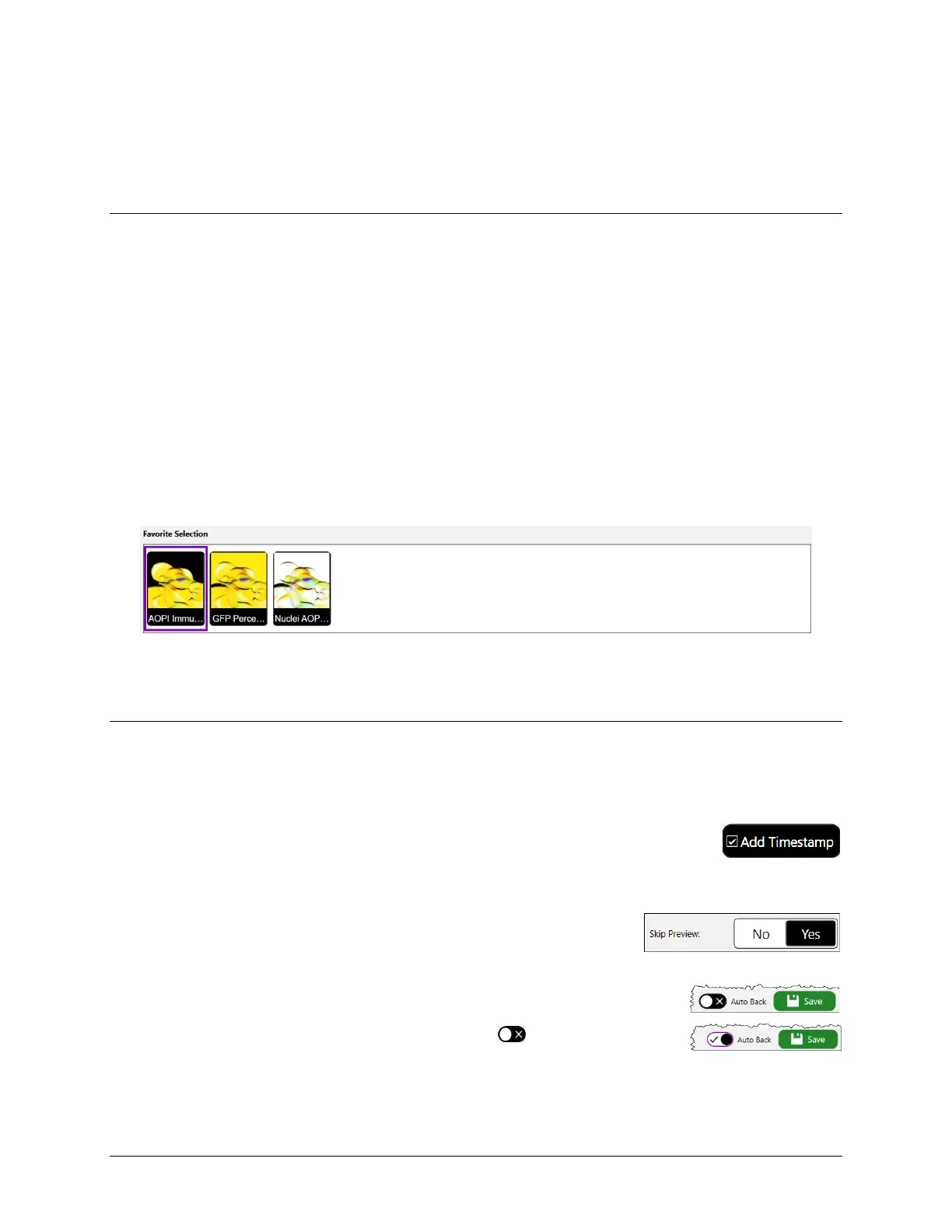
Favorite Selection Panel: The Favorite Selection panel is displayed across the top of the Setup screen and highlights
either the last used favorite or the system default. To run the selected favorite, simply tap the Preview (if enabled)
or Count button to proceed.
To run a different assay, users can either scroll across the panel to select another favorite or create a new setup by
selecting an assay from the dropdown and/or entering new parameter settings.
STREAMLINED USER EXPERIENCE
Additional simplified workflow features built into the Matrix software may be used to streamline the overall
user experience.
Add Timestamp Button: When entering setup details, tapping the Add Timestamp
button automatically appends a timestamp to the Consumable ID when the scan
result is created. This button is enabled by default.
Skip Preview Feature: When entering setup details, the Skip Preview field
selection is used to toggle the display of the Preview (i.e., Skip Preview is set
to No) and Count (i.e., Skip Preview is set to Yes) buttons.
Auto Back Button: If enabled, the Auto Back feature toggles functionality
of the Save button to function as Save and Back, automatically returning users to
the previous screen when tapped. Tap the Auto Back button (located to left
of Save button) to enable or disable this feature.



 To Next Page