User Manual Bearing System RT-300
Issue: 2017/06/27 [Rev 1.04.c] Page 32 of 79 12-9-1-0013-9-2-0001-3-1-60
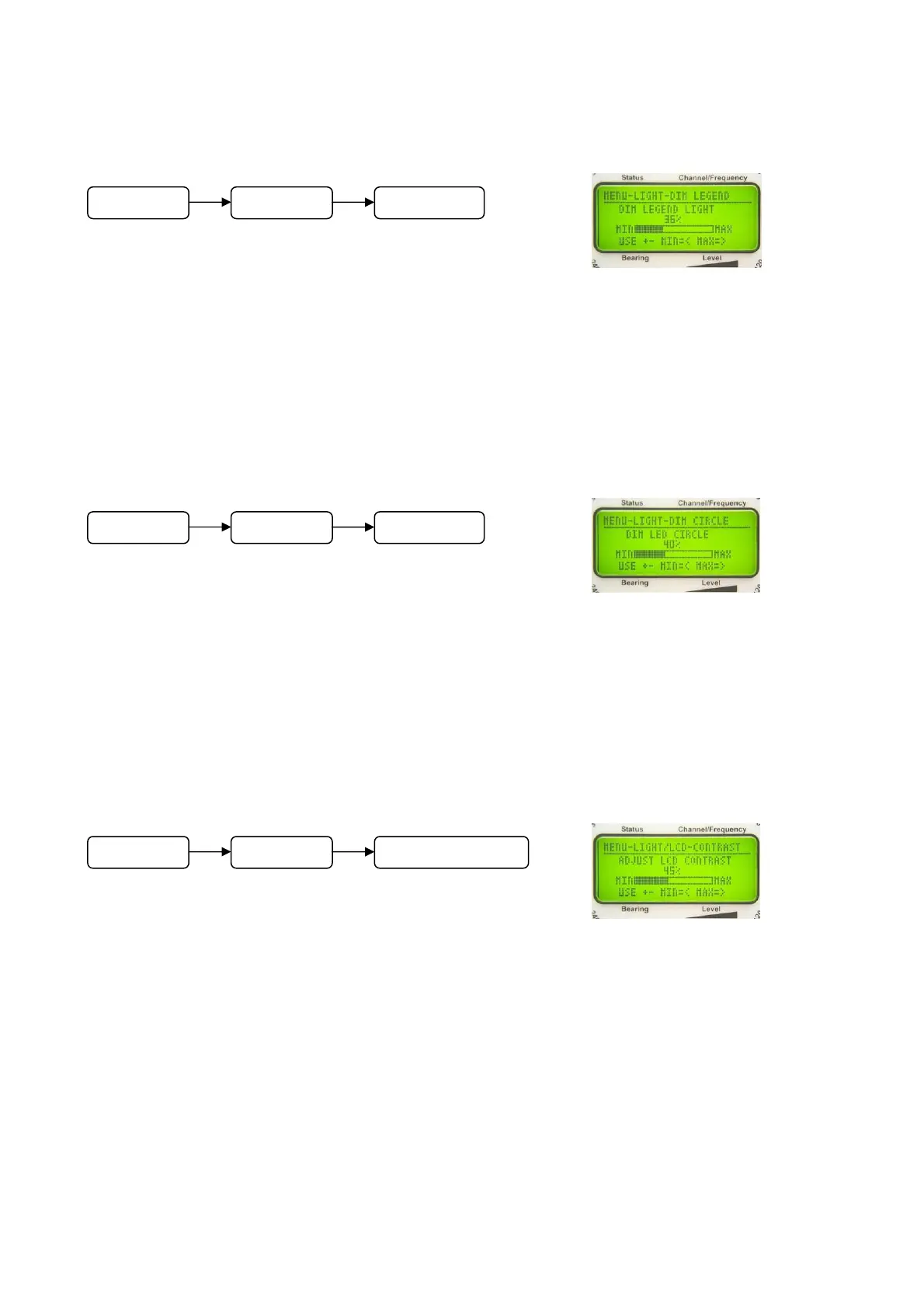
6.2.1.1.2 Adjusting Brightness of Keyboard Lighting: Function DIM LEGEND
In the submenu LIGHT/LCD select function DIM LEGEND.
The bar graph as shown in Fig. 30 will appear.
- Adjust brightness of the keyboard lighting using keys 5
< + > and 10 < – >.
- Keys 8 < > respectively 3 < > will switch brightness to maximum or shut off.
- Confirm selected adjustment using key 6 < Ok >.
- Key 9 < Esc > will reject the adjustment, the device is returning to the next higher menu level.
In the main menu this will finish the menu mode.
6.2.1.1.3 Adjusting Brightness of LED-Circle: Function DIM CIRCLE
In the submenu LIGHT/LCD select function DIM CIRCLE.
The bar graph as shown in Fig. 31 will appear.
- Adjust the brightness of LED-circle using keys 5 < + >
and 10 < – >.
- Keys 8 < > respectively 3 < >, will switch the brightness to maximum or shut off.
- Confirm selected adjustment using key 6 < Ok >.
- Key 9 < Esc > will reject the adjustment, the device is returning to the next higher menu level.
In the main menu this will finish the menu mode.
6.2.1.1.4 Adjusting Contrast of the LC-Display: Function LCD CONTRAST
In the submenu LIGHT/LCD select function LCD
CONTRAST. The bar graph as shown in Fig. 32 will
appear.
- Adjust contrast of LC-display using keys 5 < + > and 10 < – >.
- Keys 8 < > respectively 3 < > will switch contrast to maximum or minimum.
- Confirm selected adjustment using key 6 < Ok >.
- Key 9 < Esc > will reject the adjustment, the device is returning to the next higher menu level.
In the main menu this will finish the menu mode.
NOTE
If adjusting the contrast to minimum respectively maximum value, the display may become
unreadable! This may complicate readjustment or make it even impossible.
Fig. 30
Fig. 31
Fig. 32
M
n
LIGHT/LCD DIM LEGEND
M
n
LIGHT/LCD LCD CONTRAST
M
n
LIGHT/LCD DIM CIRCLE


 To Next Page