74
Session Timeout
The RisControl will automatically lock following a predefined “idle” time (Session
Timeout) during which the screen has not been touched. The Grand Master can
select between 15, 30- or 40-seconds session timeout.
1. Click the Session Timeout option in the menu.
2. Select the preferred duration.
Note: The Grand Master can also manually lock a session by clicking on the user’s
avatar at the top right corner of the screen and then clicking “Lock screen”, as
described in the RisControl Top Bar, page 28.
Screen Saver
The Grand Master of the system can set the appearance of the Screen Saver.
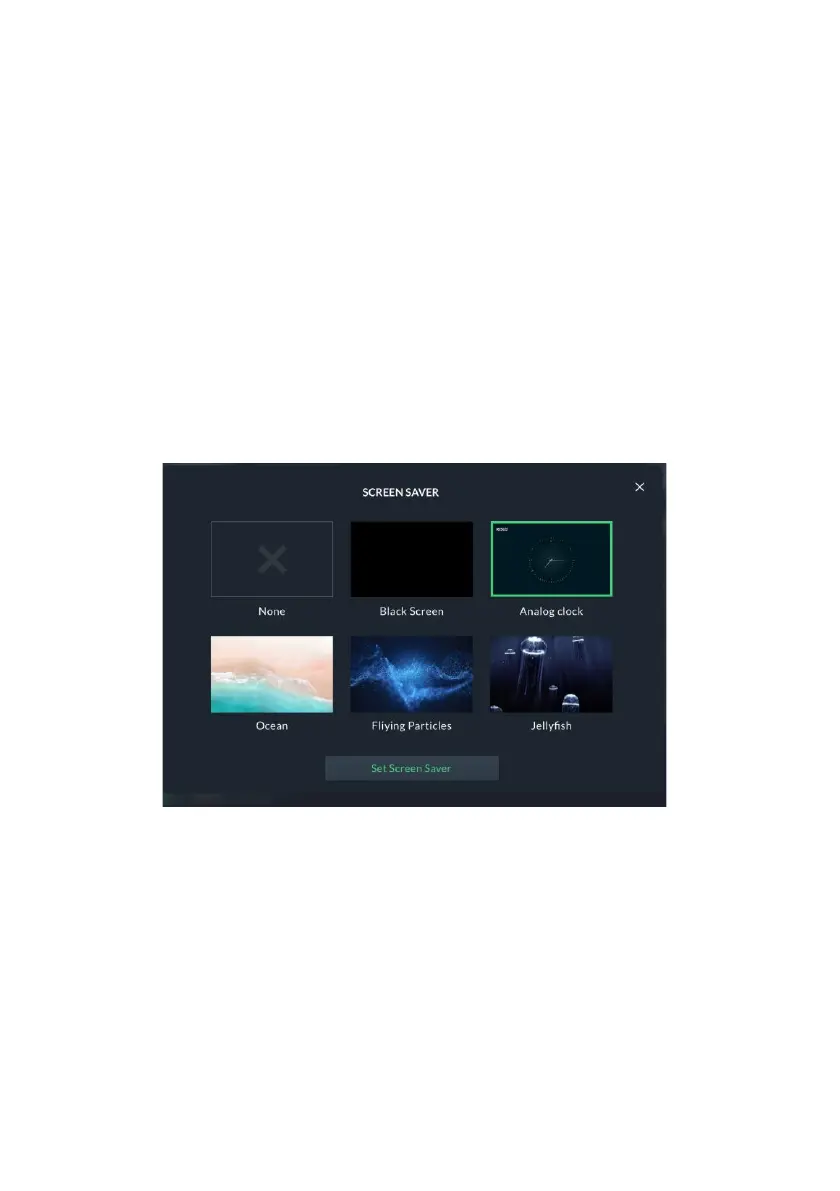
1. Click the “Screen Saver” option; the following screen is displayed.
Figure 74: Screen Saver Selection
2. Select one of the options, and then click the “Set Screen Saver” button; the selected
Screen Saver will appear for as long as RisControl is in the Screen Saver state.
Screen Saver Options:
• None – RisControl does not enter Screen Save mode.
• Black Screen – during Screen Saver mode the screen is black.
• Analog Clock – a real-time clock is displayed.
• Ocean, Flying Particles and Jellyfish – short video clips that repeat
continuously.


 To Next Page
 Loading...