Basic Operations
Printing from a Computer Data [Direct Print] [USB Job List]
46
3
Set printing options from your com-
puter screen.
Use the printer driver.
Important!:
• Make sure to remove the checkmark from the
“Collate” option in the Print dialog box.
Note:
• If you are using RISO Network Card, you can
check the machine status (power ON/OFF,
paper settings, etc.) remotely from your compu-
ter monitor.
4
Click [OK] in the print dialog box.
Data is sent from the computer.
When the machine receives data, a print job auto-
matically starts in accordance with the printer
driver settings.
Skip to step 6 if you are printing in Full Auto.
5
Perform printing from the control
panel.
The displayed screen and operation procedure
differ depending on the “Auto-Process”
(Advanced tab) setting of the printer driver.
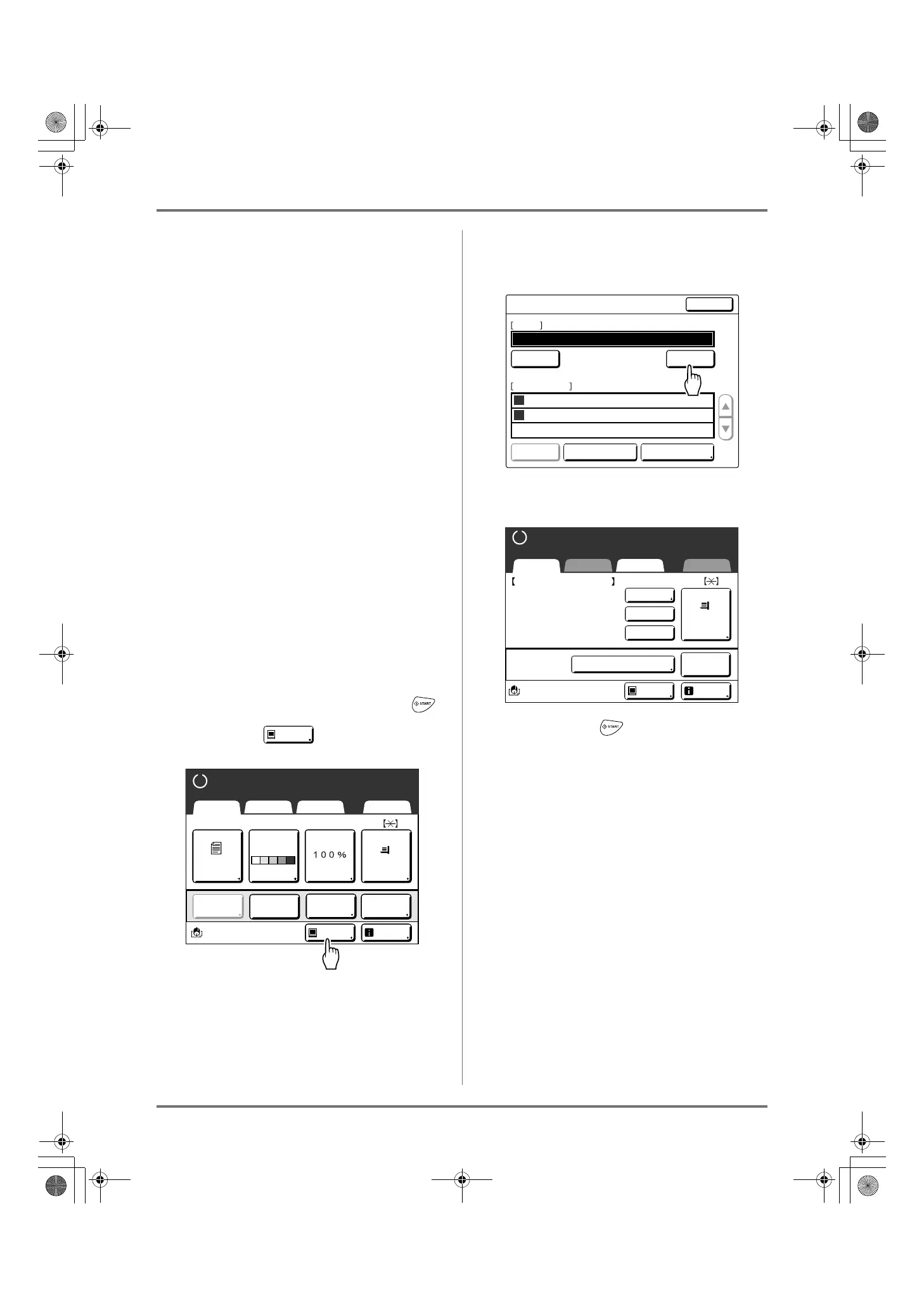
Printing with Pause before “Master”
The Master Making Basic Screen in step 2) is
halted depending on the use of the machine or
Admin. settings. In this case, press the
key.
1) Touch .
The Job List screen is displayed.
2) Touch [Output].
If you want to operate the ID print, touch
[ID Print Job].
The following screen appears.
3) Press the key.
After making a master, start printing.
Pause
A4
Line
Black
Page(A4)
Basic Selections Functions Admin.
Contrast
Auto
Size Paper
Pause
Info
Ready to Make Master
Reserva-
tion
Multi-Up
Print
Editor
Dot
Process
Job List
Close
Clear
Clear
Output
Cps. PageOwner
Document_1.doc
RISO 100 10
Document_2.doc
RISO 200 1
01
Document_3.doc
RISO 50 2
02
Pause
Waiting Job(s)
ID Print JobFile name only
A4
Black
Basic Selections Functions Admin.
Paper
Process:
Job
Separation
Info
Ready to Make Master
Document_1.doc
Owner: RISO
ReceiptTime: 30/09/11 05:30
Format: A4
P.1/10
Skip Page
Clear All
Auto-process "OFF"
Pause
Preview
REG-ML_EN.book Page 46 Wednesday, September 21, 2011 5:19 PM



 To Next Page