Basic Operations
Printing from a Computer Data [Direct Print] [USB Job List]
52
Changing Output Directions
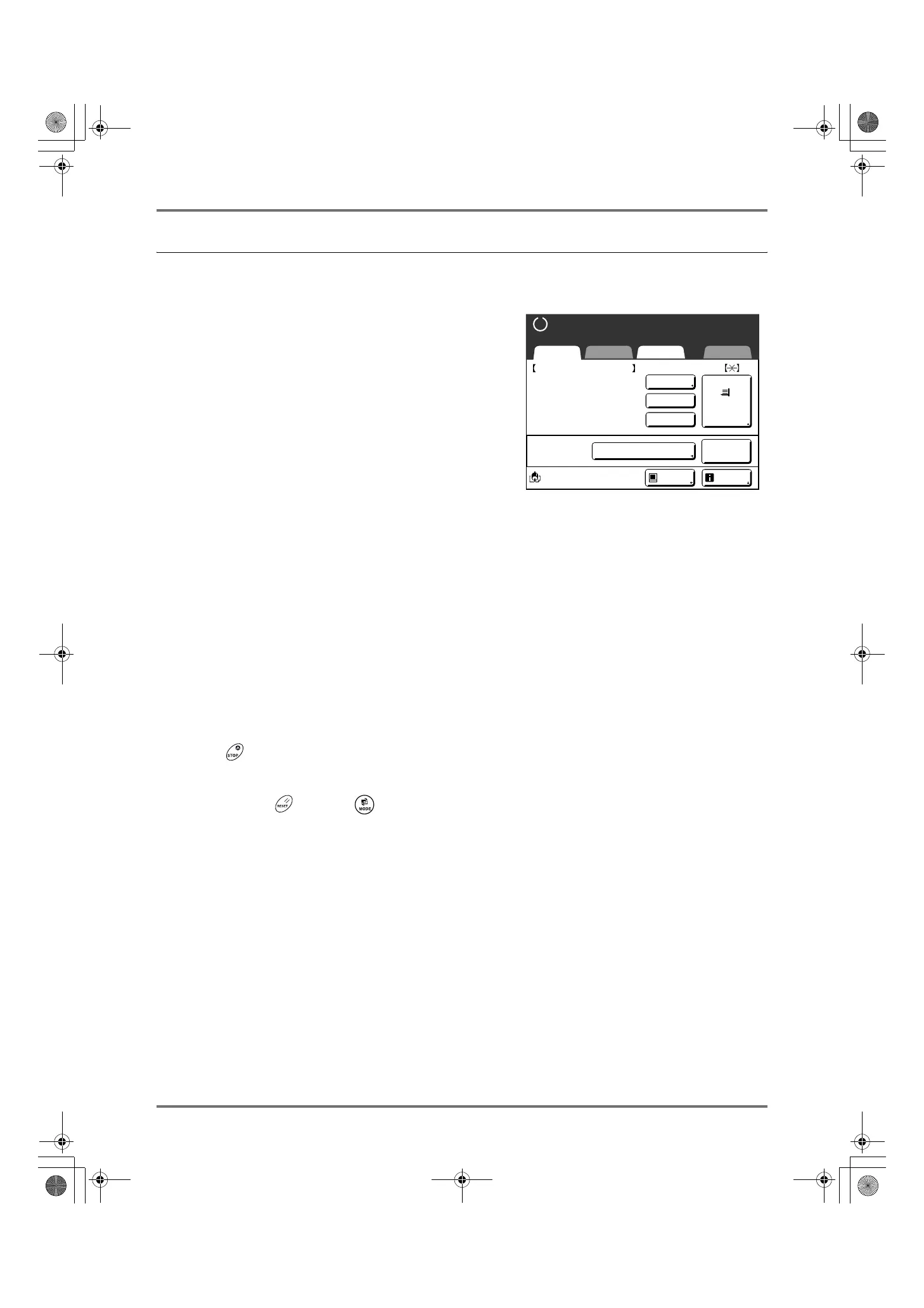
Output can be controlled from the Master Making/Print Basic Screens.
Master Making Basic Screen
• [Preview]
You can check the master making image of the page currently
awaiting creation.
Note:
• In “Preview”, all received original data is displayed as a
master making image. The outside of print area is not actu-
ally printed.
• [Skip Page]
Cancels a pending page, and start processing the next page.
Use this button when current file has extra, unwanted pages.
• [Clear All]
Deletes all currently queued jobs. Use this button to delete a
job sent by a mistake, or pending jobs no longer needed.
Print Basic Screen
• [Renew Page]:
You can recreate another master when the current one is damaged without having to receive original data from
the computer.
Note:
• If multiple pages exist, only the last page will be processed.
• “Rotate” can also be specified.
• The confirmation screen for each respective button appears when touched. Touch [OK] to implement the
instructions.
Important!:
• [Skip Page] and [Clear All] are disabled during master-making or printing processes.
Press the key to modify directions while master-making or printing is in progress.
(In master-making process, the operation will stop after the master is made. In print process, the print job is halted.)
Note:
• Pressing either the key or the key while waiting for a command (under Ready to Make Master/Ready to
Print screens) will delete the pending job.
A4
Black
Basic Selections Functions Admin.
Paper
Process:
Job
Separation
Info
Ready to Make Master
Document_1.doc
Owner: RISO
ReceiptTime: 30/09/11 05:30
Format: A4
P.1/10
Skip Page
Clear All
Auto-process "OFF"
Pause
Preview
REG-ML_EN.book Page 52 Wednesday, September 21, 2011 5:19 PM



 To Next Page