Basic Operations
Printing from a Computer Data [Direct Print] [USB Job List]
47
Printing with Pause before “Print”
A master is made after receiving the data. The
machine stops after printing a proof copy.
1) Check the proof copy and adjust the set-
tings as needed.
2) Press the key.
Printing starts.
Printing with Auto-process “OFF”
1)
Follow steps 1 to 3 in “Pause before “Mas-
ter””.
Stop after making a master and printing a
proof copy.
2) Check the proof copy and adjust the set-
tings as needed.
3) Press the key.
Printing starts.
Note:
• If the data contains multiple pages, repeat the
same steps for each page.
• Entering the number of copies from the Print
Quantity Keys will override the number speci-
fied in the Print dialog box.
• For “ID Print”, printing starts with specified Auto
Process mode after recognition.
• To manually stop a job during master-making or
printing operation, press the key. In master-
making process, the machine will stop after the
master is made. In the printing process, the
machine will stop printing.
Press the key to resume the job.
6
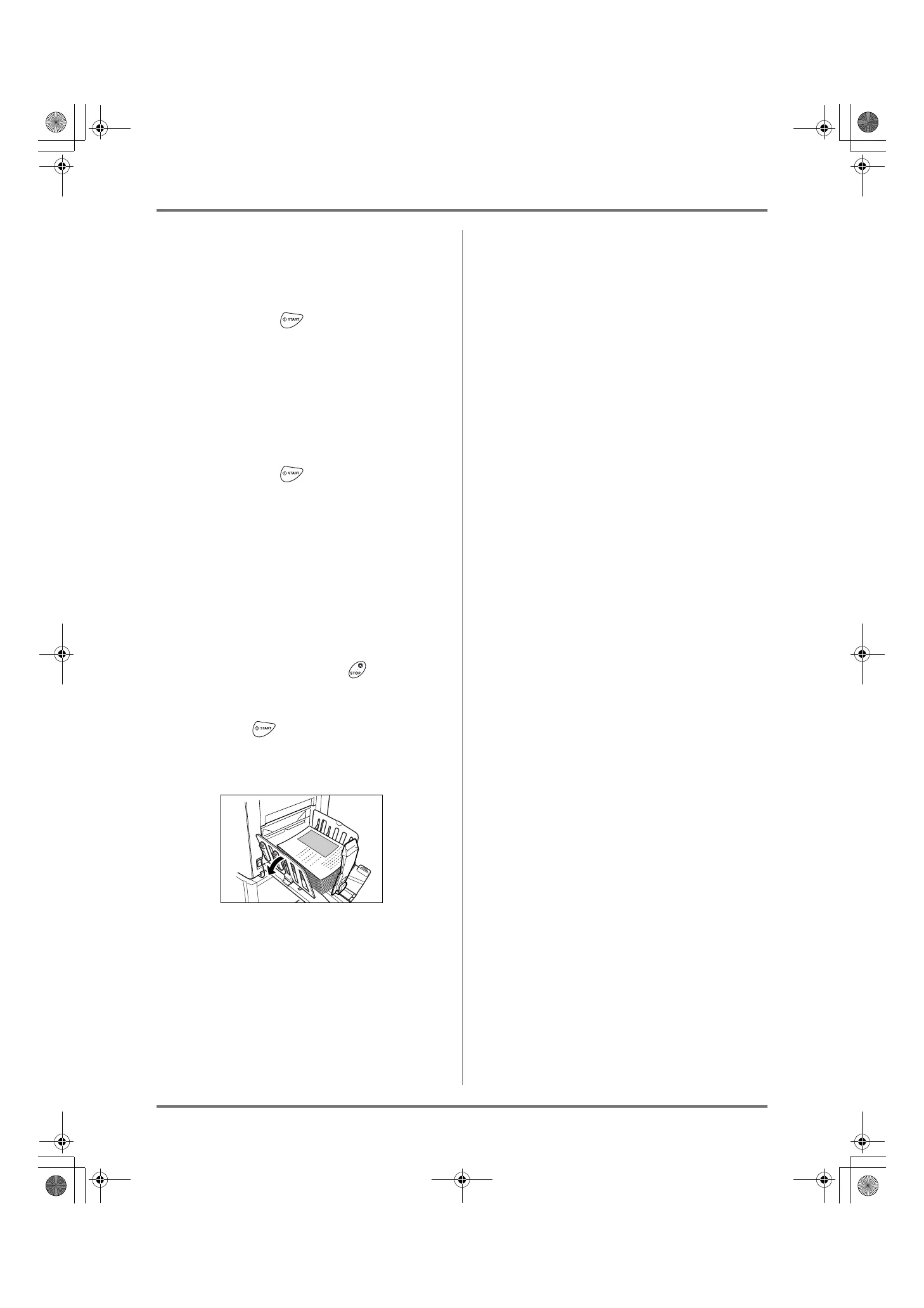
Remove the printed paper.
Open the Receiving Tray Paper Guides and
remove the paper.
Note:
• After printing is completed, the master remains
on the Print Drum (Cylinder). To protect confi-
dential documents from unauthorized duplica-
tion, use the Confidential feature to discard the
master after printing.
)p.141
Tip:
When Linked Pritner is connected to the
machine (Not available for EZ591U)
“Auto-Link” changes the Output Tray according to
the print quantity.
)p.157
)p.192
REG-ML_EN.book Page 47 Wednesday, September 21, 2011 5:19 PM



 To Next Page