AX10 Palletizing Solution
4.2. Palletizing Operation Instructions
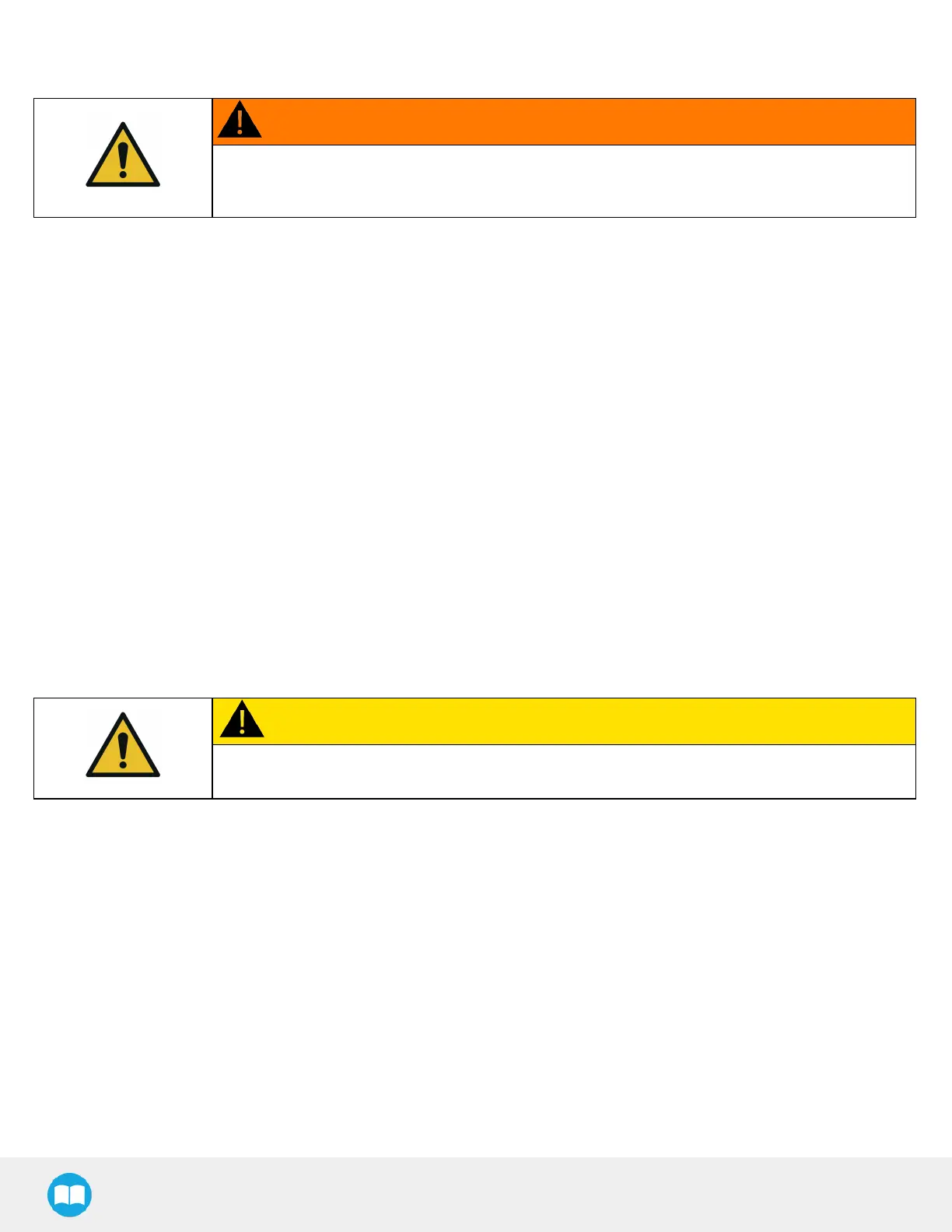
WARNING
There is no emergency stop button directly on the Robotiq Palletizer. The emergency stop button
used by the Palletizing Solution is the one found on the robot’s teach pendant. Make sure
operators know how to stop the Solution in case of emergency.
The following section explains the logical operation of the Palletizing Solution based on the operator's actions, as well as
responses such as signals, pallet and box sensor behaviors, etc. These steps are also represented in the form of diagrams in the
Palletizing Operation Diagrams section.
1. Once the program is selected:
a. Tap the Play button on the robot teach pendant.
l
If the Validate pallet state at program startup option is checked in the Palletizer node settings, the Confirm
current pallet state window will appear on the robot teach pendant. Enter the pallet state and tap OK. The
Palletizer will then start palletizing.
2. If an accident occurs, an emergency stop button is present on the robot teach pendant.
3. Once a pallet is full:
a. The status light will turn solid blue or blinking blue (see Status Light States section for all the information about light
states).
b. Enter the safeguarded area; palletizer falls in safeguard state.
c. Remove the full pallet and place an empty one.
d. Exit the safeguarded area and, after making sure no one is in the palletizer work area, make a safeguard reset to
restart the palletizer.
CAUTION
When adding safety components, make sure to respect all electrical wiring standards (example for
redundant signals).
4. To safely resume the solution after a protective stop:
a. Ensure the work area is clear and safe.
b. Validate the protective stop window and press the resume button to restart the program.
c. If necessary, stop the program, reposition the robot and restart the program.
5. To safely resume after an emergency stop:
a. Ensure the work area is clear and safe.
b. Release the emergency stop button and validate the emergency stop window.
c. Restart the robot.
d. If necessary, reposition the robot and restart the program.
72



 To Next Page