23/05/2019Roundshot VR Drive Instruction Manual – Firmware Version 2.023 112
5.5 Extracting xml files manually
The Image Bundler can only be used for USB-compatible cameras for which the USB connection is
active and “WriteIDs” is activated.
In some situations it may be preferable not to use the USB “Write IDs” feature, for example when
an HDR bracketing series needs to be released very fast, giving no time for USB communications
and “Write IDs”. This is the case when using quality mode, camera-internal bracketing and
quality mode bracketing (either a fixed number of images or “HDR special”).
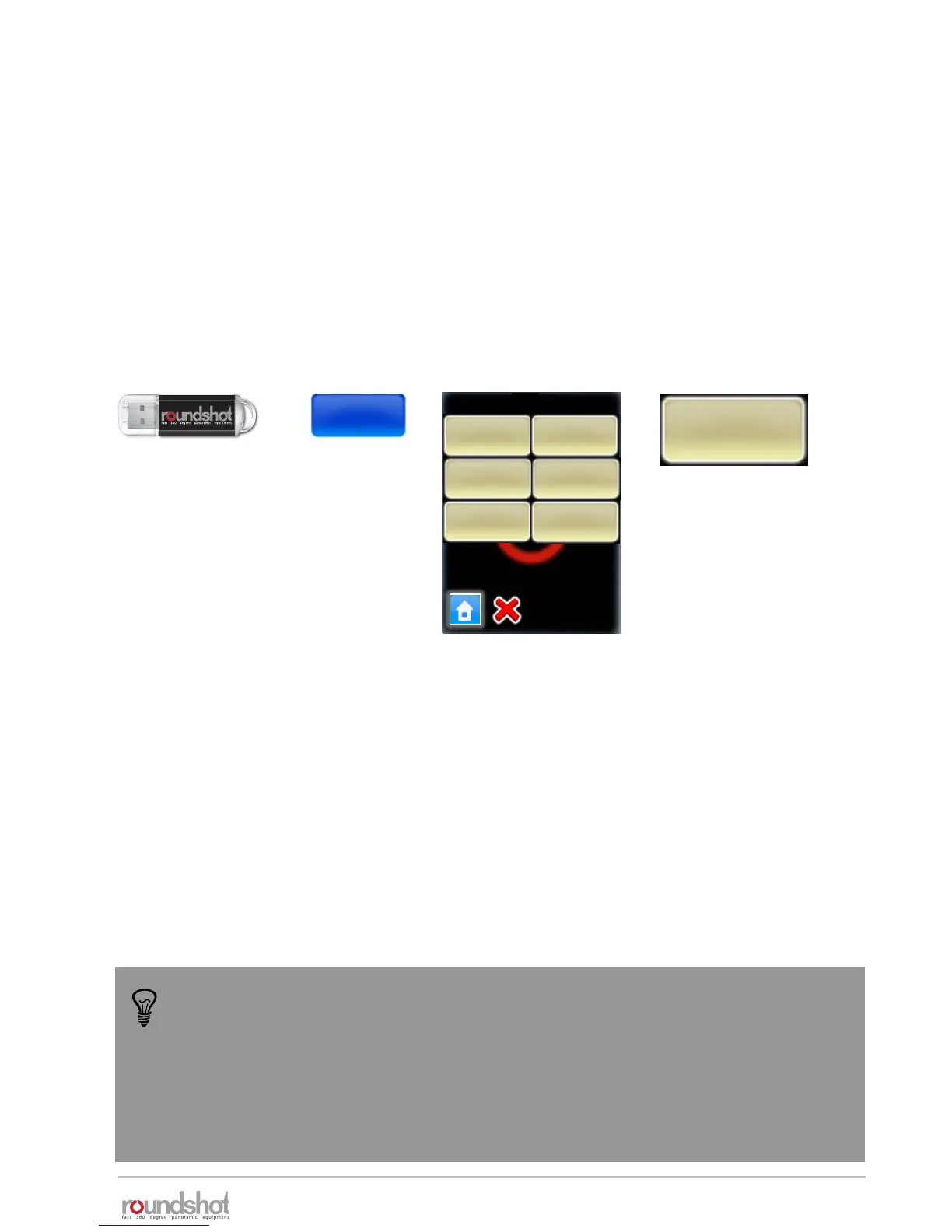
In this case, export the xml file by inserting the roundshot USB stick, clicking on the relevant
program (for example: P1) and “export P1 Papywizard”:
When exporting the xml file manually, please bear in mind that this xml is a
description of the program in its current state. Whenever changing the structure of
rows (elevation, number of positions), focal length or sequence, the xml will change
and therefore another manual export will be necessary.
The Image Bundler, on the other hand, will always generate the xml file according to
settings of the program used.
new delete
copy move
new
delete
copy
move
P1
P1
quality
export P1
Papywizard
export P1
Seitz
export P1
Papywizard
This will save the xml file on the USB stick from which it can be added to a stitching project.


 To Next Page