23/05/2019Roundshot VR Drive Instruction Manual – Firmware Version 2.023 55
4. Program Editing
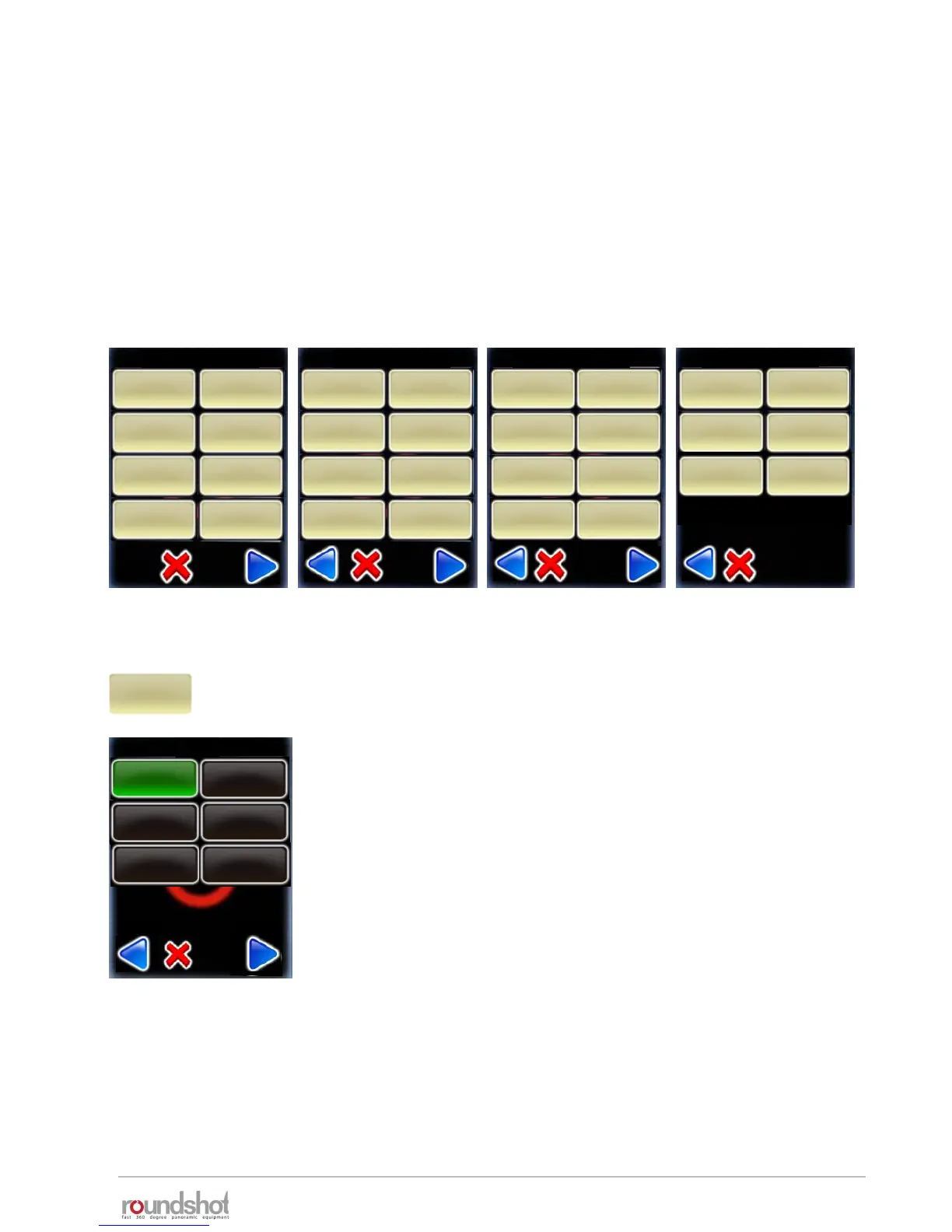
Edit P1 / page 1
Edit P1 / page 2
Edit P1 / page 3
mode
quality
info
Nikon
D3
focal length
24 mm
A/B value
0mm
0mm
angle mode
cylindrical
X
360°
Y
73°
overlap
30%
30%
orientation
portrait
image number
variable
sequence
zig.-zag top
down
speed
6s
10s
pause position
0s
0s
release time
0.1 s
timer
0s
repeat
0
0°
acceleration
100%
bracketing
1
manual
off
orientation
CCW
4.1 Editing in quality, speed and turntable modes
Click on “mode” to change the VR Drive mode.
It is possible to switch from “Quality” to “Speed” mode and
vice-versa.
Changing to “Speed” mode does not change the calculation of
rows (elevation and images) or any other program parameters.
The only difference is that the following parameters will no
longer be accessible in “speed” mode and will therefore be
deactivated:
The “Turntable” mode is an entirely different application. The number of images are not
calculated and therefore this mode has different variables. The same is true for the “Video”,
“timelapse” and “HDR” mode.
This is why it is not possible to switch to “Turntable”, “timelapse”, “Video”, or “HDR” mode
from “Quality” mode.
• Pause before / after image taking
• Acceleration
• Mirror prerelease
• Manual image release
• Bracketing
mode
quality
rows
mirror rel.
0s
speed
turntable
timelapse
video
quality
mode
HDR
pause image
0s
0s
Edit P1 / page 4
lens type
No fisheye
back to start
off
Once a new program is created using the Wizard, it is accessible from the program list in the home
menu.
By accessing the “program edit” menu it is possible to edit any of the program parameters
individually.
In this section you can find a detailed description of every editable program parameter as well as all
the VR Drives predefined settings.
Click in the centre of the touch screen to open the “program edit” menu.
USB settings
settings
floor patch
off
auto exposure
settings


 To Next Page