Model 2010D Calibration Setup Page 6-
Defining Calibration Sequences", on page 6-8.
[2] Select Sequences under the main menu and press the Enter
button. A pop-up menu will appear.
[3] Select Remote Activation from the menu. A pop-up menu will
appear.
[4] Select Sequence Start and press the Enter button. The
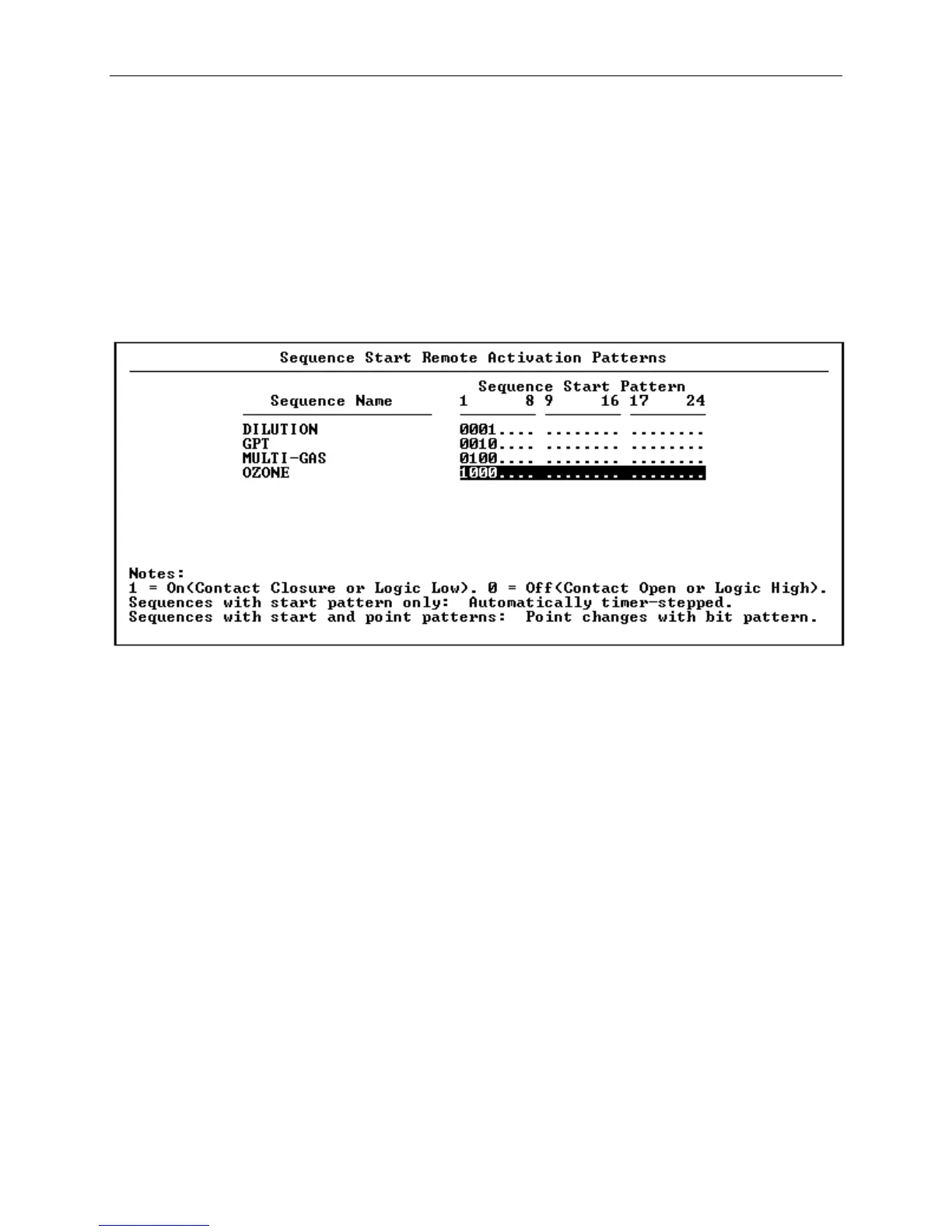
Sequence Start Remote Activation Patterns screen shown in
Figure 6-10 will appear.
Figure 6-10 Sequence Start Remote Activation Patterns Screen
Notice that some of the bits are set to either "0" or "1" and
the rest are indicated by decimal points. The bits indicated
by "0" or "1" have previously been assigned as Sequence
Control Inputs and may be used for entering bit patterns. If
all the bits are indicated by decimal points, then set up the
Sequence Control Input group as described on page 6-21 in the
section Digital I/O Group Set-up.
[5] The sequences that have been initialized and saved will be
listed in this screen under Sequence Name. Arrow down to the
sequence whose start bit pattern you wish to initialize.
[6] Assign a unique bit pattern that will be used to start this
sequence by entering 1's or 0's. When finished, press Enter
or an arrow key to move to another sequence.
[7] Repeat steps 5 and 6 as necessary until a unique pattern has
been assigned to each sequence that will be remotely
activated.


 To Next Page