Via Pro User’s Guide – TouchChat 115
Using Advanced Grammar Features
The features explained in this appendix are intended for persons with extensive knowledge of grammar.
Please note that this is an alternative way to set up grammar within a vocabulary file. WordPower files
already have a grammar in place.
Creating a Grammar Button
To create a button that changes a word to a different grammatical form:
1. Go to the page with the button location you want.
2. Tap Menu > Edit Page.
3. Tap the button you want to use.
4. Tap Edit This Button.
5. Add a label. For example, enter -s.
6. Scroll to the Button Actions section.
7. Tap Add.
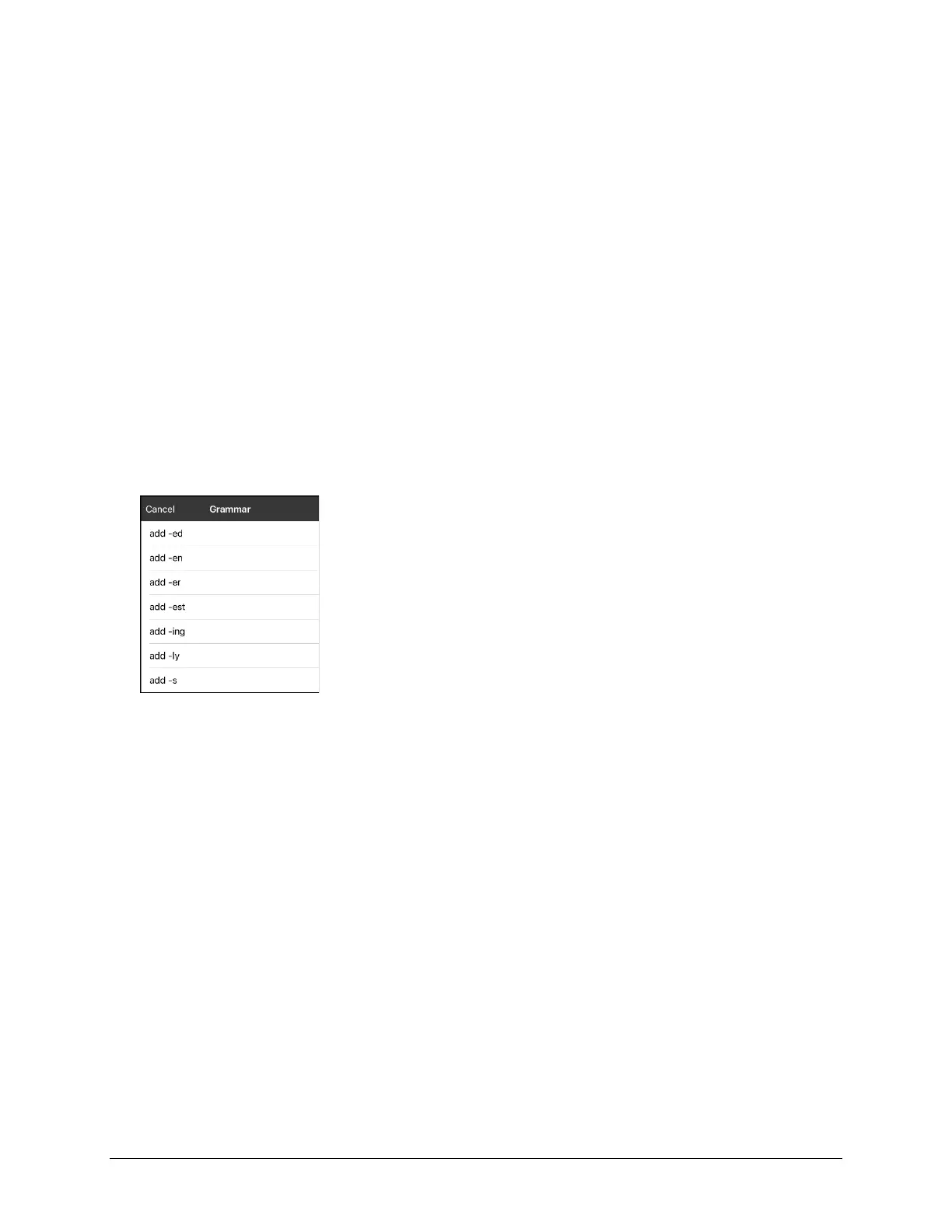
8. Tap Grammar Action. The Grammar actions will be displayed.
9. Tap the action you want. For example, tap add -s. The action will be listed in the Button Actions
section.
10. Tap Save. In this example, a button labeled “-s” will be available to pluralize all nouns.



 To Next Page