Via Pro User’s Guide – TouchChat 95
Setting up a Button to Play a YouTube™ Video
Note: You must have an active Wi-Fi connection.
1. On your device, select the YouTube video you want.
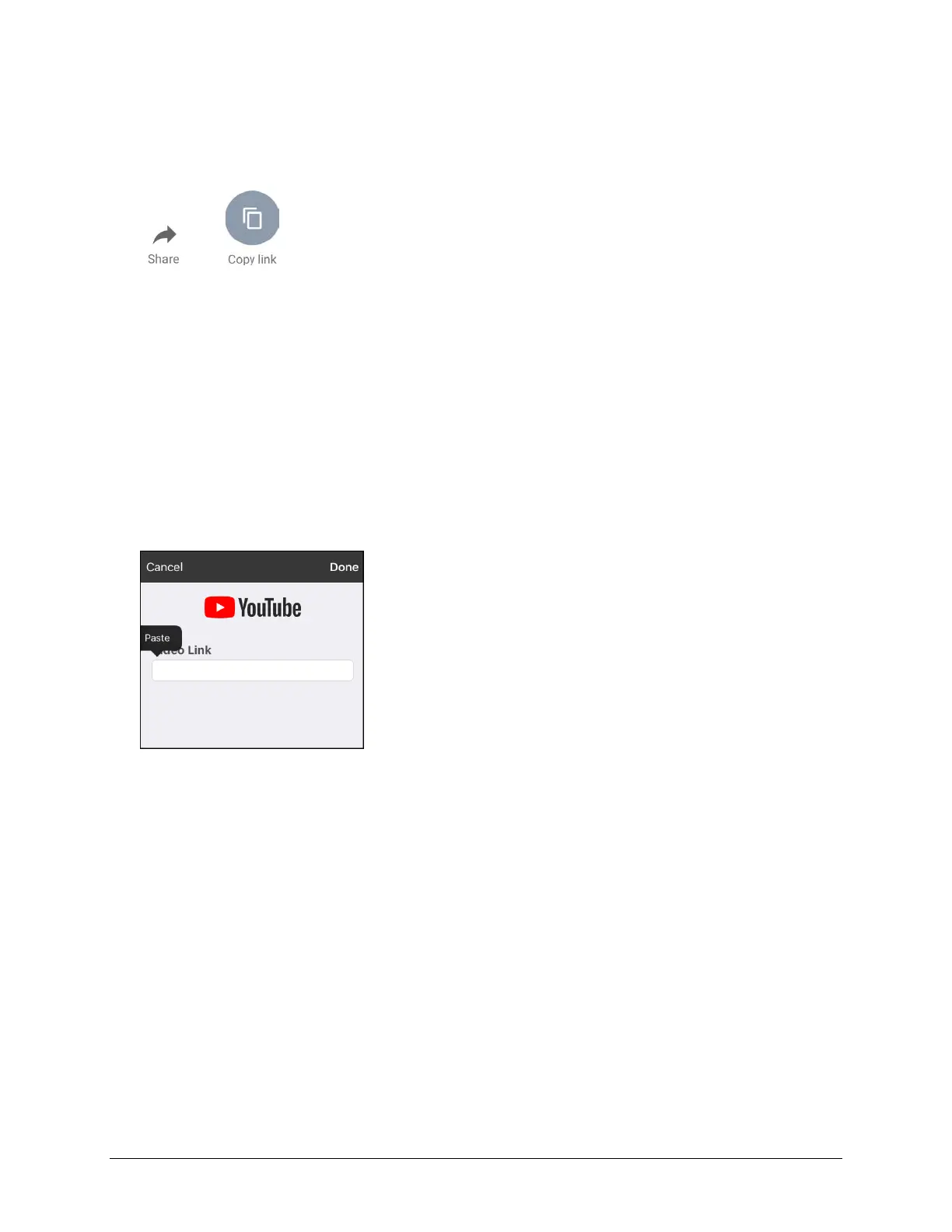
2. Tap the Share icon and then tap the Copy Link icon. A “Copied” message should appear.
Note: If you have an older iPad Pro
software version, tap the Share link
and choose Copy.
3. In TouchChat, display the page that has the button you want to use to play the YouTube video.
4. Choose Menu > Edit Page.
5. Tap the button you want to use to use and choose Edit This Button.
6. Give the button a label and scroll to the Button Actions section.
7. Select the existing action to open the Select Actions list.
8. Select the action Play Video. The Video Type window will display two options.
9. Select YouTube Video. The YouTube window will display a Video Link field.
10. Press and hold on the Video Link field. A small Paste prompt will appear.
11. Tap the Paste prompt. The link you copied in step 2 will be pasted into the field.
12. Select Done. Play Video will be displayed under Button Actions.
13. Select Save. The label you entered will be displayed on the button.
14. Select Done. When you tap the button, the YouTube video should play.
Note: If you do not have a Wi-Fi connection when you attempt to play the YouTube video, the
display area will be black and the following message will appear:
No Connection to YouTube
An internet connection is required to play a YouTube video.
If there is an internet connection but YouTube cannot be reached, the following message will
appear:
No Connection to YouTube
YouTube appears to be blocked by your internet service provider. Please contact your network administrator.



 To Next Page