Via Pro User’s Guide – TouchChat 43
Creating Your Voice with VoiceKeeper
Note: Speech settings are not available in a TouchChat Lite app.
1. Enable a Wi-Fi connection.
2. Choose Menu > Settings.
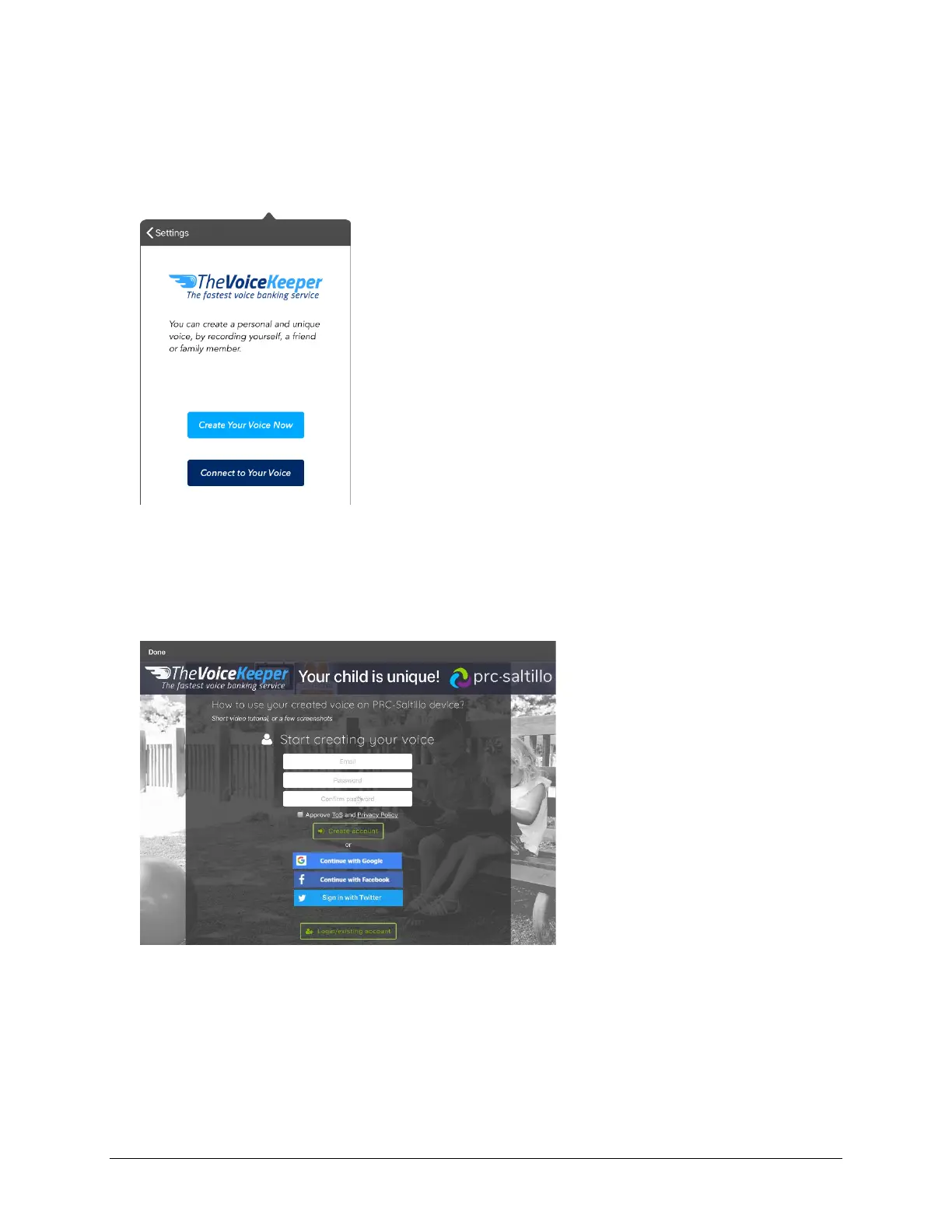
3. Scroll to the Speech section and tap The VoiceKeeper. The VoiceKeeper screen is displayed.
4. Select Create Your Voice Now.
Note: If you already created a voice, select Connect to Your Voice.
5. Read the information and view the video tutorial on the page that opens.
6. Scroll down the page and enter your email address and create and confirm a password.
7. Tap Create account.
Note: If you already have an account, tap Login/existing account.
8. Follow the instructions on the VoiceKeeper website to create your voice.
9. Try out your voice on the website. If you decide to use it with your PRC-Saltillo app, follow the
instructions on the website to make payment and deploy the voice to your app.
10. To use the voice with the app, choose Menu > Settings, scroll to the Speech section, tap Voice, and
select your new voice.



 To Next Page