Via Pro User’s Guide – TouchChat 142
Available Settings
Note: The default setting for each option in this section is indicated by an asterisk *.
Tracking Speed
The relative speed at which the cursor moves on the screen for each head movement. Choose from the
following tracking speeds: Very Slow, Slow*, Normal, Fast, and Very Fast. The slower settings require
greater head movement; the faster settings require less head movement.
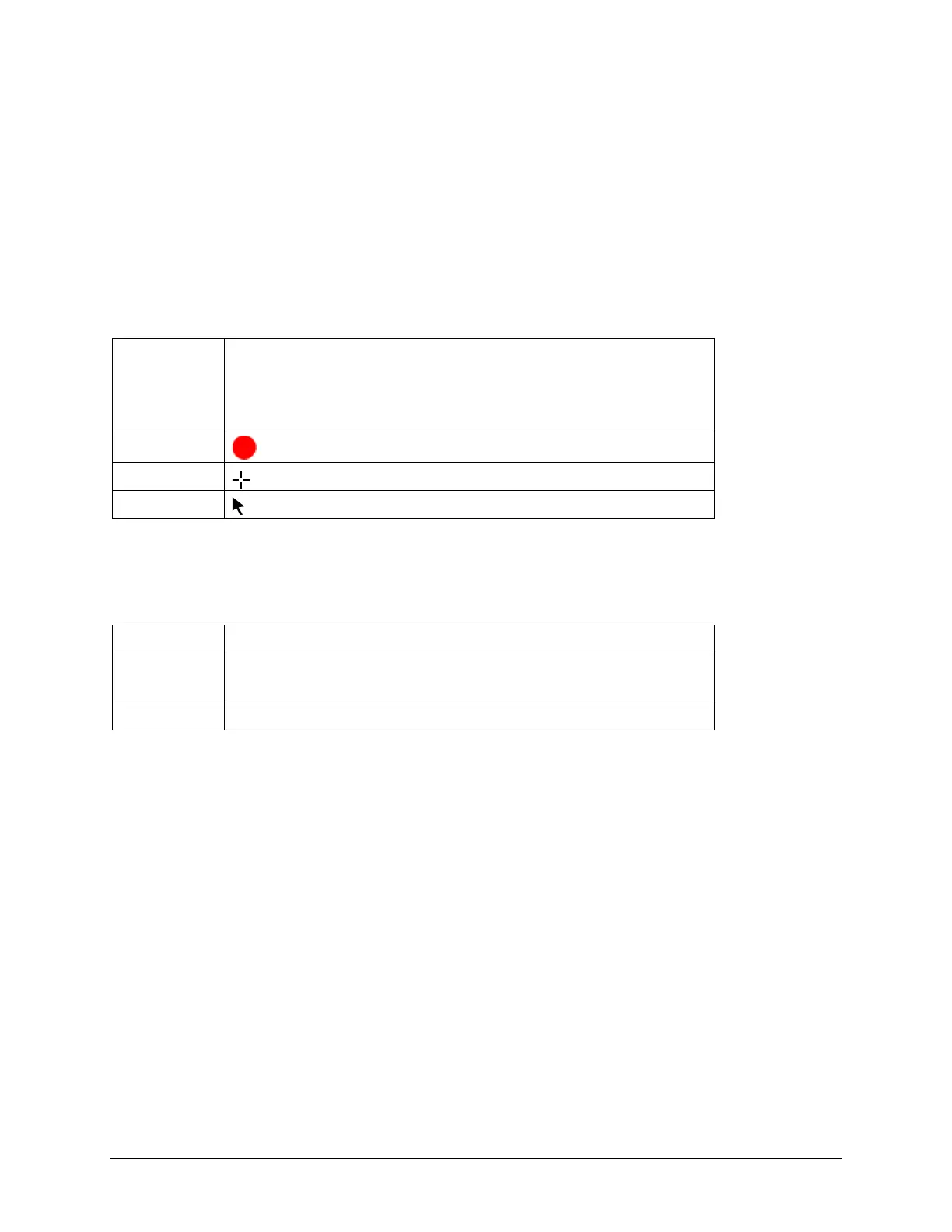
Cursor Shape
The type of cursor that is displayed to indicate head position as you move your head and make
selections. You can indicate head position by cursor, by highlight, or by both at the same time. Choose
from the following cursor shapes.
None No visible cursor.
Note: If you select None, it is best to turn the Highlight Buttons
setting on. If you set Cursor Shape to None and turn Highlight
Buttons off, you will have no visible way to track head movement.
Crosshair
Arrow
Off-Screen Indicator
Indicates when head movement is taking the cursor off the screen to the left, right, top, bottom, or any
corner. Choose from the following off-screen indicators.
None No off-screen indicator will appear
Dot A dot will appear at the edge of the screen. The dot gets larger the
farther off-screen you move.
Triangle* A triangle will appear at the edge of the screen



 To Next Page