Via Pro User’s Guide – TouchChat 66
Storing Text on a Button
1. Go to the page that includes the button on which you want to store text.
2. Tap Menu and then tap Edit Page.
3. Tap the button on which you want to store text.
4. Tap Edit This Button.
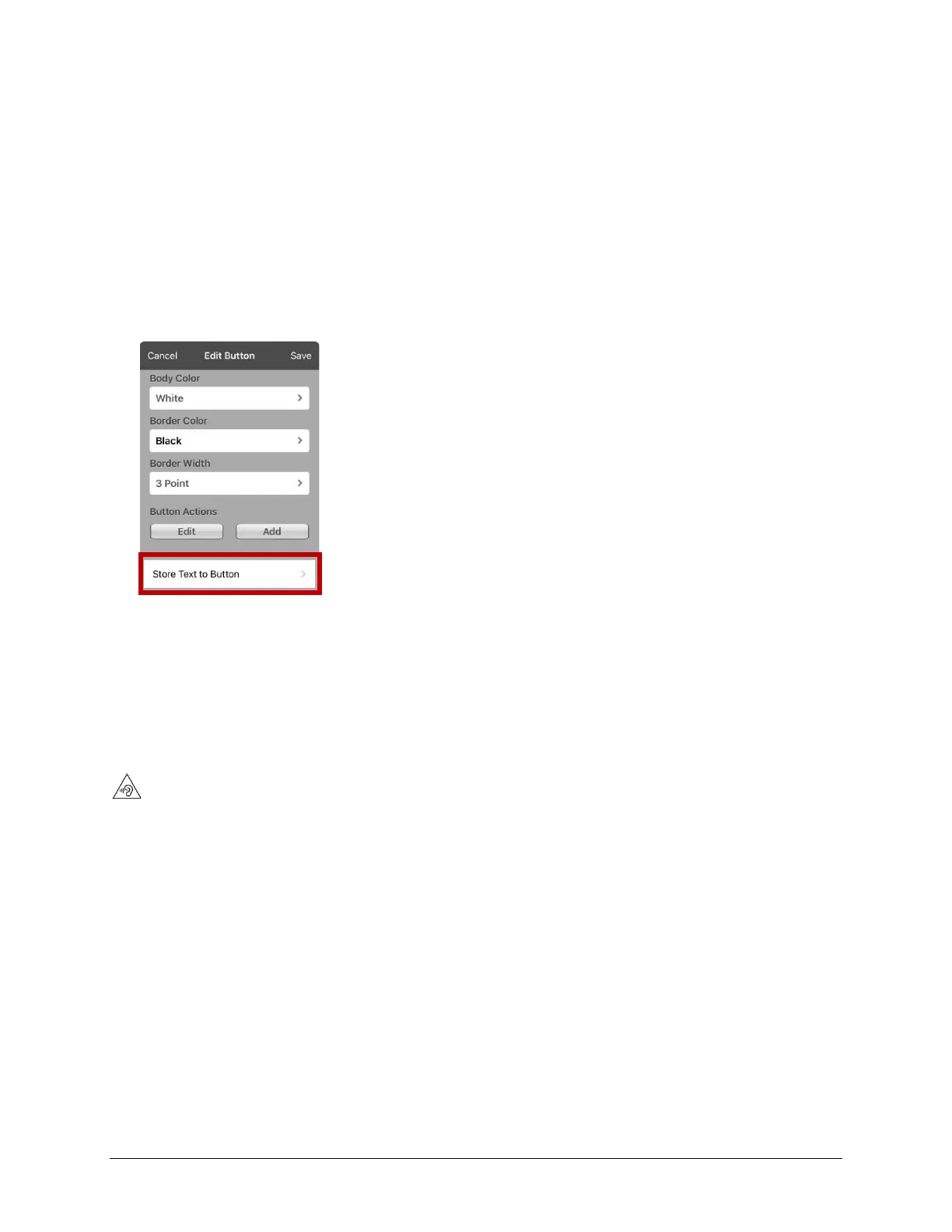
5. Name the button, and optionally create a message and modify the style.
6. Scroll to the Button Actions section and tap Add to add the action or tap the existing action to
replace it. A list of available actions will open.
7. From the list, tap Store Text to Button. The action will be displayed in the Button Actions section.
8. Tap Save and then tap Done.
Note: Once a sentence or phrase has been constructed, it can now be saved on a button by navigating to
the location of the Store Text button that you created. Tap the button, tap Continue, tap the button in
which you want to store the text, and then tap Okay. The text will appear in the button you selected,
and each time you tap that button it will speak that saved text.
Creating a Volume Control Button
Excessive volume or sound pressure level when using earphones or headphones can cause hearing loss over extended
periods of time.
You can add volume controls to buttons within vocabulary pages.
1. In TouchChat, tap Menu > Edit Page.
2. Go to the page on which you want to create the button.
3. Tap the button you want to use. A list of button options appears.
4. Choose Edit This Button.
5. Add a button label and icon.
6. Scroll to the Button Actions section and tap the existing action to open the list of actions.
7. Choose either Volume Up or Volume Down. The volume action will replace the original action.
8. Tap Save and then tap Done.



 To Next Page