Via Pro User’s Guide – TouchChat 78
Adding a Gesture to a Page
1. Tap Menu and tap Edit Page.
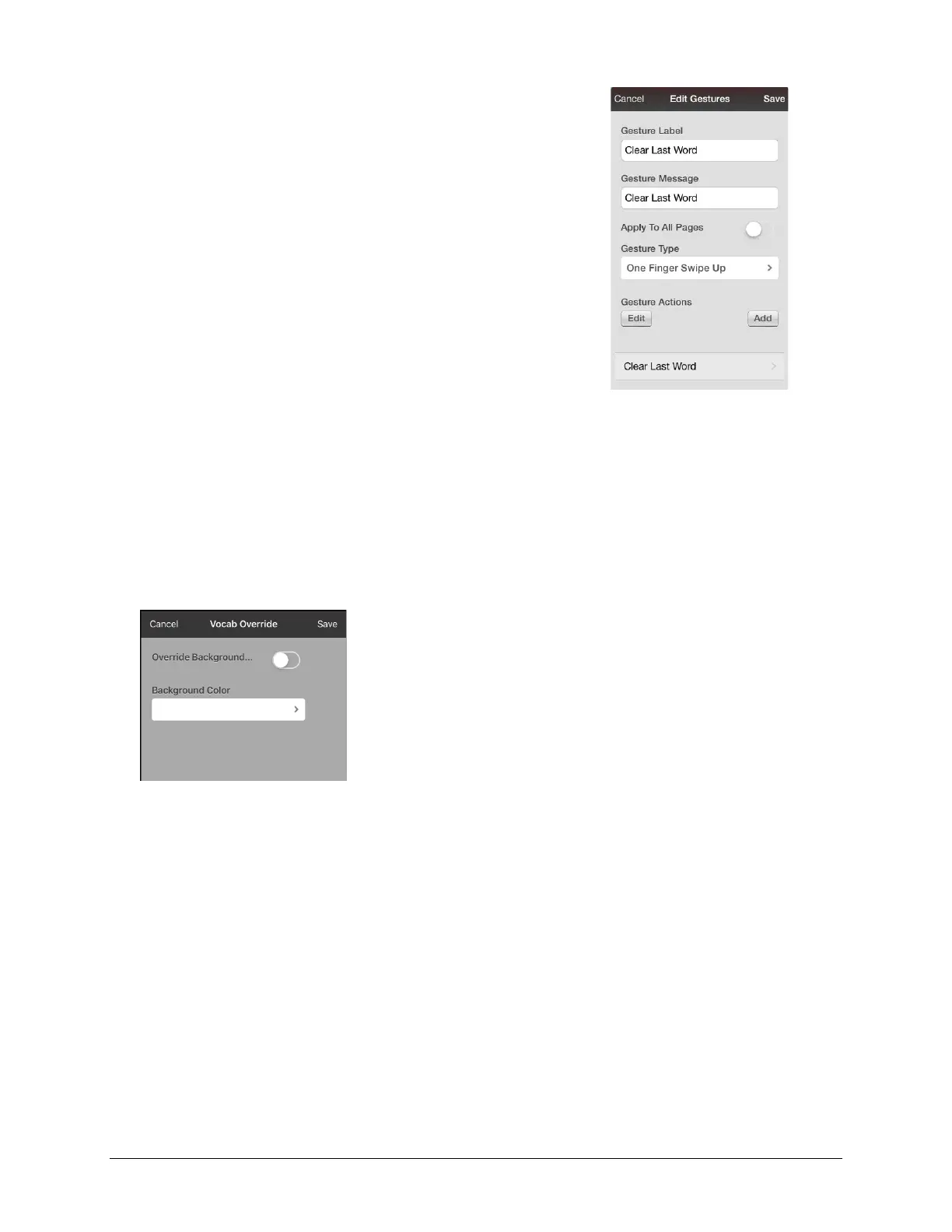
2. Tap Menu and tap Edit Gestures.
3. Tap +.
4. Add a label and message.
5. To add gestures to an entire vocabulary file at one time, tap
Apply to All Pages.
6. Tap the Gesture Type field and tap the type you want. A check
mark will appear following the type you select.
7. To add an action, tap Add and select the action you want.
8. Tap Save and tap Done.
Overriding the Background Color of a Page
Use this procedure to change the background color of all pages in a vocabulary. This is especially useful
if you increase the space around buttons, revealing more of the background. For information on
adjusting the button margin, see “Adding Extra Space around Buttons” on page 73.
1. Tap Menu and tap Edit Page.
2. Tap Menu and tap Page Style Override. The Vocab Override window displays color override options.
3. Select the Background Color box to open a list of colors.
4. Select a color. The color will appear in the Background Color box.
5. To override the default background color, turn Override Background on.
6. Tap Save and tap Done.
Hint: You can switch between the default page background colors and the override color as needed
by toggling Override Background on and off.



 To Next Page