Via Pro User’s Guide – TouchChat 74
Working with Pages
TouchChat allows you to rename, duplicate, load, and create pages, choose a different keyboard, copy a
page from a different vocabulary, add gestures to pages, change the background color of a page, and
use special pages.
Renaming a Page
1. Tap Menu and tap Edit Page.
2. Tap Menu and tap Edit Page Layout.
3. In the area under Page Name, tap, then backspace to erase the name, and then type the new name.
4. Tap Save.
Duplicating a Page
1. Tap Menu and tap Edit Page.
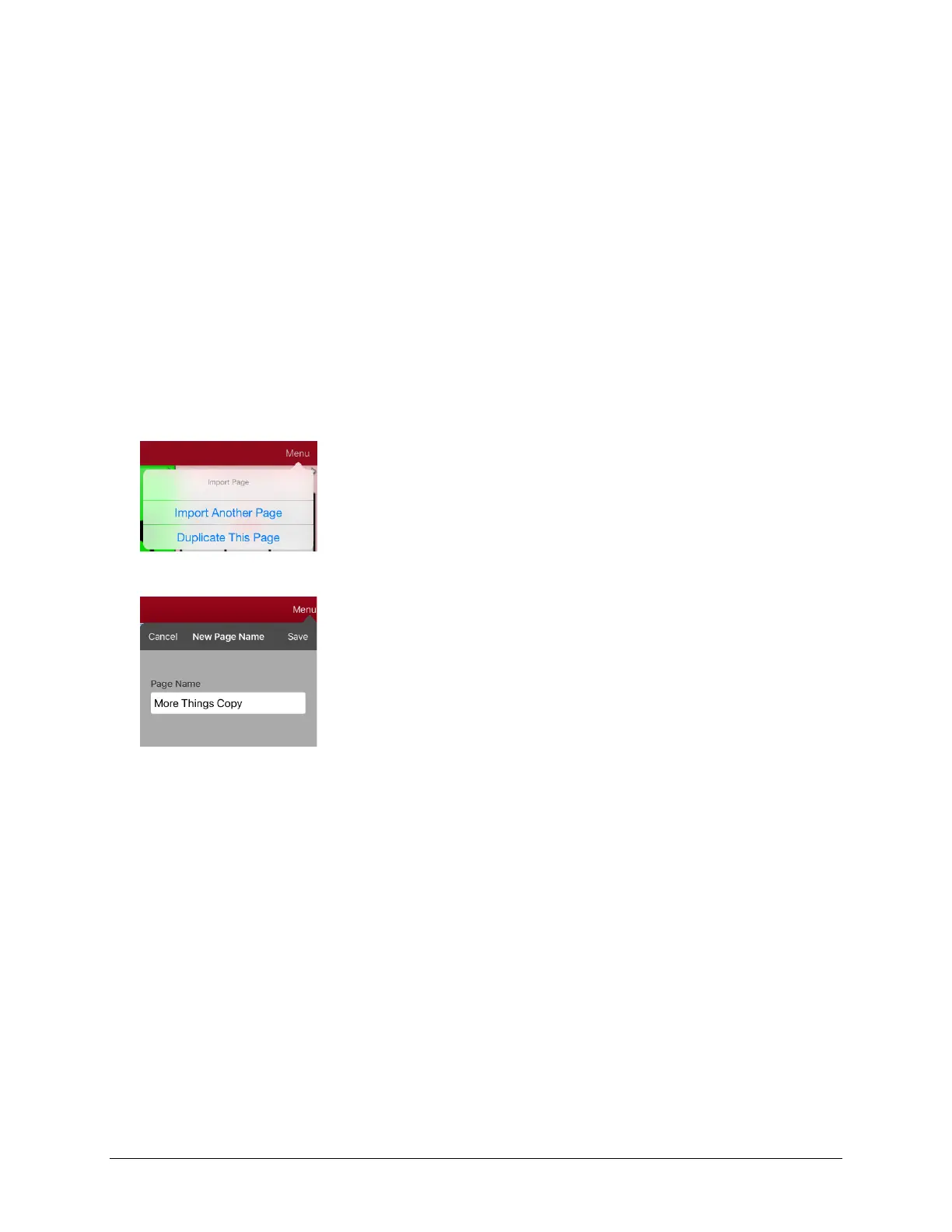
2. Tap Menu and tap Import/Copy Pages.
3. Tap Duplicate This Page. The New Page Name window will display the current name plus “Copy”.
4. Tap the name and use the keyboard to enter an appropriate name for the duplicated page.
5. Tap Save. The duplicated page will be displayed with the new name.
6. Edit the page as needed.
7. When you finish, tap Done to exit Edit Mode.
Loading Another Page
1. Tap Menu and tap Edit Page.
2. Tap Menu and tap Load Another Page. A list of available pages opens.
3. Scroll through the list and select the page you want to load.
4. Tap Done.
Note: This page is now available to copy buttons or make additions or changes to your vocabulary.



 To Next Page