Via Pro User’s Guide – TouchChat 98
Working with Profiles
Profiles provide a snapshot of the current settings of the system to be saved for easy access at a later
time. You can save multiple profiles to be used when needed. Creating multiple profiles allows you to
switch between groups of settings.
Creating and Saving a Profile
1. Configure the settings you want associated with the profile. This includes the vocabulary file,
settings, language, etc.
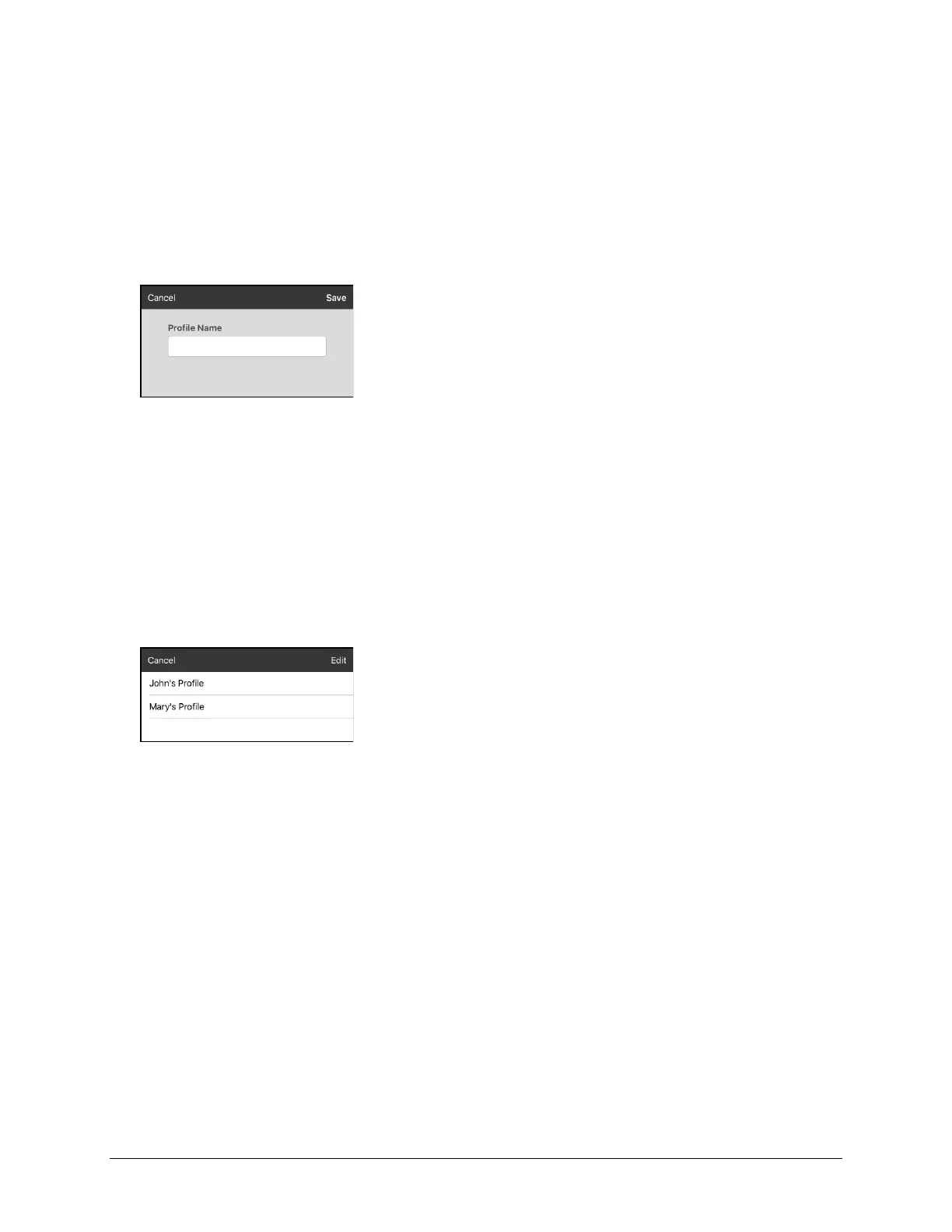
2. Go to Menu > Settings > Save Profile. The Profile Name window will open.
3. Tap in the Profile Name field to open a keyboard.
4. Enter a name for the profile (for example, “Mary’s Profile”).
5. Choose Save. A profile will be created for Mary with all the current settings.
Note: To create a second profile (for example, “John’s Profile”), repeat these steps, making new
settings changes to associate with this profile.
Loading a Profile by Navigating Menus
To load a profile that you previously created:
1. Go to Menu > Settings > Load Profile. Profiles that you have created will be listed.
2. Tap the profile name you want. The associated settings will be loaded.
Loading a Profile by Tapping a Button
If you create multiple profiles and load them using a button action, you can switch between profiles
without navigating the menus.
1. Go to the page that includes the button you want to use.
2. Choose Menu > Edit Page.
3. Tap the button you want to add the action to.
4. Tap Edit This Button.
5. Add a label, message, and image as needed
6. Scroll to the Button Actions section.
7. Tap Add.
8. Scroll through the list of actions and tap Select Profile.
9. Tap Save and Done.



 To Next Page