Via Pro User’s Guide – TouchChat 38
Choosing a Voice
Because there are many voice options, voices are downloadable. If you only download and install the
voices you need, you can save a lot of storage space on your device.
Note: Some voices are only available at a cost. These voices must be purchased from the Upgrade Store
before they are available in the Voice list. The Upgrade Store is not available from a TouchChat Lite app.
You can adjust the rate of speech for the voice you select. For some voices, you can also adjust the pitch and
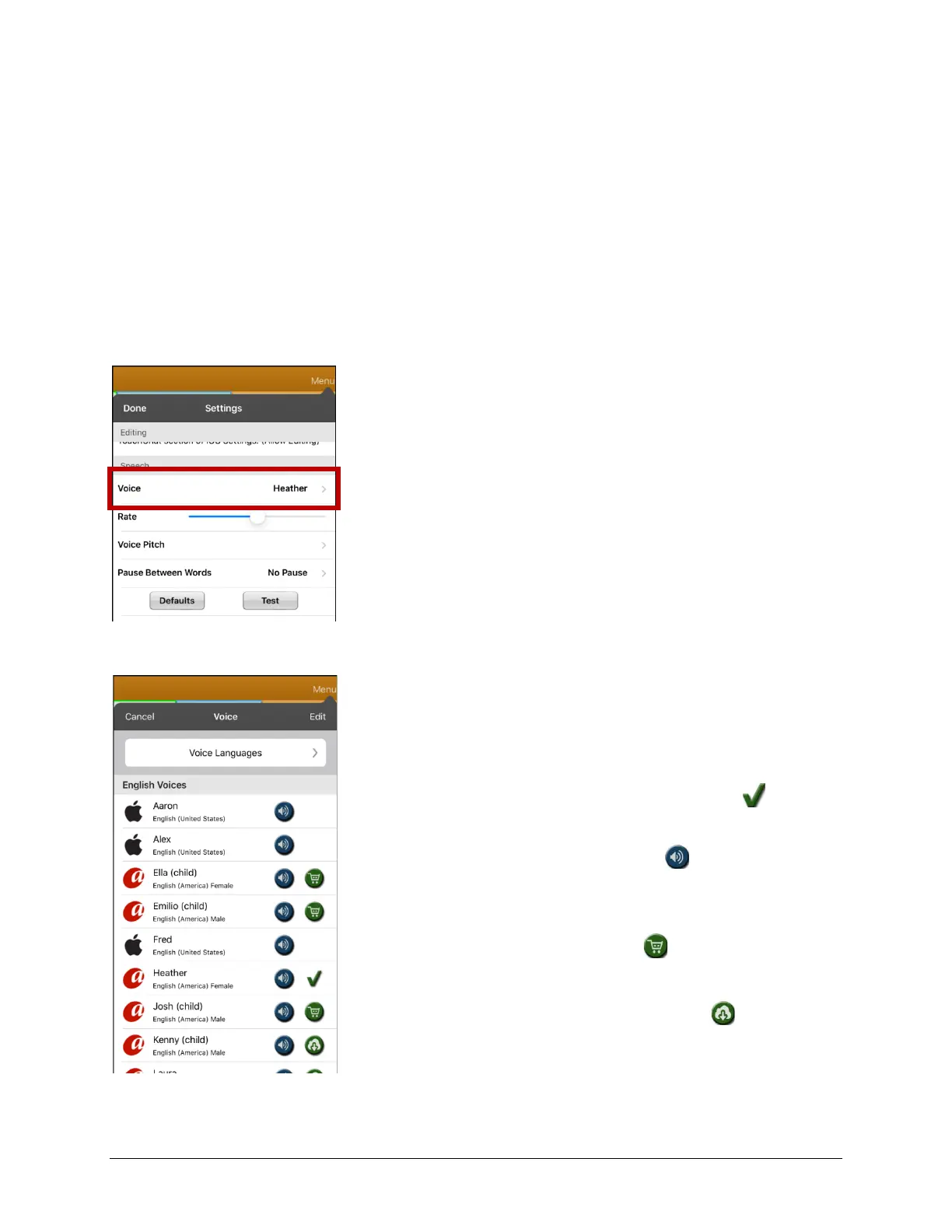
add a delay between individual words. To select a voice and adjust speech settings, choose Menu > Settings.
Changing the Voice
Note: Speech settings are not available in a TouchChat Lite app.
To change the voice you use to communicate, scroll down to the Speech section. The Voice setting
displays the voice currently selected.
To download and install a different voice, tap Voice to open a list of available voices. Voices are listed by
language. To add voices in additional languages, see “Adding Voices in Additional Languages” on page 39.
• The voice currently selected displays a checkmark .
• To hear how a voice sounds, select the icon. Listen
to several voices.
• To purchase a new voice, select the icon.
• When you find the voice you want, select the icon
to download and install it.



 To Next Page