Via Pro User’s Guide – TouchChat 34
Creating a New Blank Vocabulary File
1. Tap Vocab and tap Choose New Vocab.
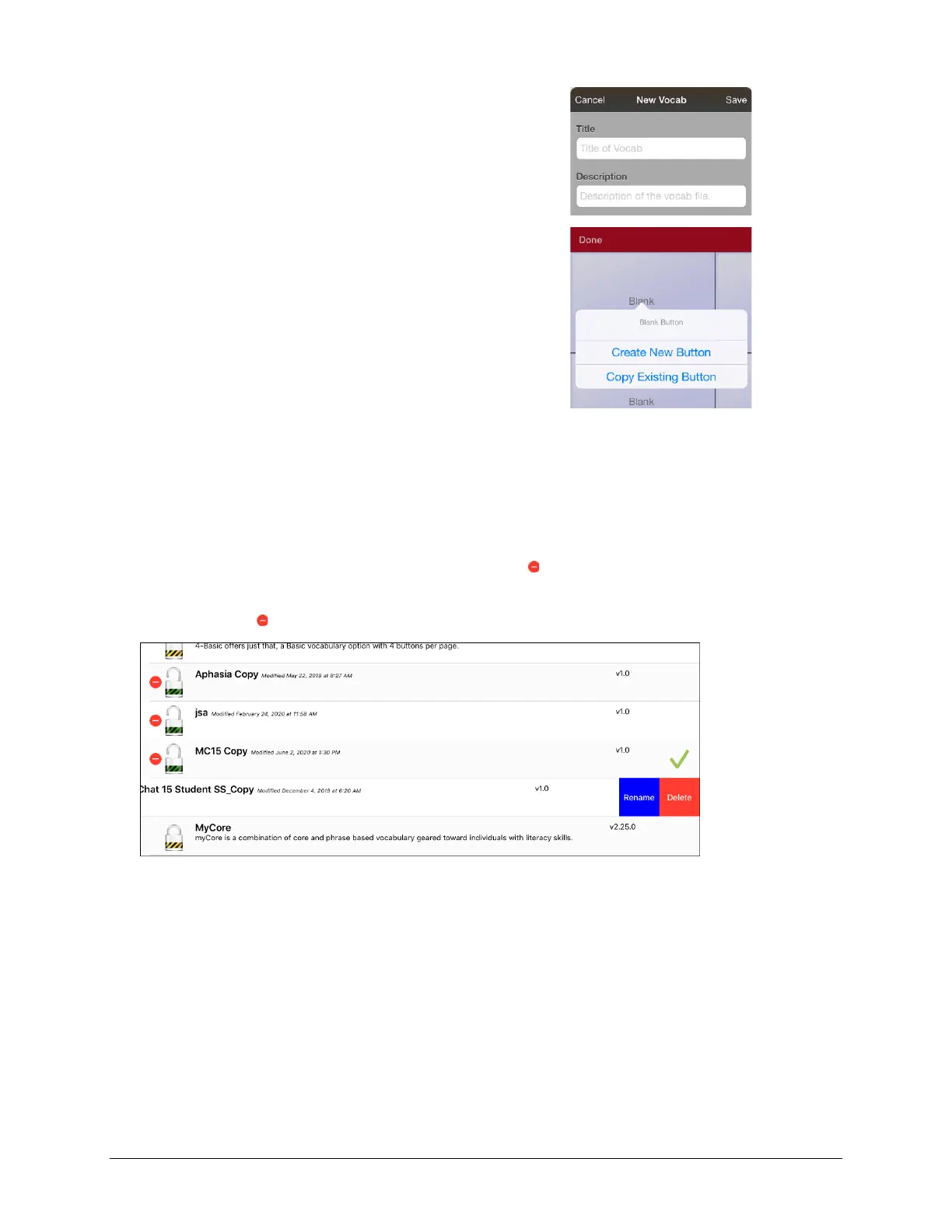
2. Tap Menu and tap Create New Vocab.
3. Give the new vocabulary file a title and description.
4. Tap Save.
5. Find the new file you created in the list of available
vocabularies and tap the file to open it. A page of blank
locations opens.
6. Tap Menu and tap Edit Page.
7. For each blank location, select Create New Button or
Copy Existing Button.
8. When you finish, tap Done. You have created the first
page of your new vocabulary.
Renaming a Vocabulary File
You can only rename custom vocabulary files.
1. Tap Vocab and tap Choose New Vocab. A page will list the available vocabulary files.
2. Tap Edit in the upper left corner of the page. A red icon will be displayed for each custom
vocabulary file.
3. Tap the red icon next to the file you want to rename. Rename and Delete buttons will appear.
4. Select Rename. The Rename window opens.
5. Tap the name field to open a keyboard.
6. Enter the new name, tap Save, and tap Done.



 To Next Page